Dashboard Overview
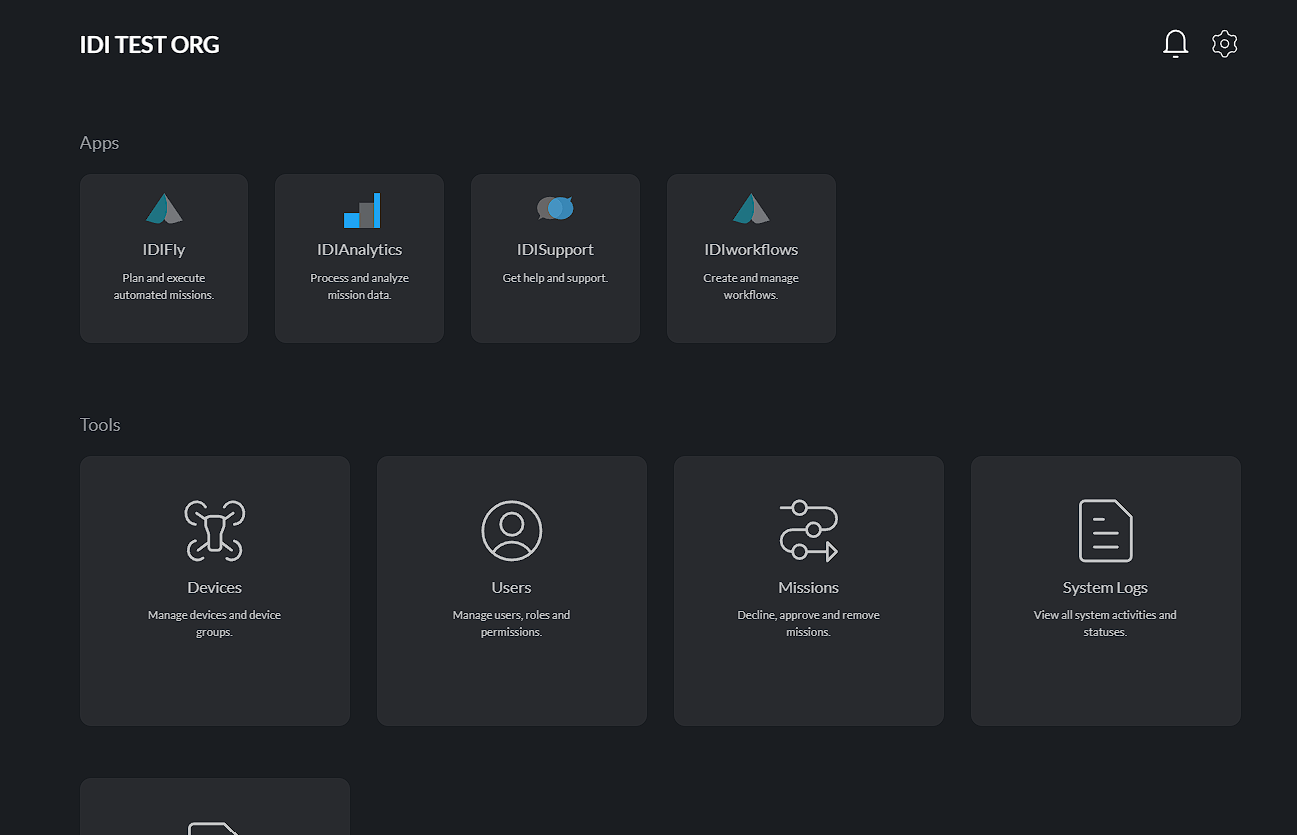
The Dashboard serves as the central entry point to the platform, providing quick access to all available applications and administrative tools. It is designed to give users a clear overview of the system while allowing them to navigate efficiently to the areas they have permission to access.
The dashboard is divided into two primary sections:
Applications
The Applications section contains the core operational modules of the platform. Each application represents a major product or workflow and can be launched directly from the dashboard.
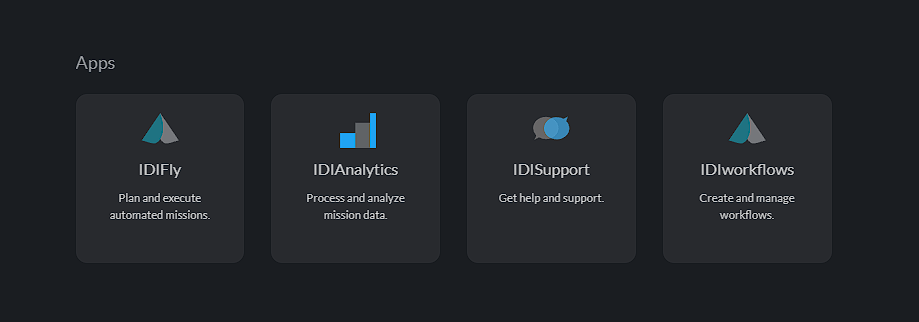
The available applications include:
- 📱 My App – Plan and execute automated drone missions.
- IDIAnalytics – Process and analyze mission data.
- IDISupport – Access help, support resources, and assistance.
- IDIWorkflows – Create and manage operational workflows.
My App
Selecting the My App card opens a screen showing your saved apps, with a + (plus) icon to add a new app.
Pressing the + icon lets you choose between:
- Blank page – Opens a new, empty canvas.
- Templates – Select a template to load onto the canvas.
Selecting a template or starting new opens the canvas:
- New opens a blank canvas.
- Templates loads the selected template — or, if you previously saved an edited version, that version is loaded instead.
Administrative Tools
The Tools section provides administrative and system management capabilities. These tools are primarily intended for administrators and authorized users.
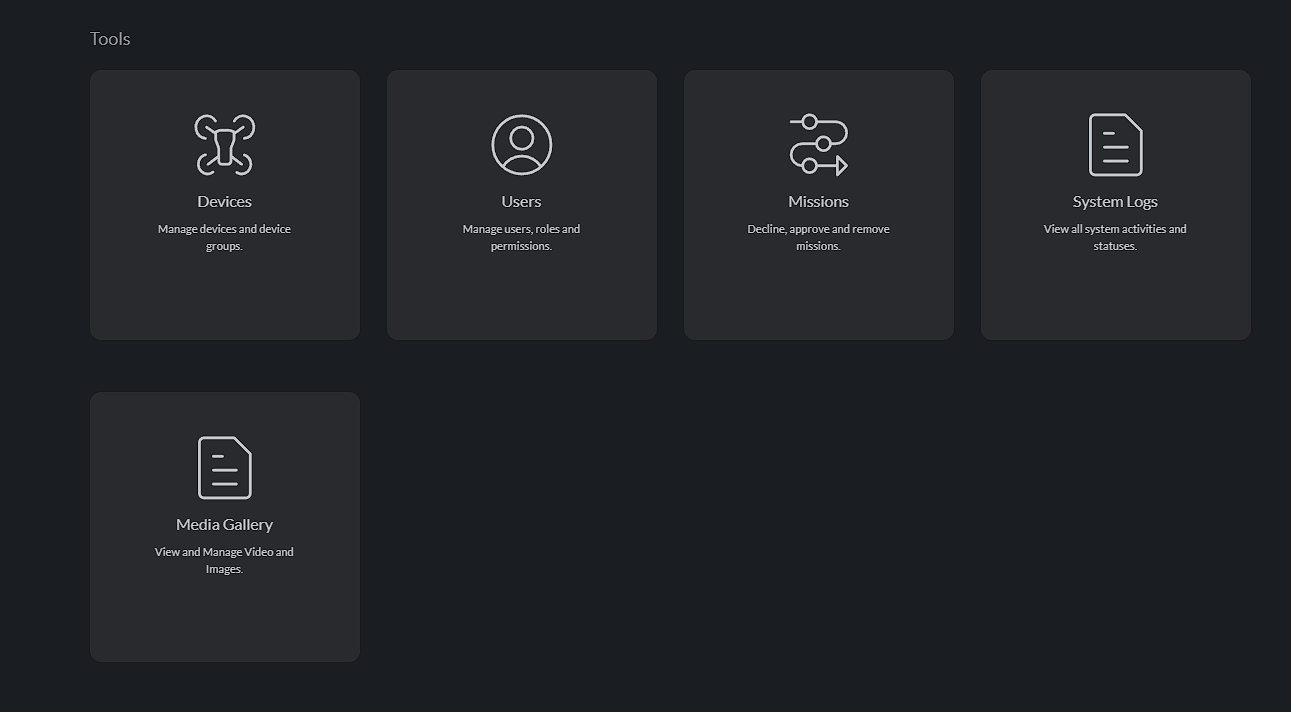
Available tools include:
- Devices – Manage registered devices and device groups.
- Users – Create and manage users, roles, and permissions.
- Missions – Review, approve, reject, or remove missions.
- System Logs – View system events, activities, and status information.
- Media Gallery – Browse and manage uploaded images and videos.
- Admin Dashboard – Access administrative settings and system management functions.
Navigation
The dashboard uses a card-based layout, allowing users to quickly identify and access the functionality they need. Selecting a card opens the corresponding application or management tool.
The notification and settings icons located in the upper-right corner provide access to system notifications and user or application settings.
Dashboard Header
The dashboard header provides quick access to user-specific actions and system notifications.

Notifications
The Notification icon (bell) displays system notifications, alerts, and important updates relevant to the current user. Selecting the icon opens the notification panel, where users can view recent events and stay informed about system activity.
Settings / Profile
The Settings icon (gear) provides access to the user's profile and personal settings. From this section, users can view and update their profile information, manage account preferences, and configure available user-specific settings.
Role-Based Access
The dashboard displays applications and tools according to the authenticated user's assigned role and permissions. Users only see and access the modules that they are authorized to use, ensuring a secure and streamlined experience.
This dashboard acts as the platform's central hub, enabling users to launch applications, manage operational resources, monitor system activity, and administer the environment from a single location.