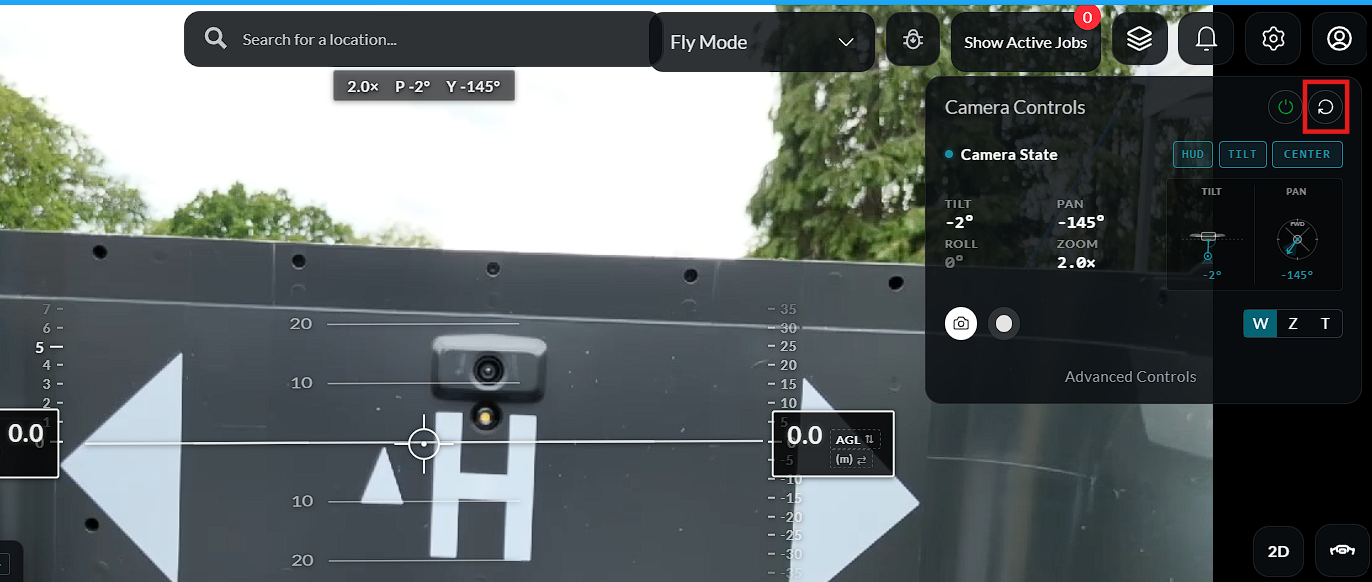
Camera Controls
Camera Controls
The camera interface provides live video feeds from the available cameras.
Available camera views include:
- Dock Camera
- UAV Camera
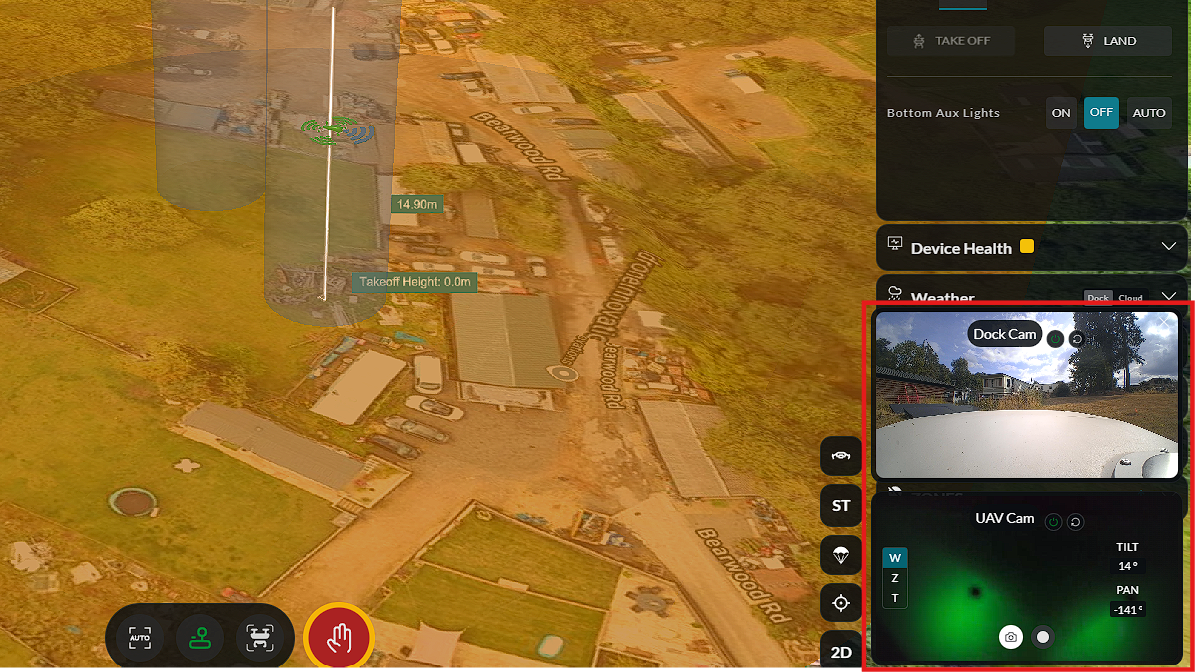
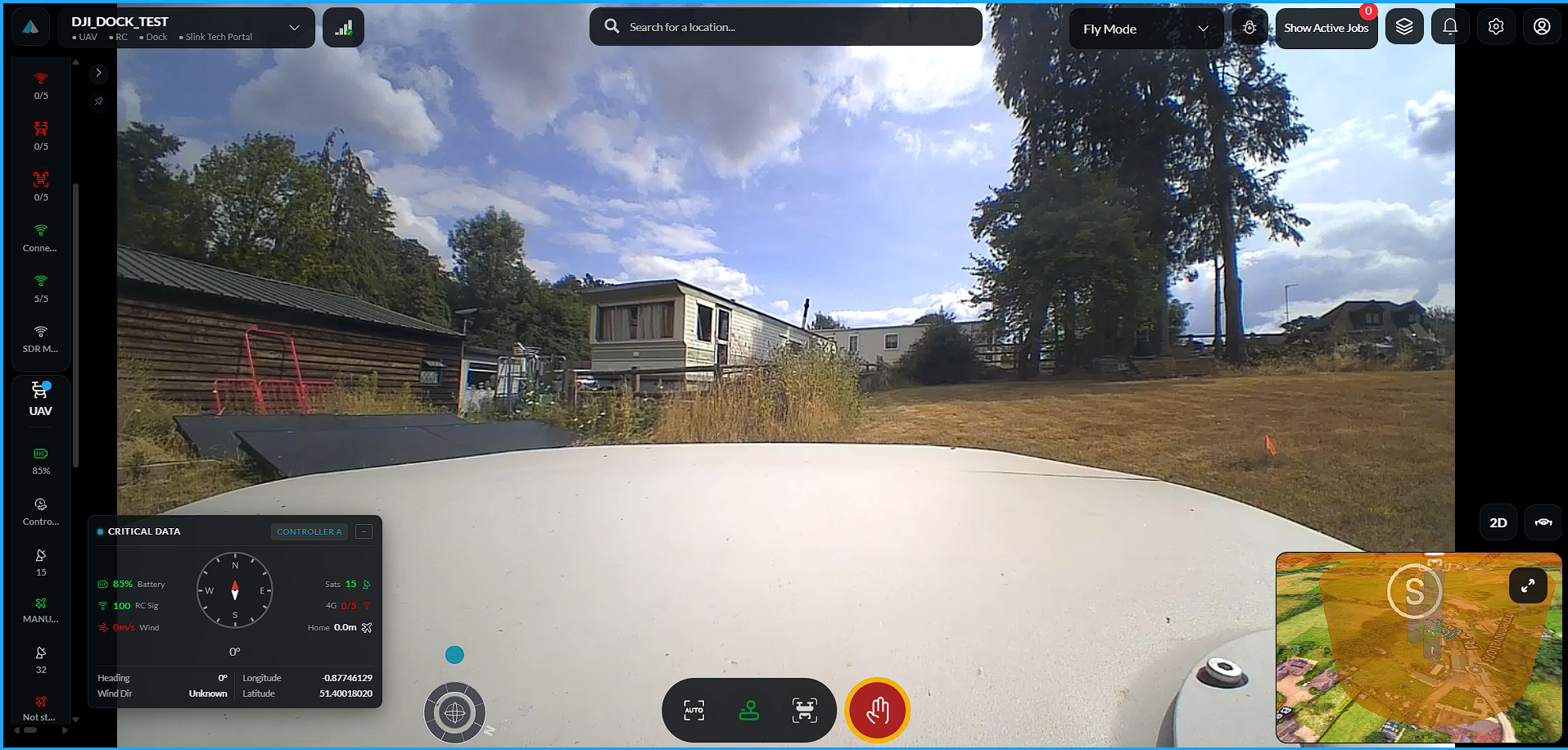
Double-click any camera view to display it in full-screen mode.
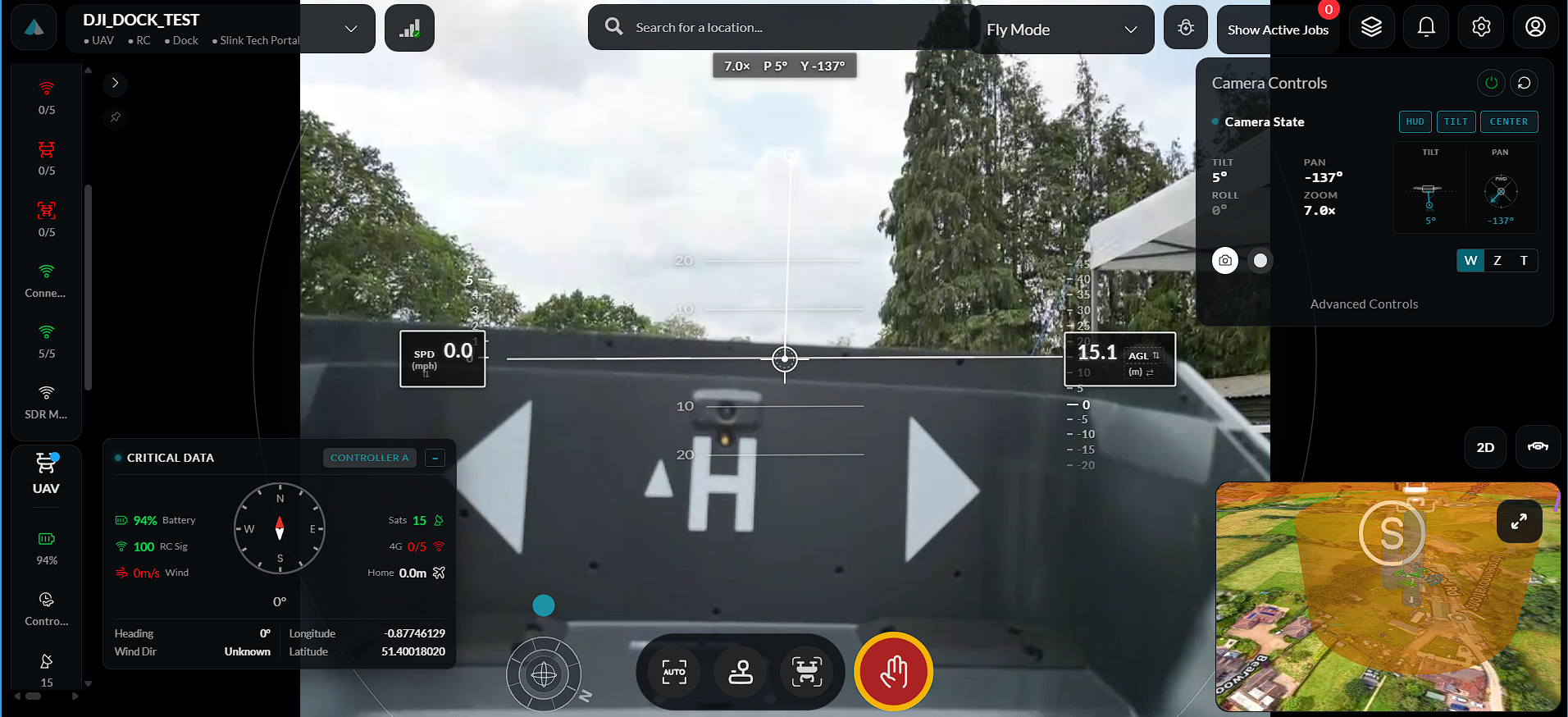
When viewing the UAV camera in full screen, click and drag the camera control line to rotate the gimbal.
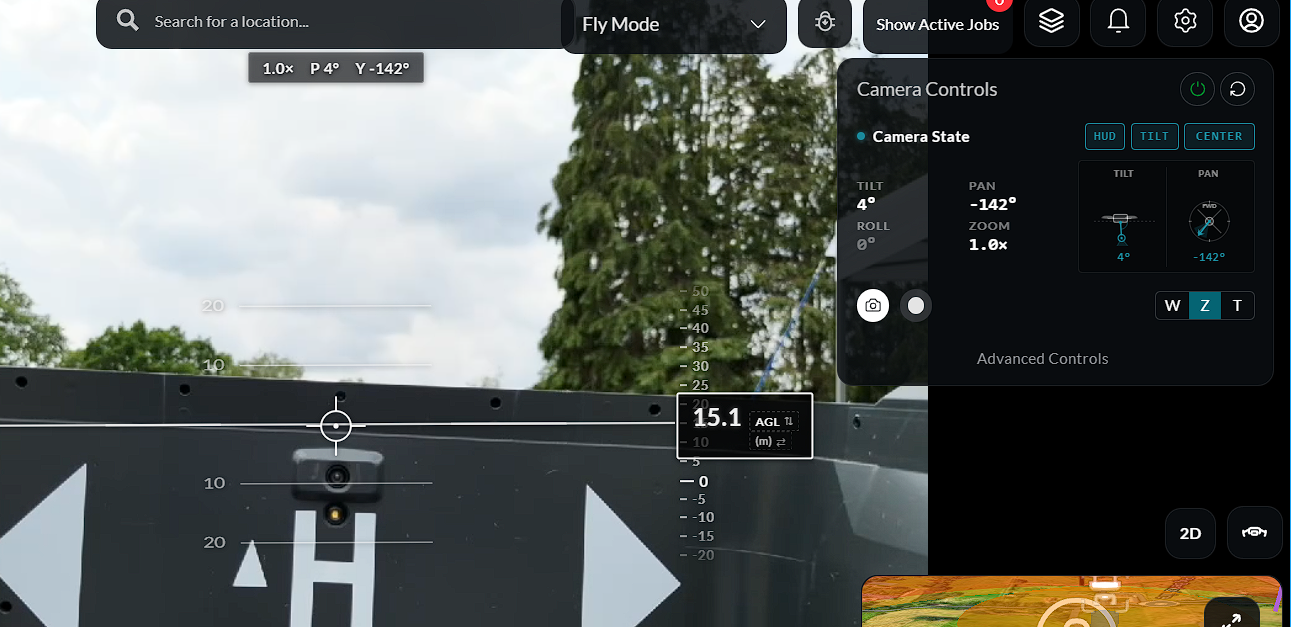
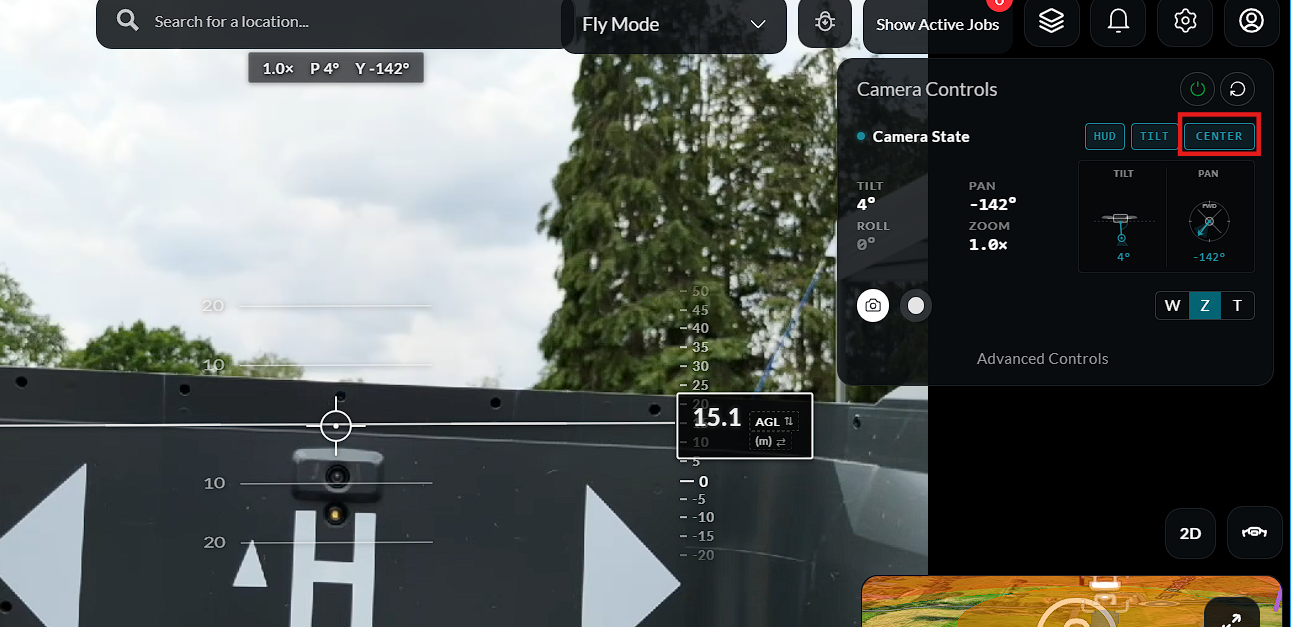
Use the Recenter Camera control to return the gimbal to its default position.
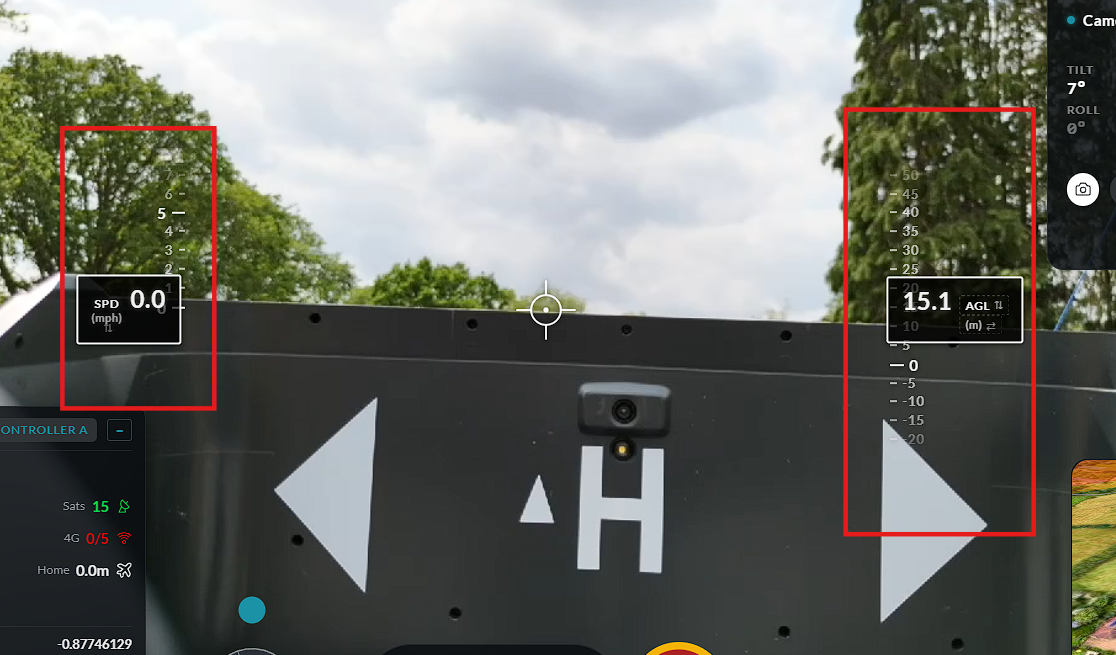
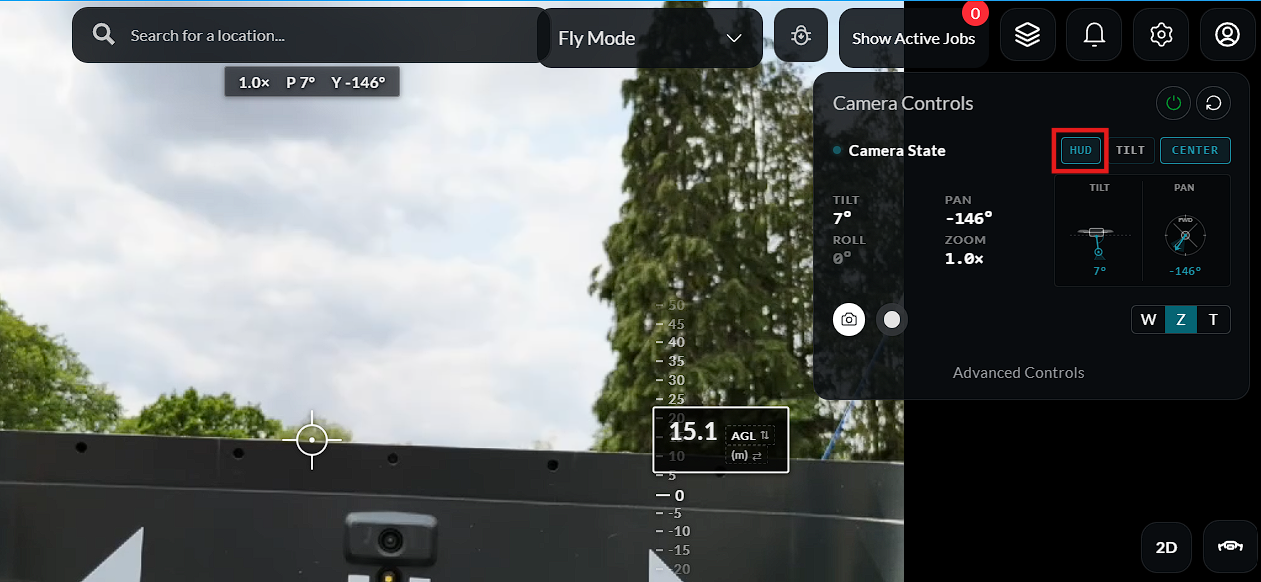
Users can also toggle the camera guide lines and the camera HUD (Heads-Up Display) on or off as required.
Camera Modes
The platform supports multiple camera types.
Available camera modes include:
- Wide Camera
- Zoom Camera
- Thermal Camera
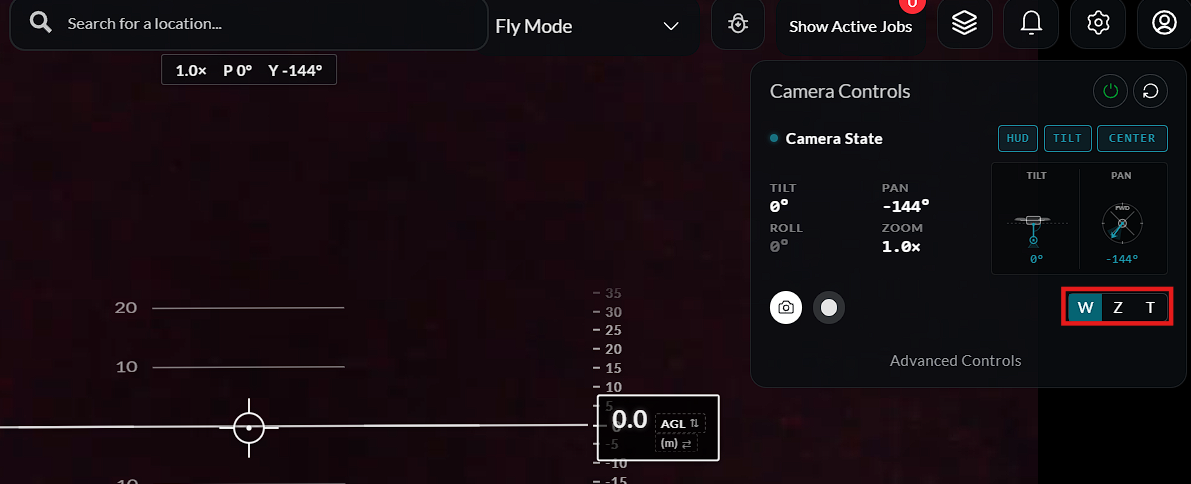
Selecting Wide Camera locks the display to the wide-angle camera.
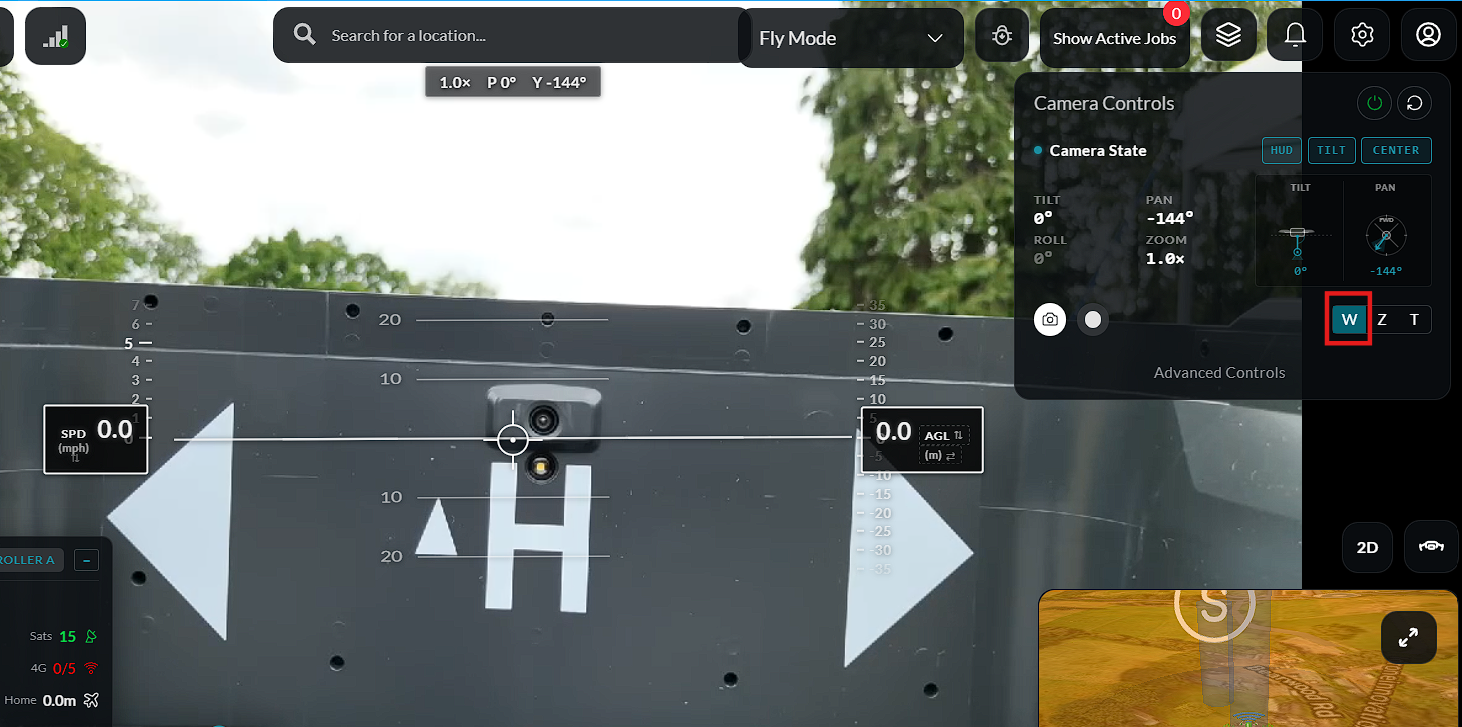
To use the zoom camera:
- Click the Zoom (Z) button.
- Use the mouse scroll wheel to zoom in or out.
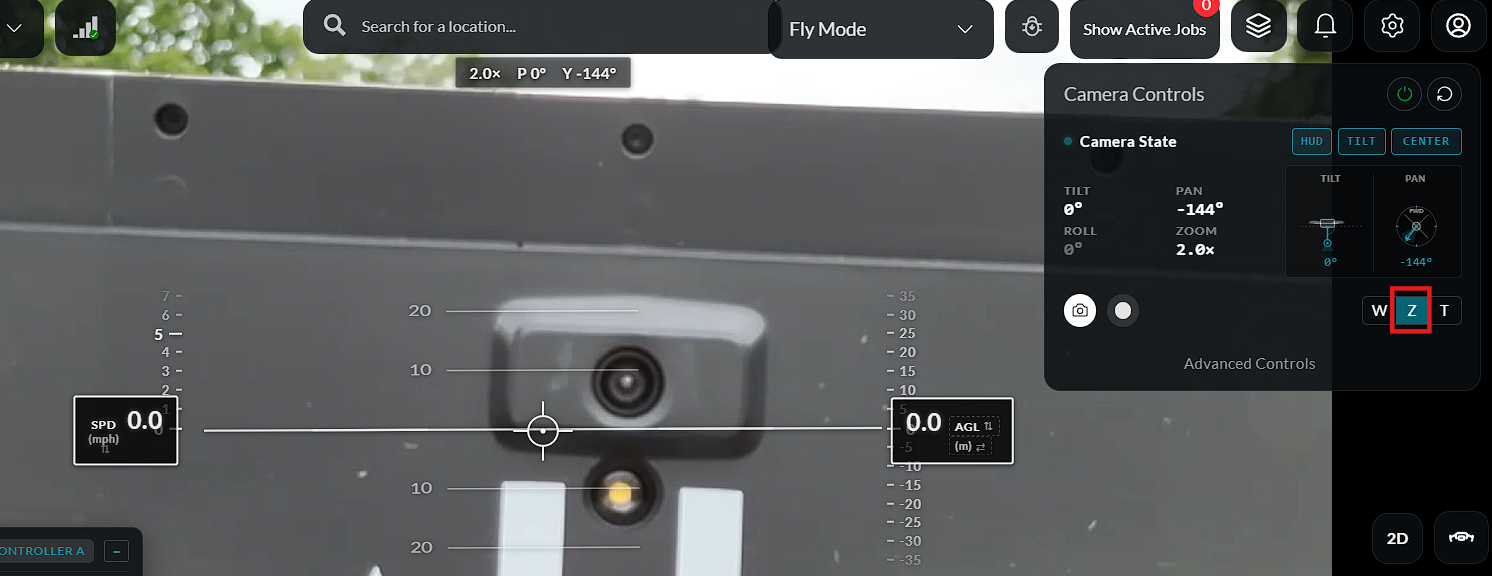
Select the Thermal Camera button to switch to the thermal imaging view.
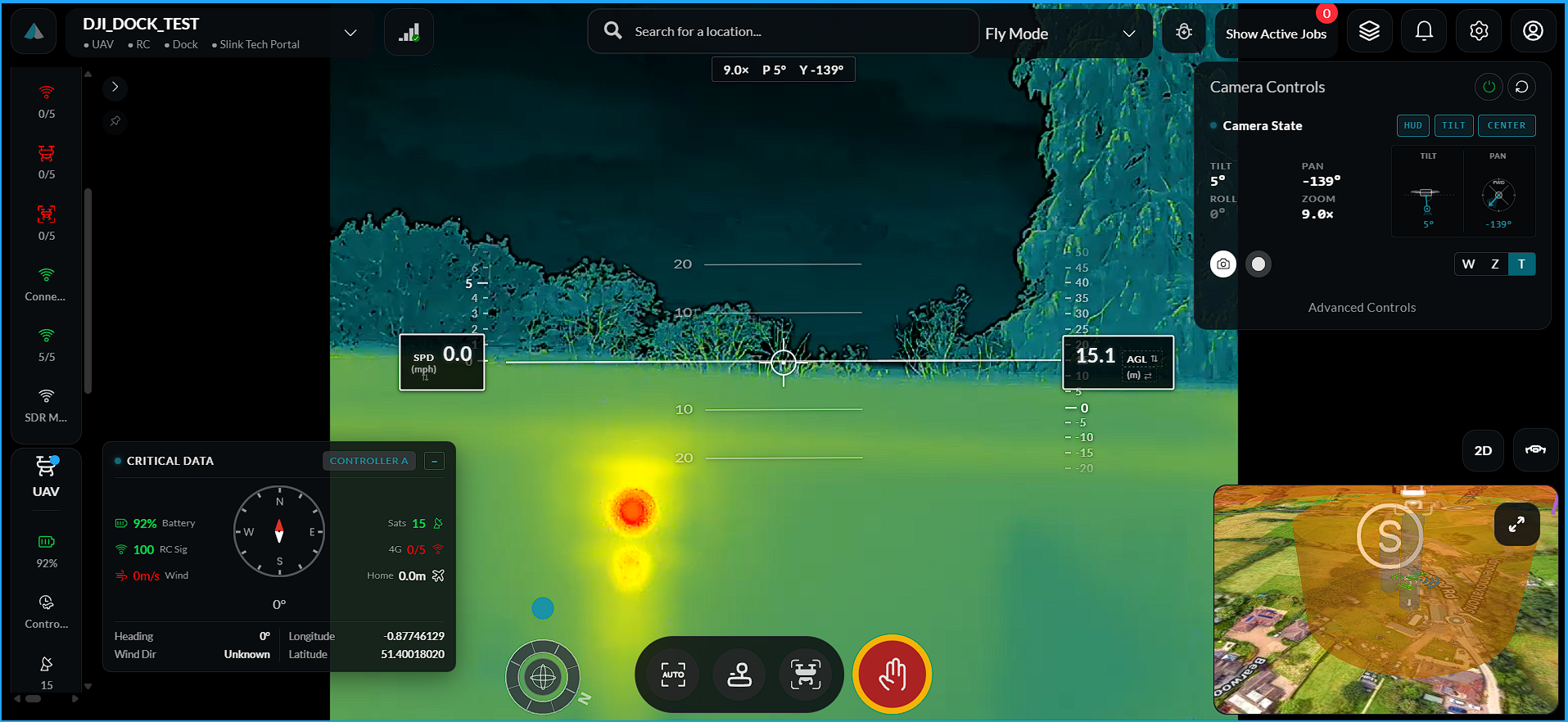
Image and Video Capture
The camera can operate in either Photo or Video mode.
To change the capture mode:
-
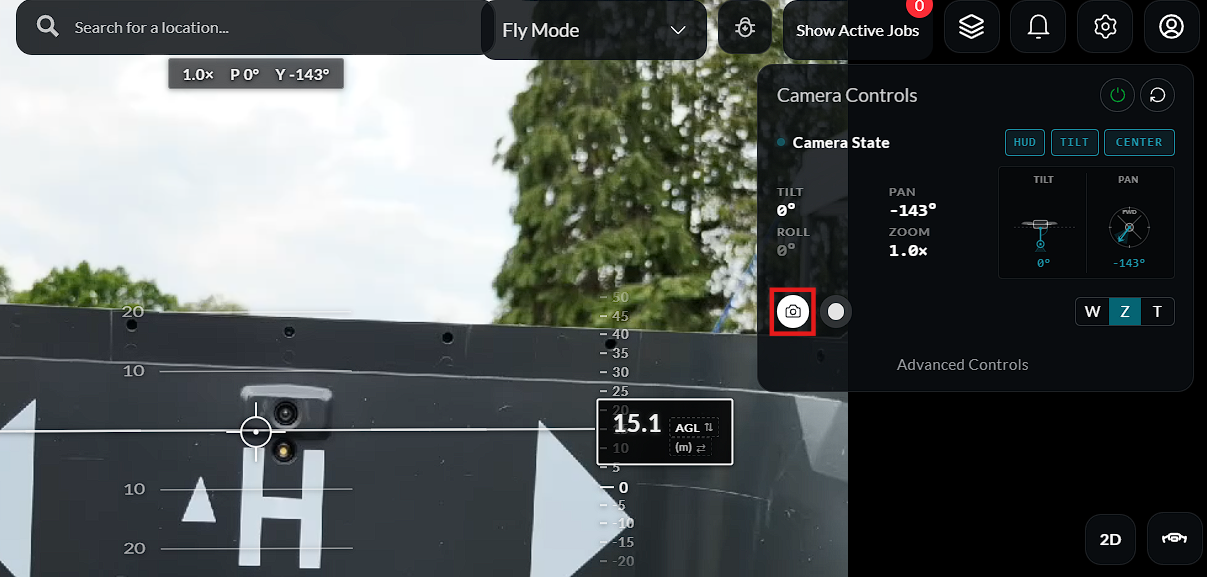
Click the Camera Mode toggle.
-
Select either Image Capture or Video Recording.
-
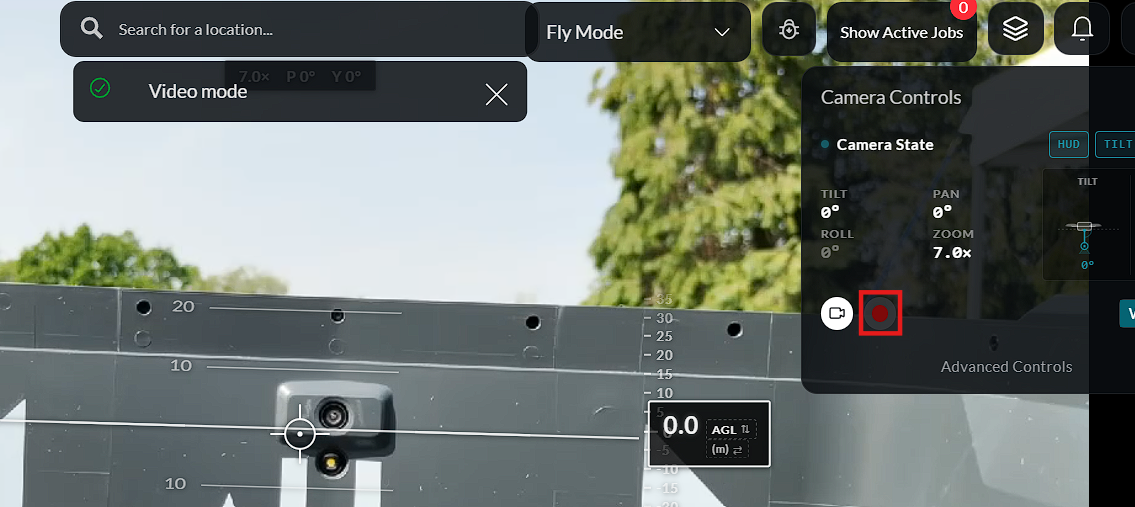
A confirmation message is displayed after the mode has been changed successfully.
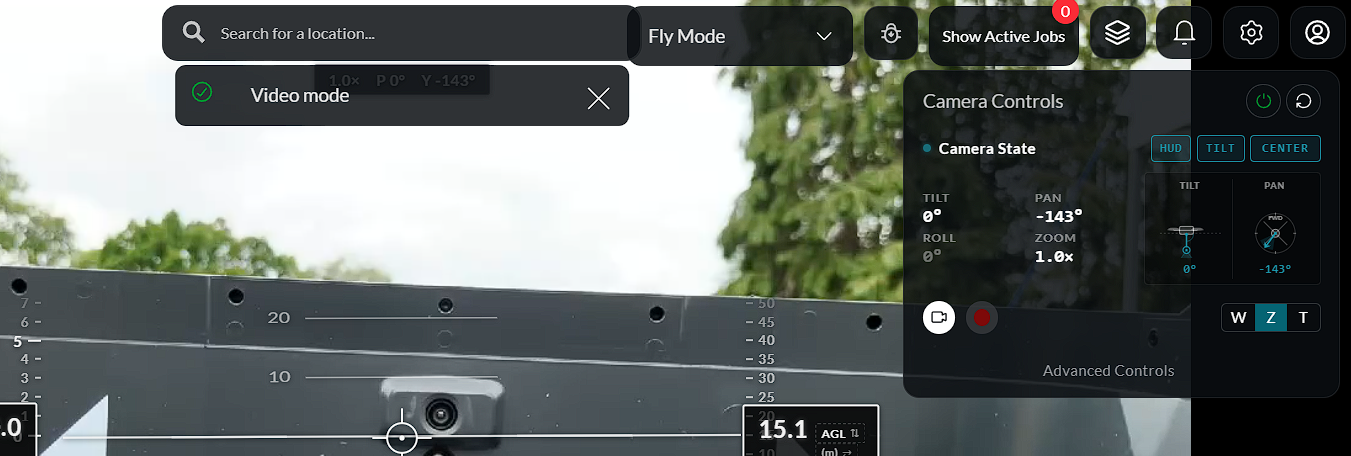
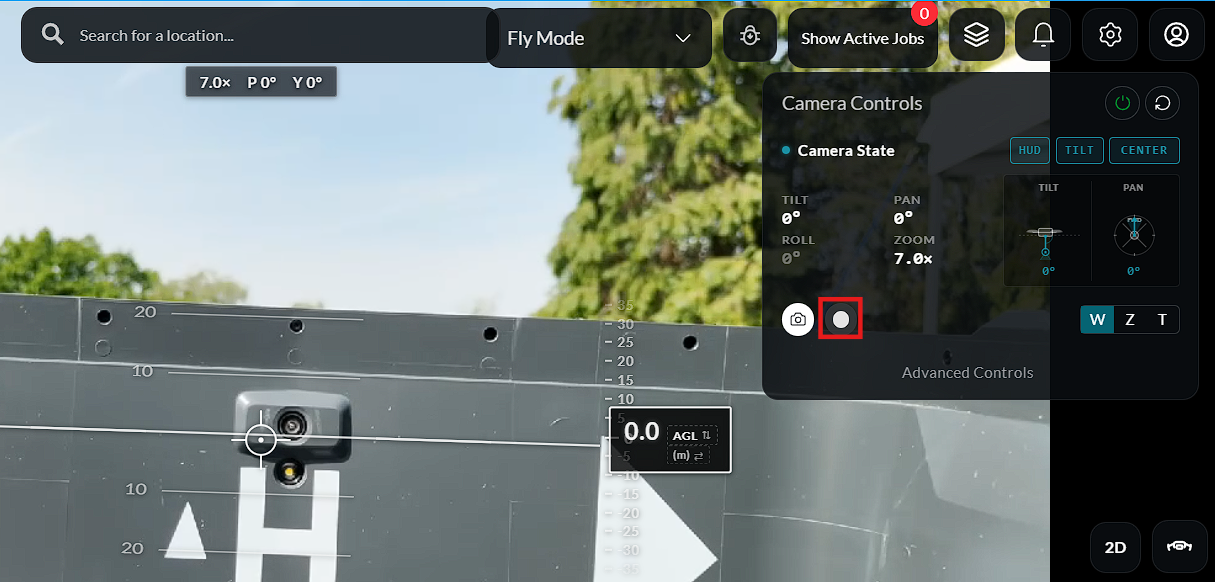
When in Video Recording mode, press the Record button to start or stop recording.
Power & Restart
Additional camera controls are available during flight:
-
Camera Power – Turns the camera on or off.
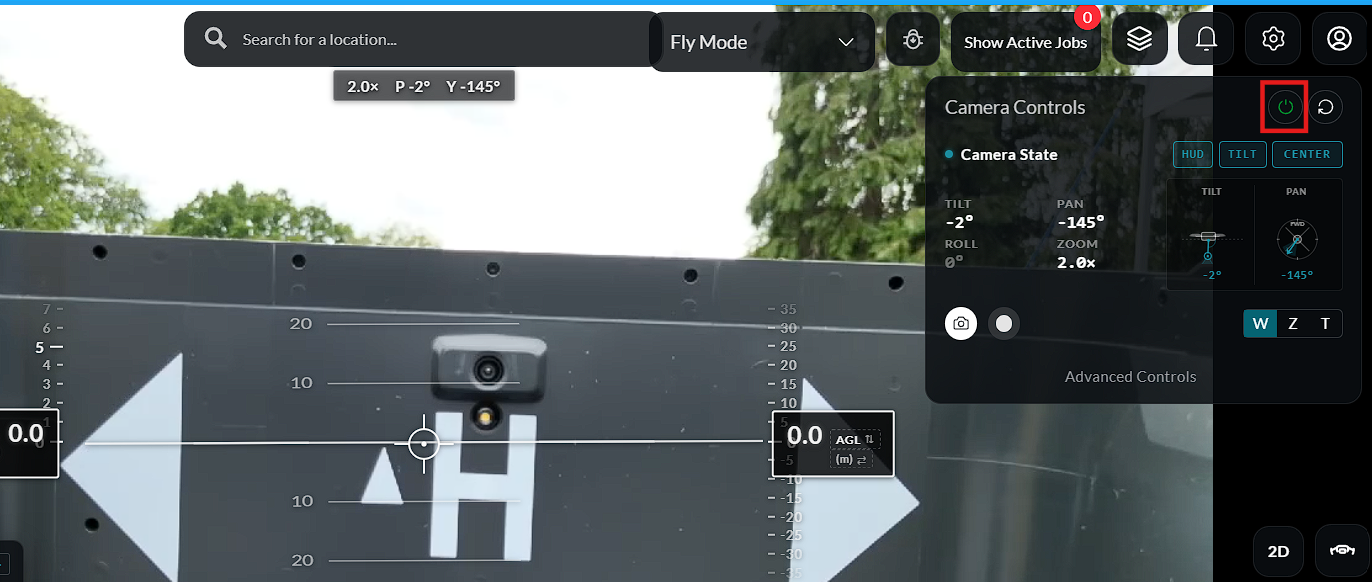
-
Camera Restart – Restarts the camera if required during operation.