Mission Management
The platform provides tools for managing missions after they have been created. Users can delete existing missions, import missions from external files, and export missions for sharing or backup.
Deleting a Mission
To delete a mission:
-
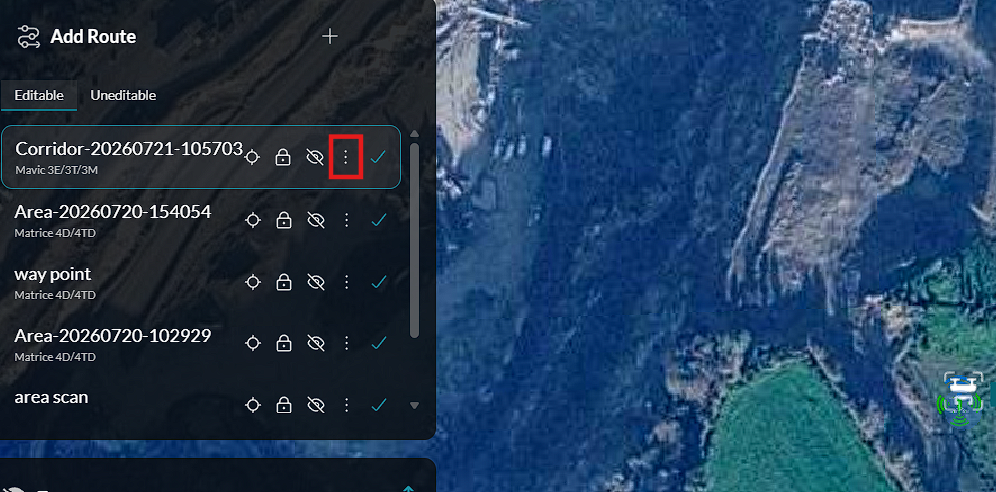
Locate the mission in the mission list.
-
Click the Options menu for the selected mission.
-
Select Delete.
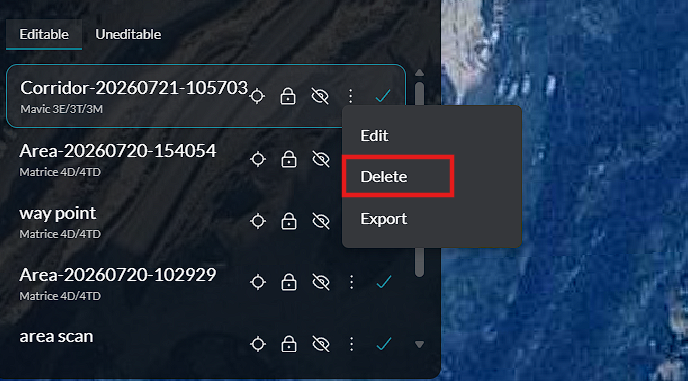
The mission is removed from the mission list.
Importing a Mission
Previously created missions can be imported into the platform.
To import a mission:
-
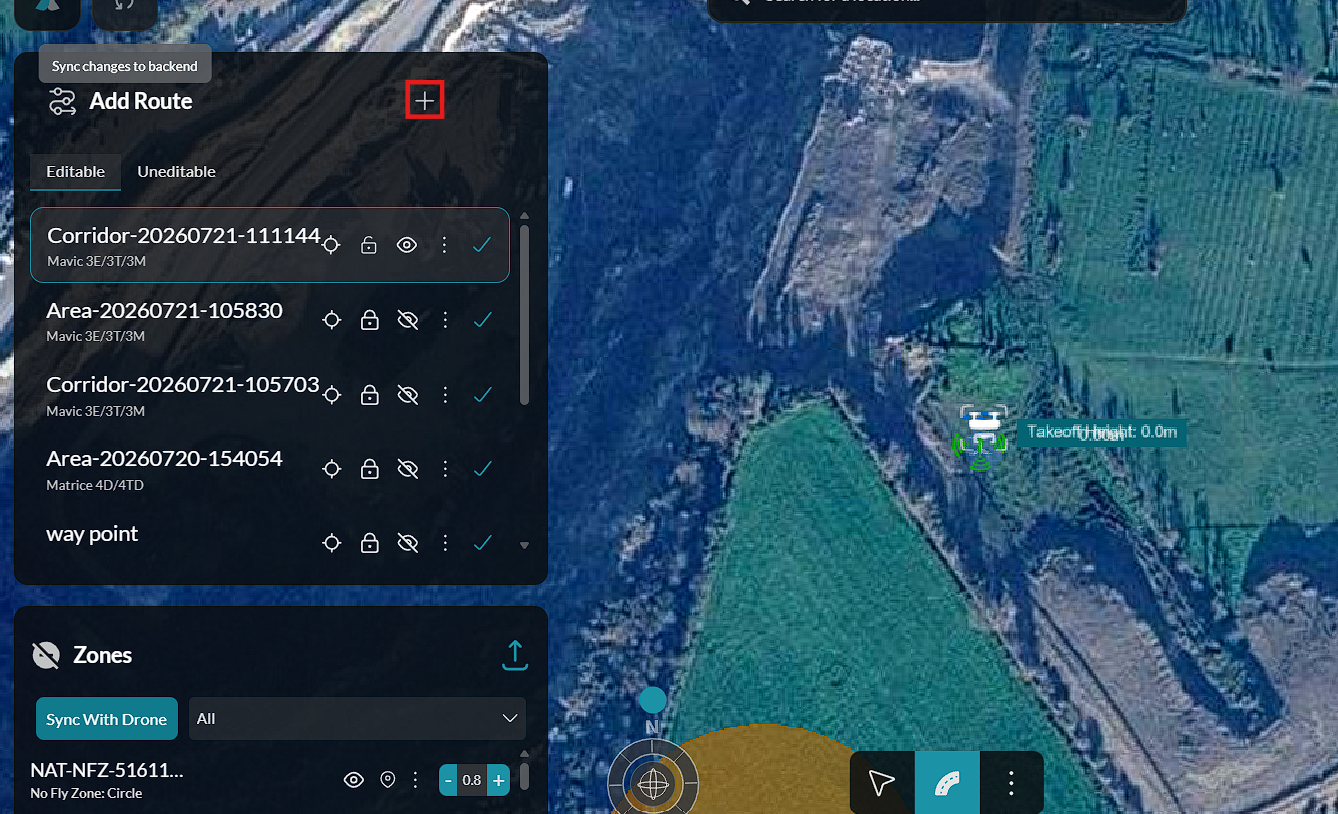
Click Add Route.
-
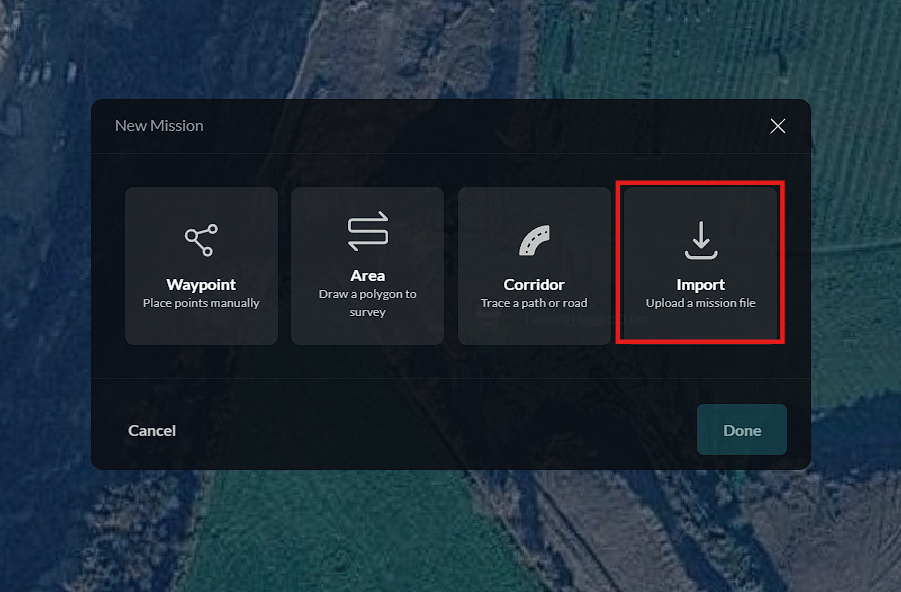
Select Import Mission.
-
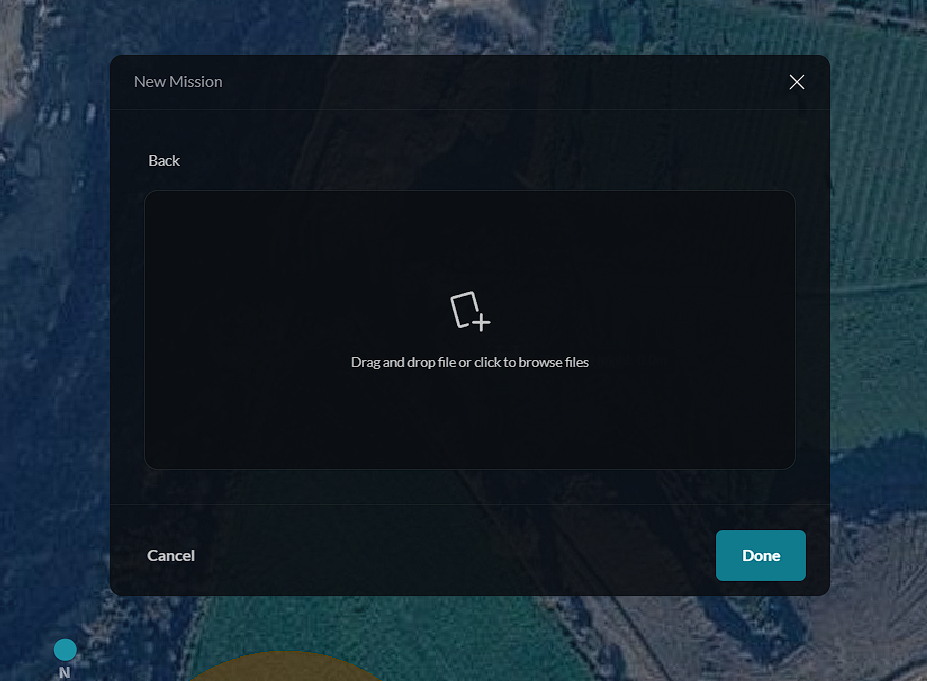
Browse to the mission file on your computer, or drag and drop the file into the upload area.
-
Select the file to complete the import.
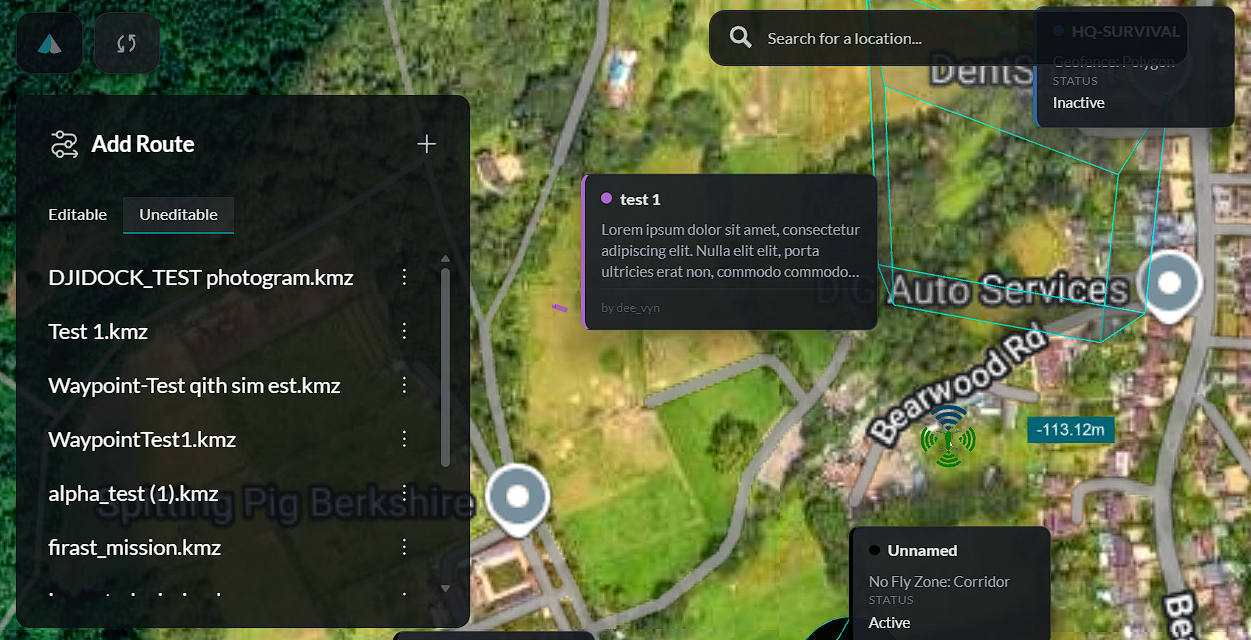
Once imported, the mission appears in the Uneditable Missions list.
Exporting a Mission
Missions can be exported for backup or use on another system.
To export a mission:
-
Locate the mission to export.
-
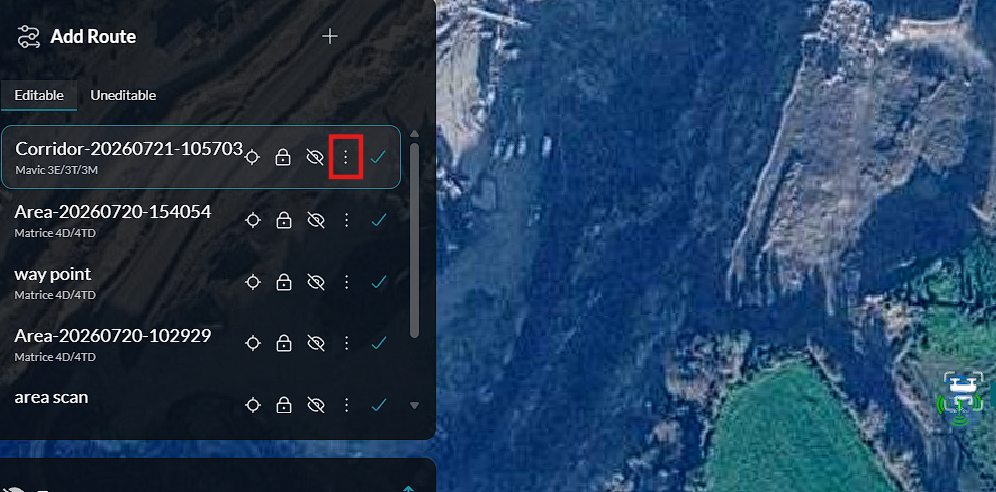
Click the Options menu.
-
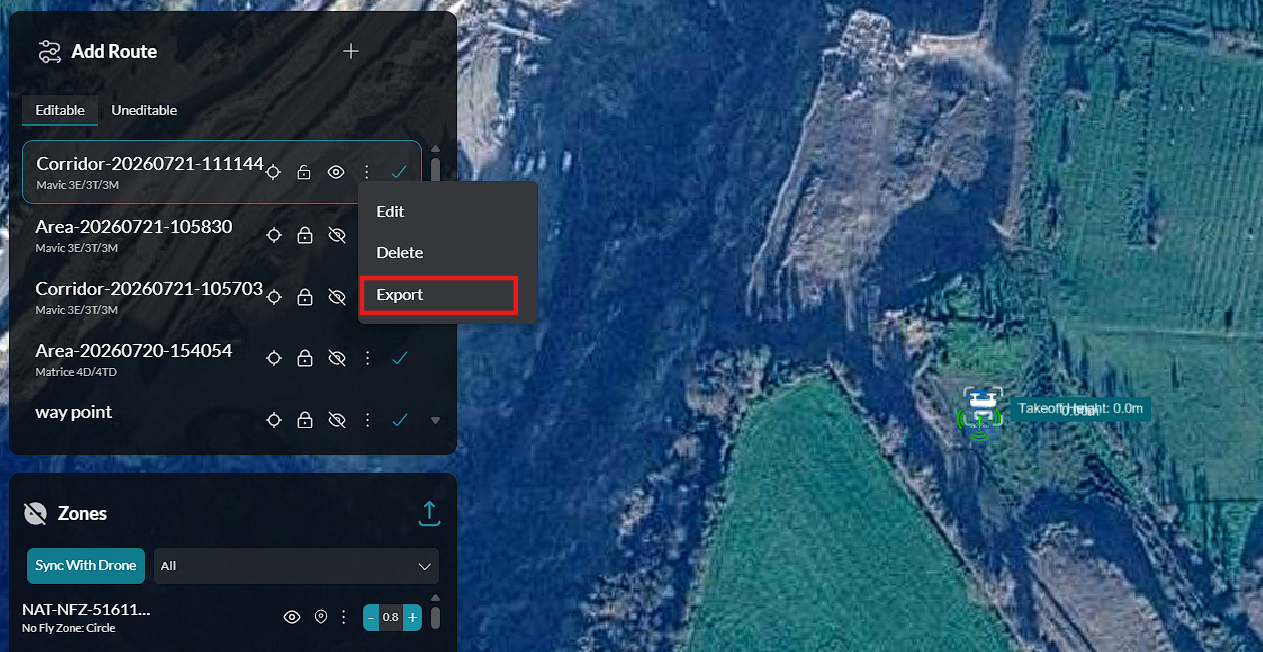
Select Export.
-
Choose the destination folder.
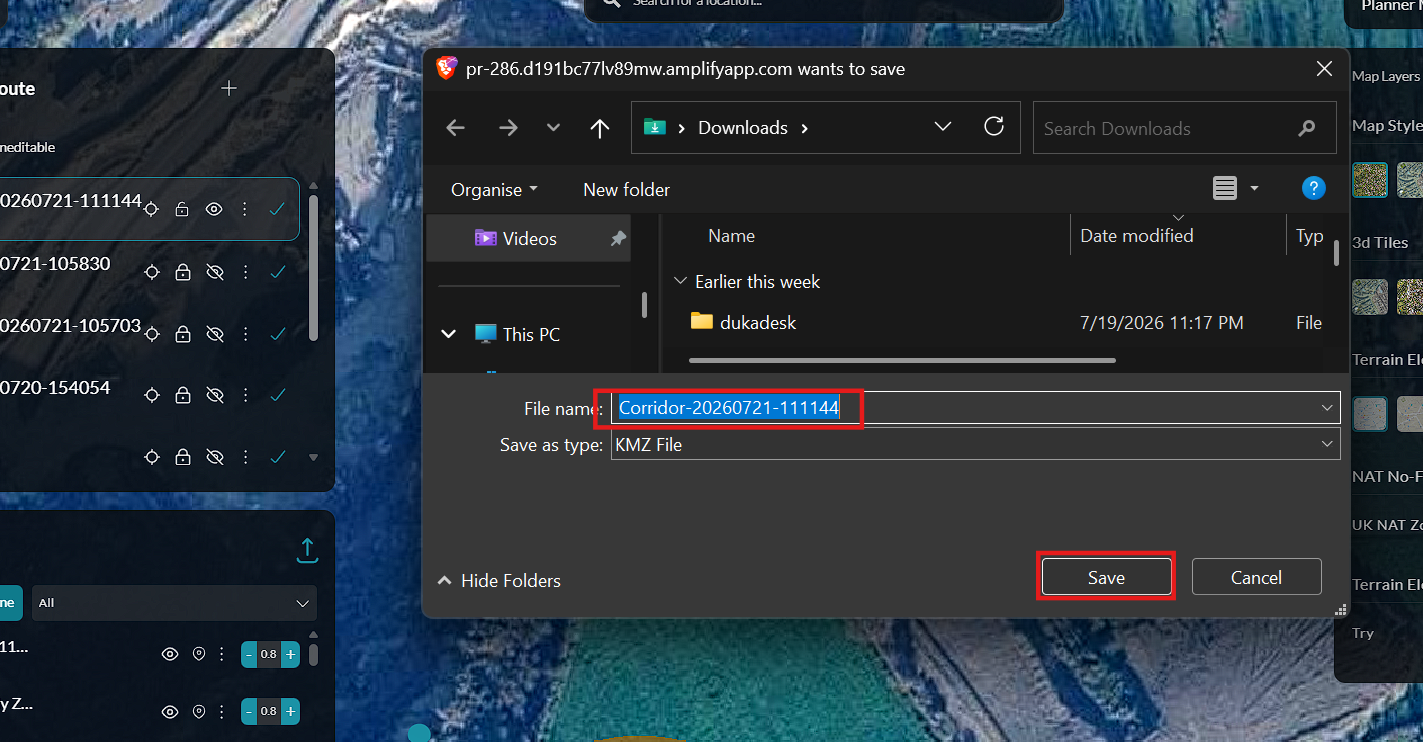
-
Optionally rename the file.
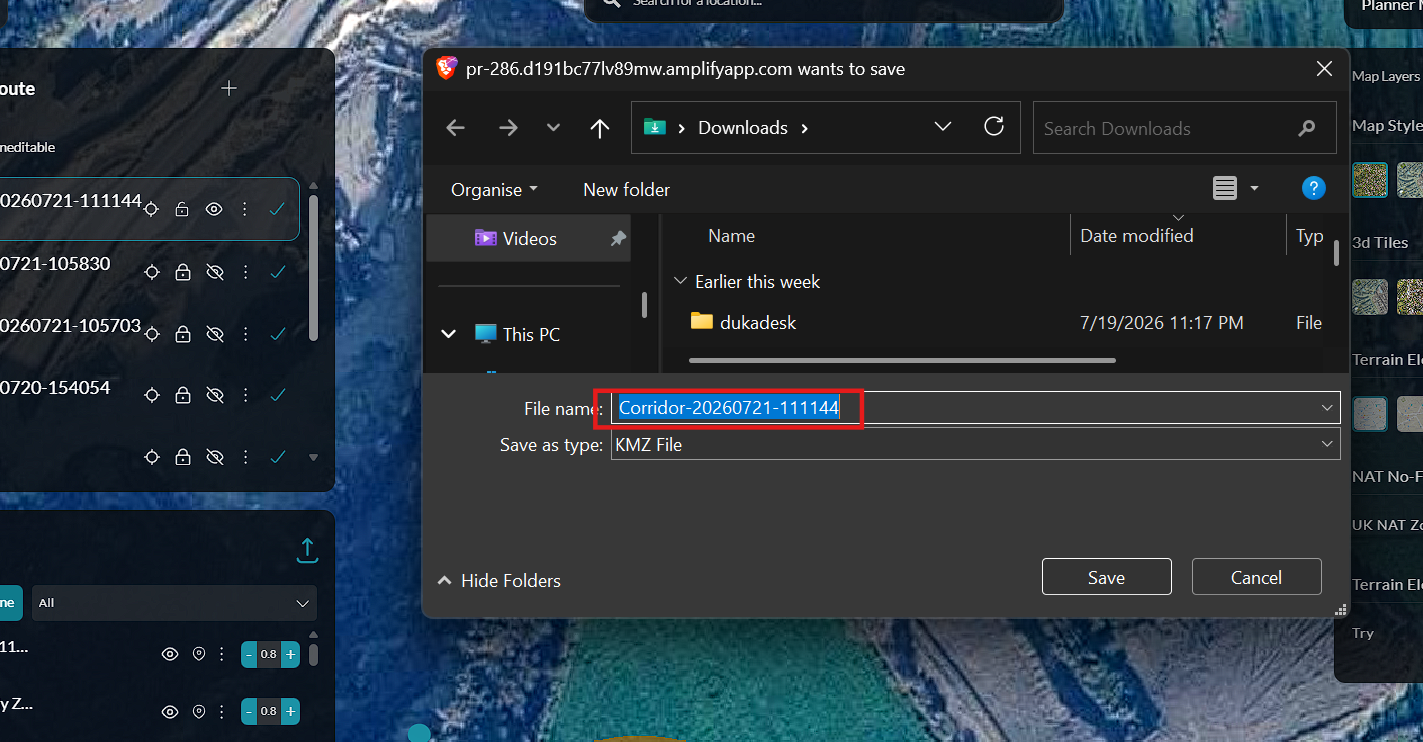
-
Click Save.
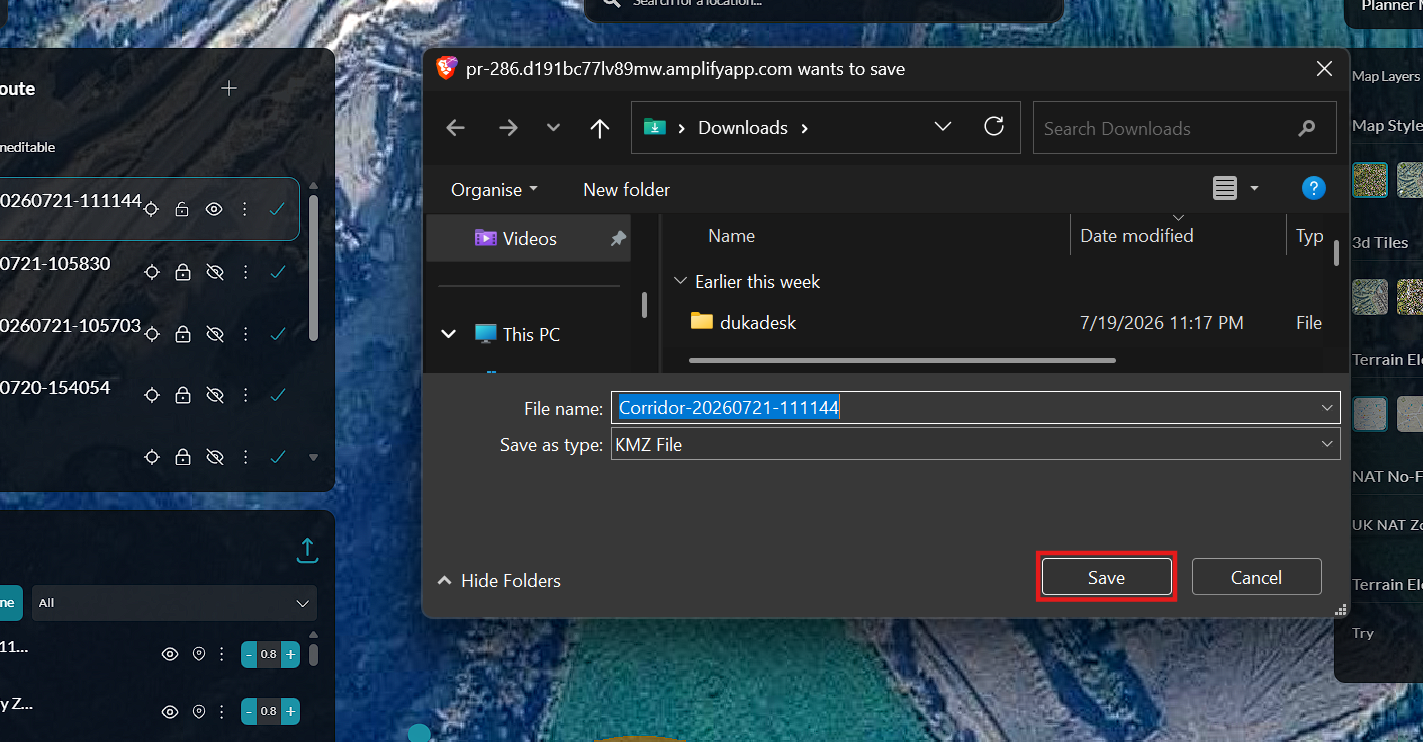
The mission file is exported to the selected location.