Mission Planning
Mission Planning Overview
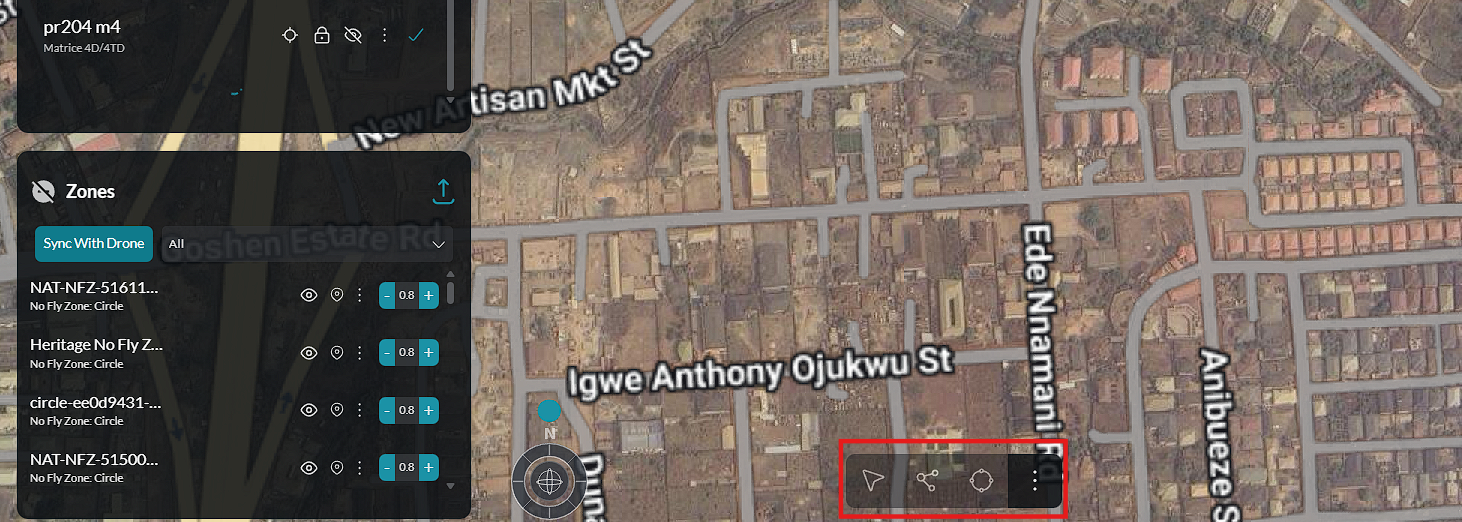
The Mission Planning workspace enables operators to create, configure, and manage automated flight missions before execution. It provides a dedicated planning environment where flight routes, operational zones, mission actions, and map settings can be prepared using an interactive map.
Mission Planning is designed to simplify mission preparation by combining all planning tools into a single workspace. Operators can visualize the operational area, build flight routes, configure mission parameters, and review mission details before deployment.
The planning workspace consists of four primary areas:
- Mission Entry Point – Access the planning workspace from the Fly Dashboard.
- Mission List – View and manage available missions.
- Interactive Planning Map – Design routes and position mission elements directly on the map.
- Planning Tools – Configure routes, zones, map layers, and other mission settings.
All mission changes are reflected immediately within the planning workspace, allowing operators to review and adjust mission configurations before execution.
Accessing Mission Planning
Mission Planning is accessed directly from the Fly Dashboard.
To open the planning workspace:
-
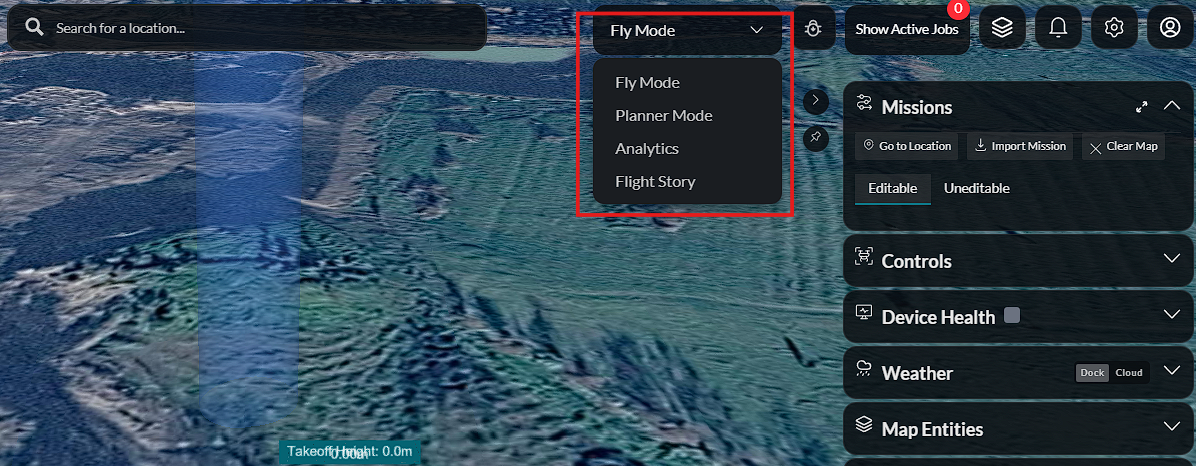
Click the Mode Selector located in the top toolbar.
-
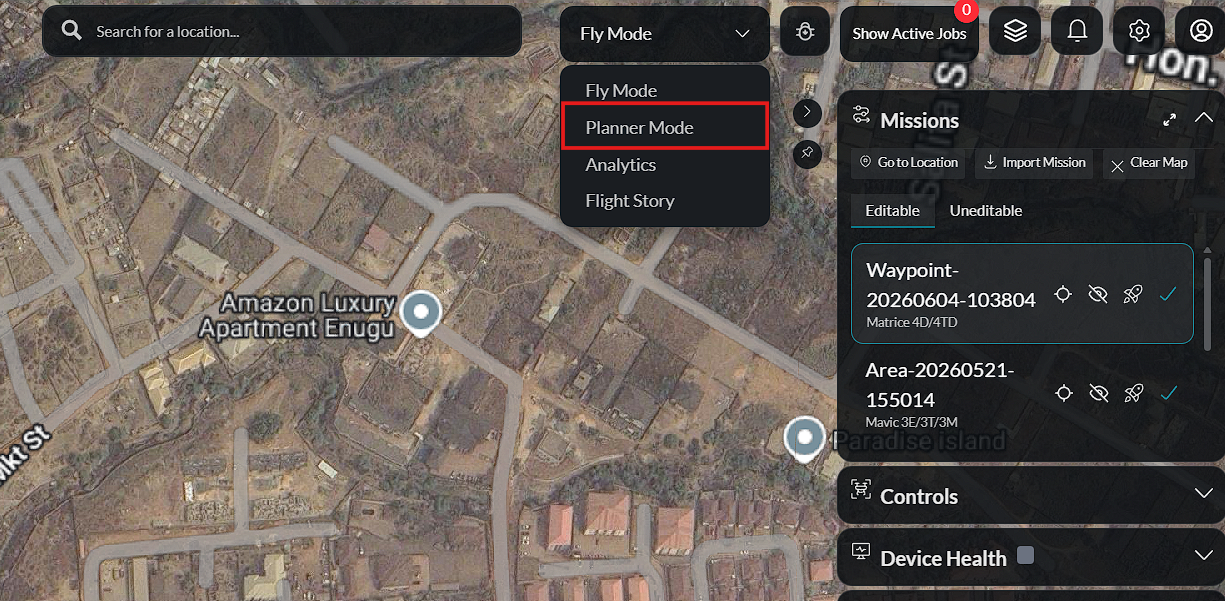
Select Planner Mode from the available options.
-
The dashboard switches from operational view to the Mission Planning workspace.
Once Planner Mode is selected, the interface changes to display the planning tools, mission list, route management panel, zone management tools, and map configuration options required to build and edit automated missions.
Planner Workspace Overview
The Planner workspace is organized around an interactive map that serves as the primary mission design area.
The workspace provides immediate access to:
- Existing missions.
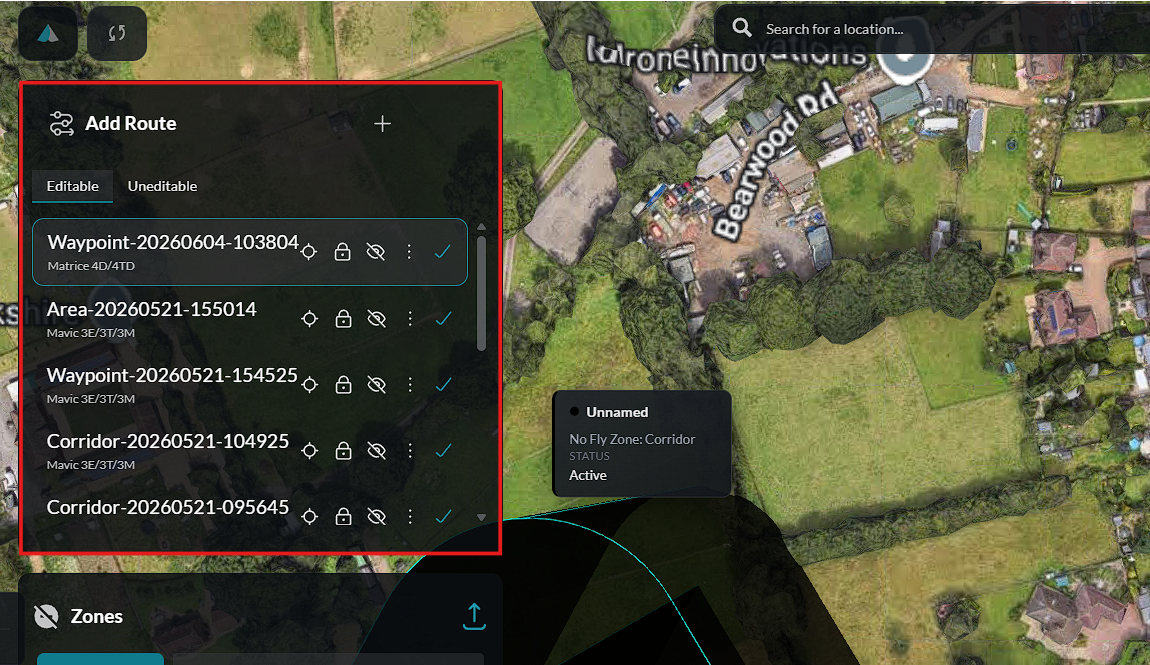
- Route management tools.
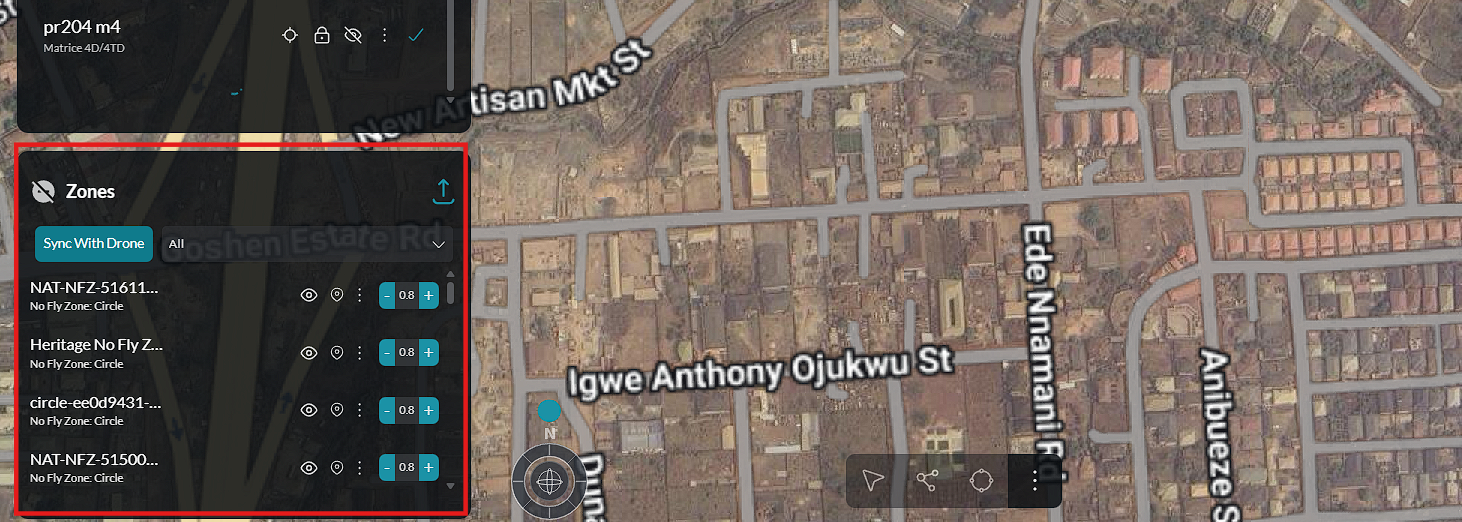
- Zone management.
- Interactive map editing.
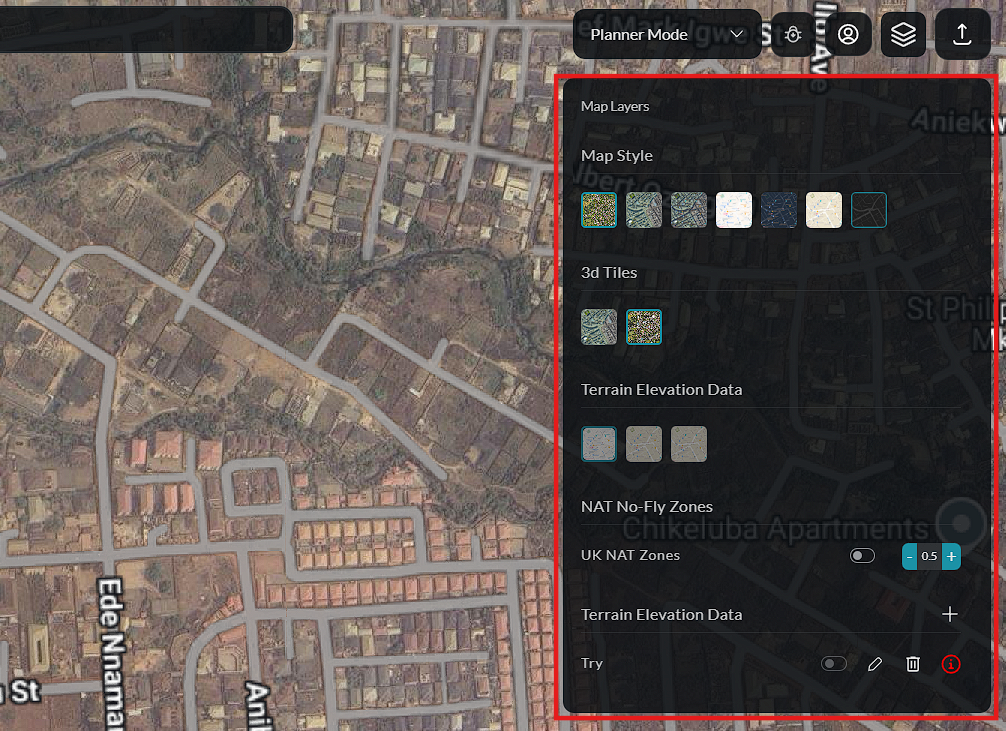
- Map layer controls.
- Planning utilities.
This layout allows operators to design and modify missions while maintaining a complete geographical view of the operational area.
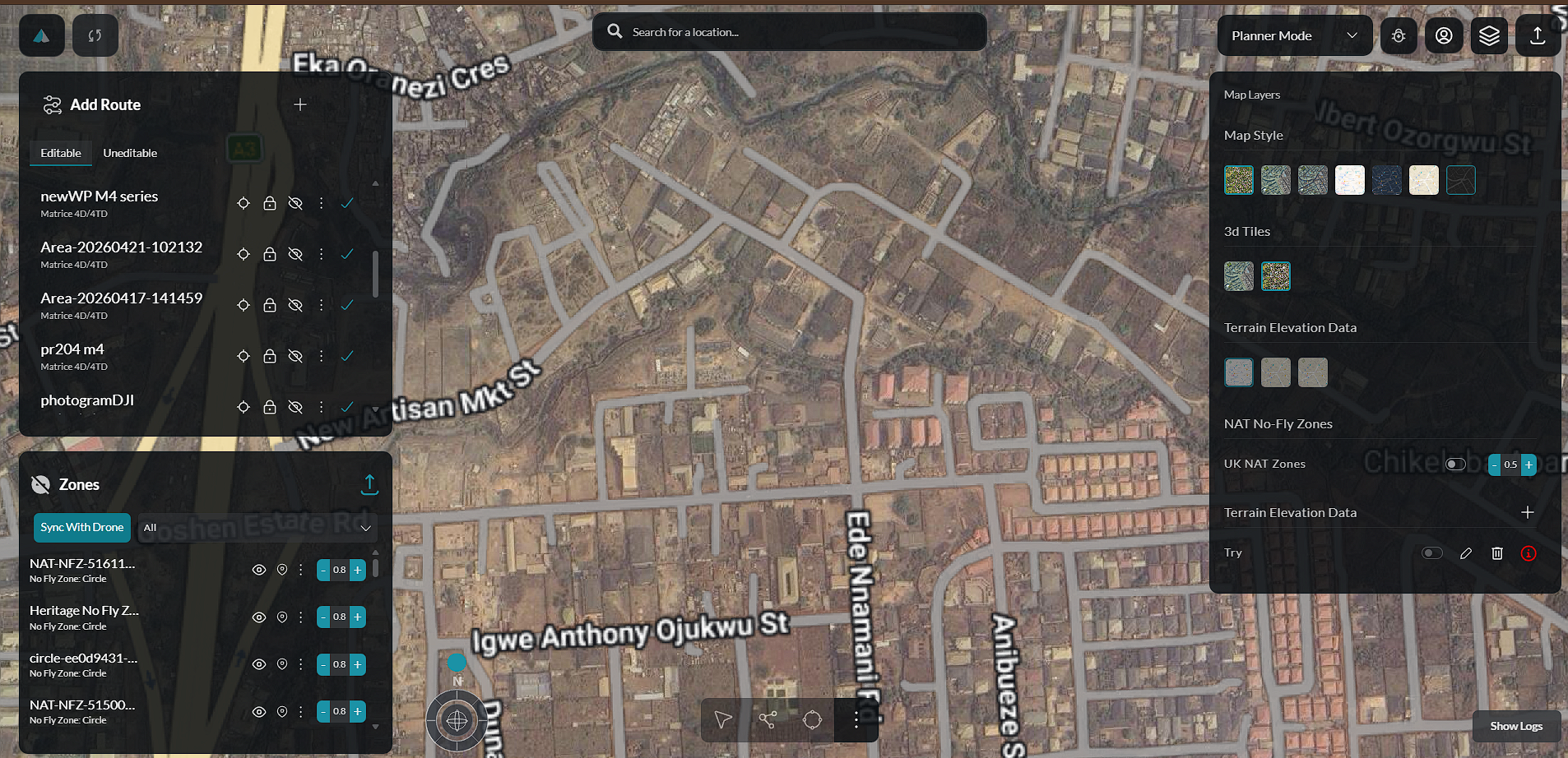
The planner updates dynamically as routes, zones, and mission elements are added or modified, providing immediate visual feedback throughout the planning process.
From the planner workspace, operators can select different map views to suit their planning needs.
Route List — The route list displays all waypoints and mission segments, allowing operators to review and manage the flight path.
Zone Management — Operators can define and edit operational zones and no-fly areas directly within the planner.
Action Buttons — Mission actions such as save, execute, and configure are accessible from the action buttons within the planner workspace.