Deploying a Device
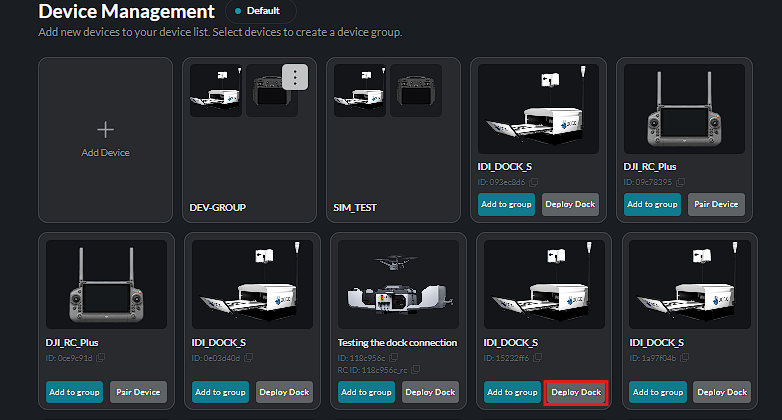
Supported dock devices can be deployed directly from the Device Management page.
- Locate the dock you want to deploy.
- Click Deploy Dock.
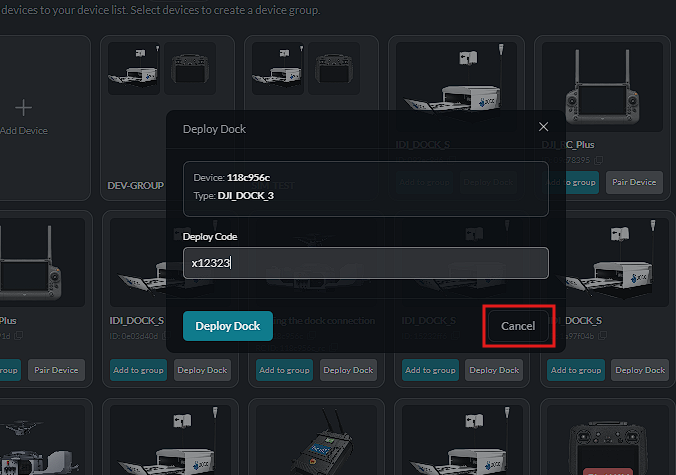
- Enter the required Deploy Code.
- Click Deploy Dock to continue.
- Select Cancel if you do not want to proceed with the deployment.
Click Deploy Dock on the dock you want to deploy:
If you do not want to proceed, use Cancel to close the deployment without changes:
Deployment Progress
After deployment begins, the Deployment screen is displayed and shows the progress of the deployment process.
Each deployment stage loads and updates as the system works through the required parameters. The operator can monitor each stage until the deployment is completed.
The deployment process includes stages such as:
- Verifying the device
- Preparing the required deployment files
- Uploading and installing the required components on the device
- Running post-installation health checks
- Completing the deployment
The deployment screen also provides detailed backend progress information to help track what the system is currently processing.
If all stages complete successfully, the deployment reaches the Deploy Complete state.
If a stage fails, the deployment stops at the affected stage and a Deployment Failed message is displayed. The failed stage is highlighted so the operator can identify where the deployment stopped. Additional information may also be displayed to help identify the cause of the failure.
The operator can Close the deployment screen when finished. Where available, Run in Background allows the deployment process to continue while the operator returns to other areas of the platform.