Dock Update
The Dock Update feature allows an already deployed device group to be deployed again when an update is required.
Overview
A device group runs the components that were installed on its devices at the time the group was deployed. Those components stay as they are until the group is deployed again, so a dock does not pick up newly released updates on its own.
A Dock Update repeats the deployment process for an existing group. The system works through the same stages as the original deployment, verifying each device, preparing the current deployment files, and installing them over the versions already present. Once the update completes, the devices in the group are running the current released components.
Run a Dock Update when:
- A new platform update needs to be applied to the devices in a deployed group
- The devices associated with the group have changed since it was last deployed
- A previous deployment did not complete successfully and needs to be run again
The update is applied to every device shown in the Edit Group window, not to a single device, so all devices in the group are brought to the same state together.
Updating a Deployed Group
To redeploy an existing device group:
- Open Device Management.
- Locate the already deployed device group you want to redeploy.
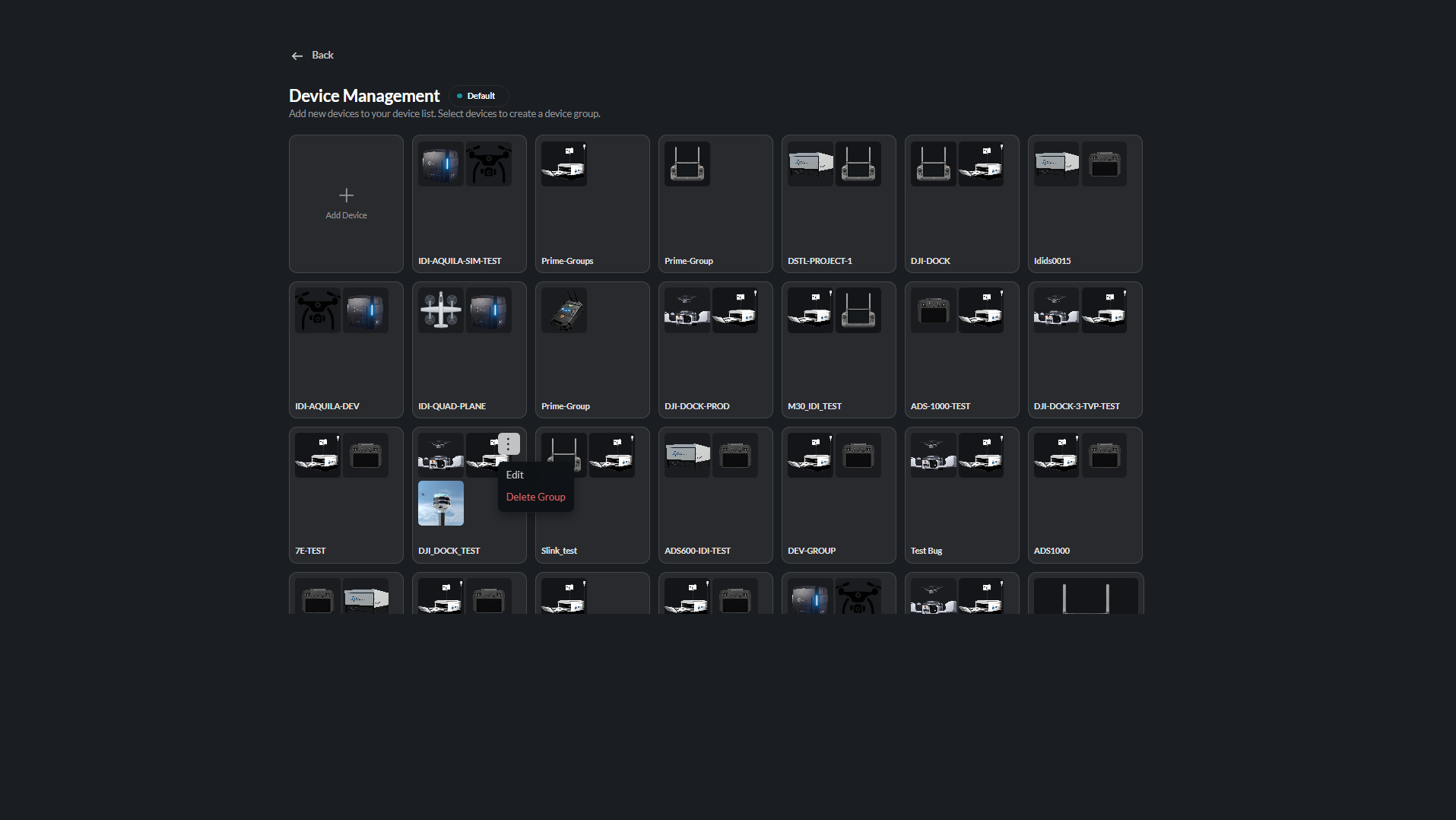
- Click the Options menu on the device group.
- Select Edit.
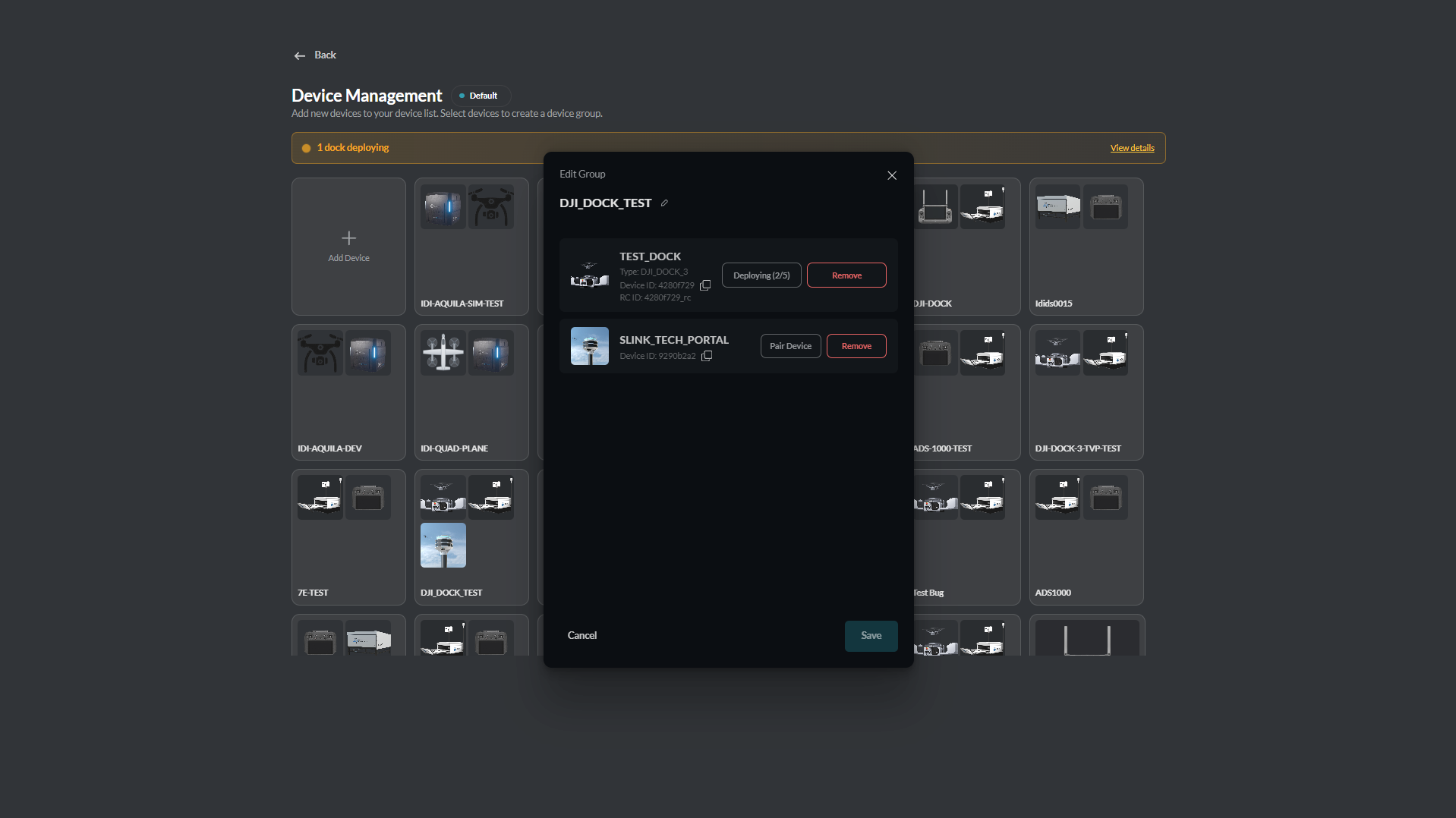
- The Edit Group window displays the devices currently associated with the group.
- Select Redeploy to begin the deployment process.
Open the Options menu on the deployed group and select Edit:
The Edit Group window shows the associated devices — select Redeploy:
Update Progress
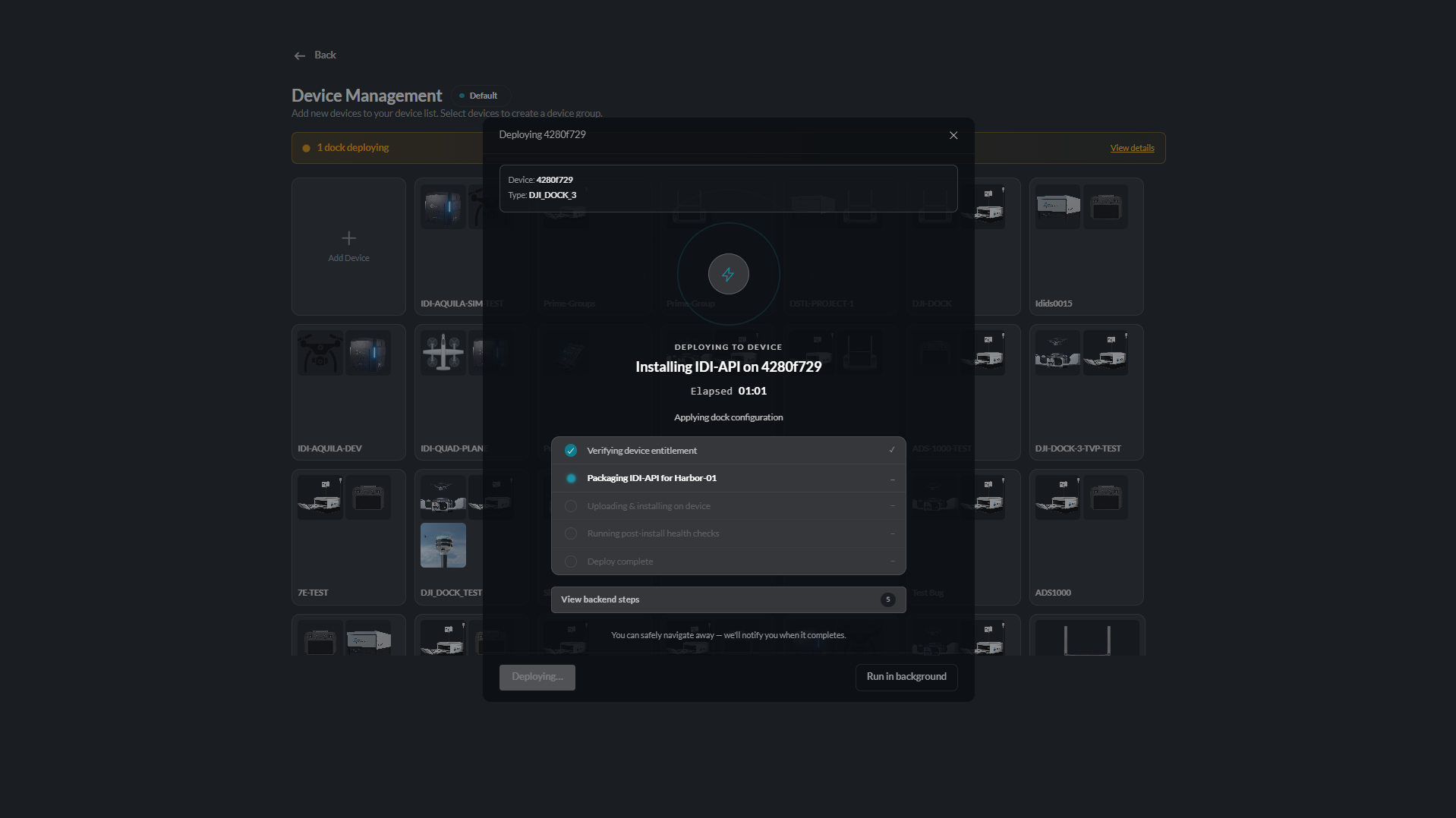
Once redeployment begins, the Deployment screen is displayed.
The deployment screen shows the progress of the redeployment as the system processes each required stage. Each stage updates as it is completed, allowing the user to monitor the deployment until the process finishes.
When the deployment completes successfully, a success notification is displayed. If the deployment cannot be completed, a failure message is displayed instead.
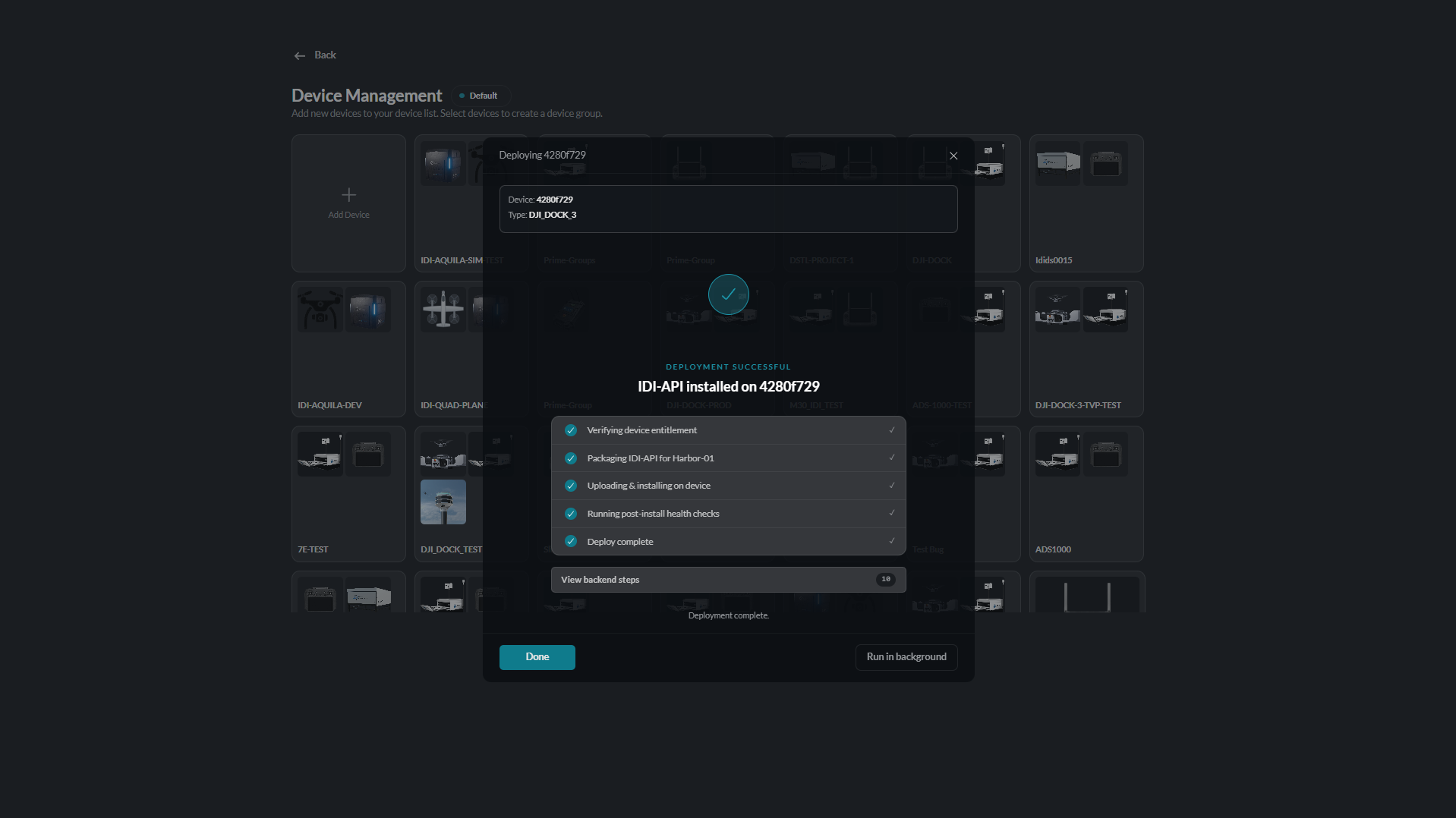
After a successful redeployment, click Done to close the deployment screen and return to Device Management.