Dock Operations
Manage automated drone docking stations for remote and autonomous operations.
Overview
Dock stations enable:
- Automated Operations - Remote deployment without on-site personnel
- Battery Management - Automatic charging between flights
- Weather Protection - Shelter aircraft during adverse conditions
- Scheduled Missions - Time-based automated flights
Supported Docks
IDI Fly Dashboard supports DJI Dock systems:
| Dock | Compatible Aircraft |
|---|---|
| DJI Dock 2 | Matrice 3D/3TD |
| DJI Dock 3 | Matrice 4 series |
Dock Setup
Physical Installation
- Select suitable location
- Install dock on stable surface
- Connect power supply
- Connect network (Ethernet or cellular)
- Verify environmental conditions
Network Configuration
| Requirement | Specification |
|---|---|
| Connection | Ethernet or 4G/5G cellular |
| Bandwidth | 10 Mbps minimum |
| Latency | < 200ms recommended |
| Ports | Ensure required ports are open |
Pairing Dock
- Navigate to Devices > Docks
- Click Add Dock
- Enter dock serial number
- Configure dock settings
- Verify connection
Dock Interface
Dock Status Panel
| Indicator | Meaning |
|---|---|
| Online | Dock connected and operational |
| Offline | Dock not connected |
| Deployed | Aircraft is outside dock |
| Docked | Aircraft is in dock |
| Charging | Aircraft battery charging |
| Ready | Ready for deployment |
| Error | Issue requires attention |
Aircraft Status
When aircraft is docked:
- Battery level
- Charging status
- Time to full charge
- Health status
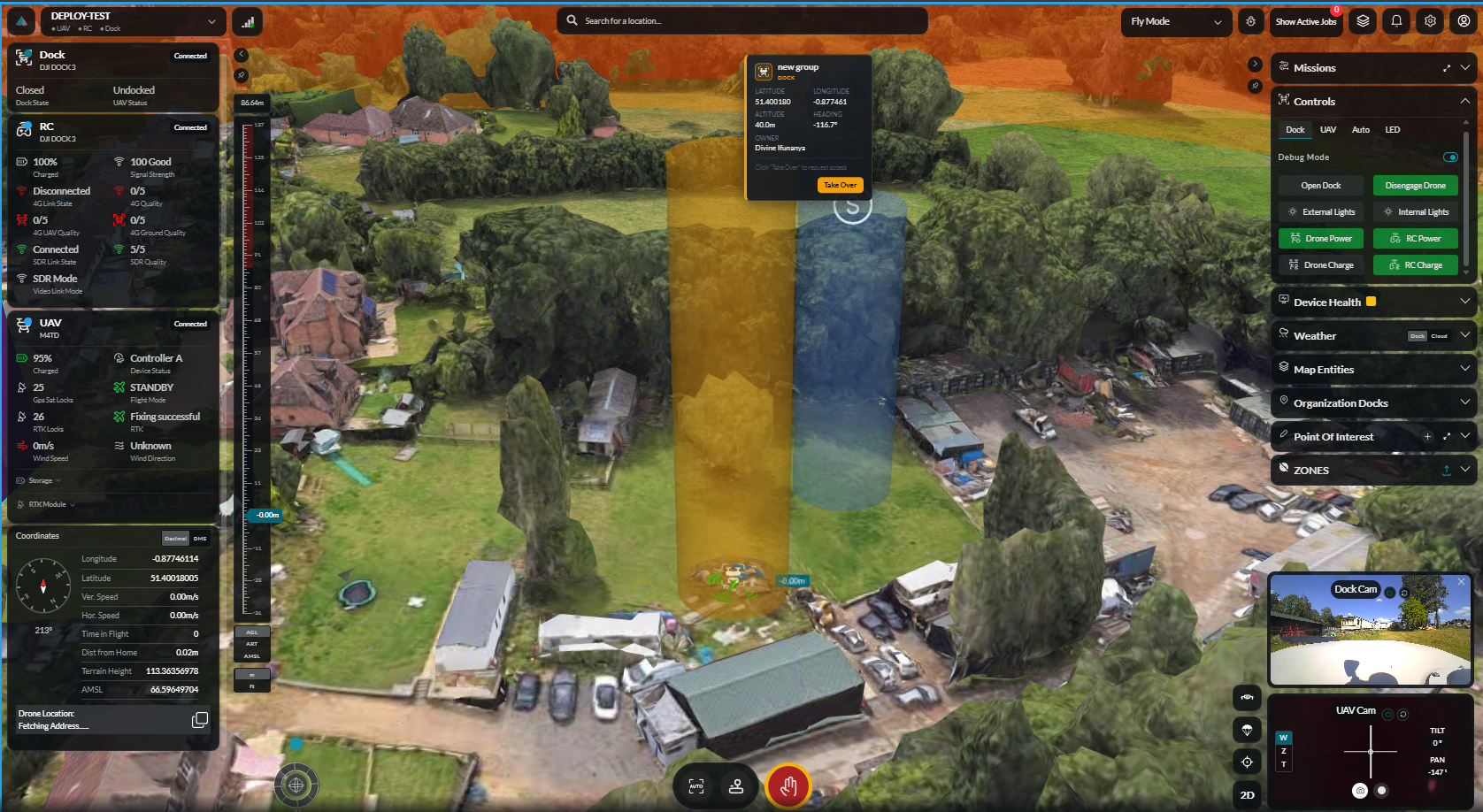
Dock Commands
Deploy Aircraft
Launch aircraft from dock:
- Select dock
- Verify aircraft is ready
- Click Deploy
- Confirm weather and conditions
- Aircraft launches automatically
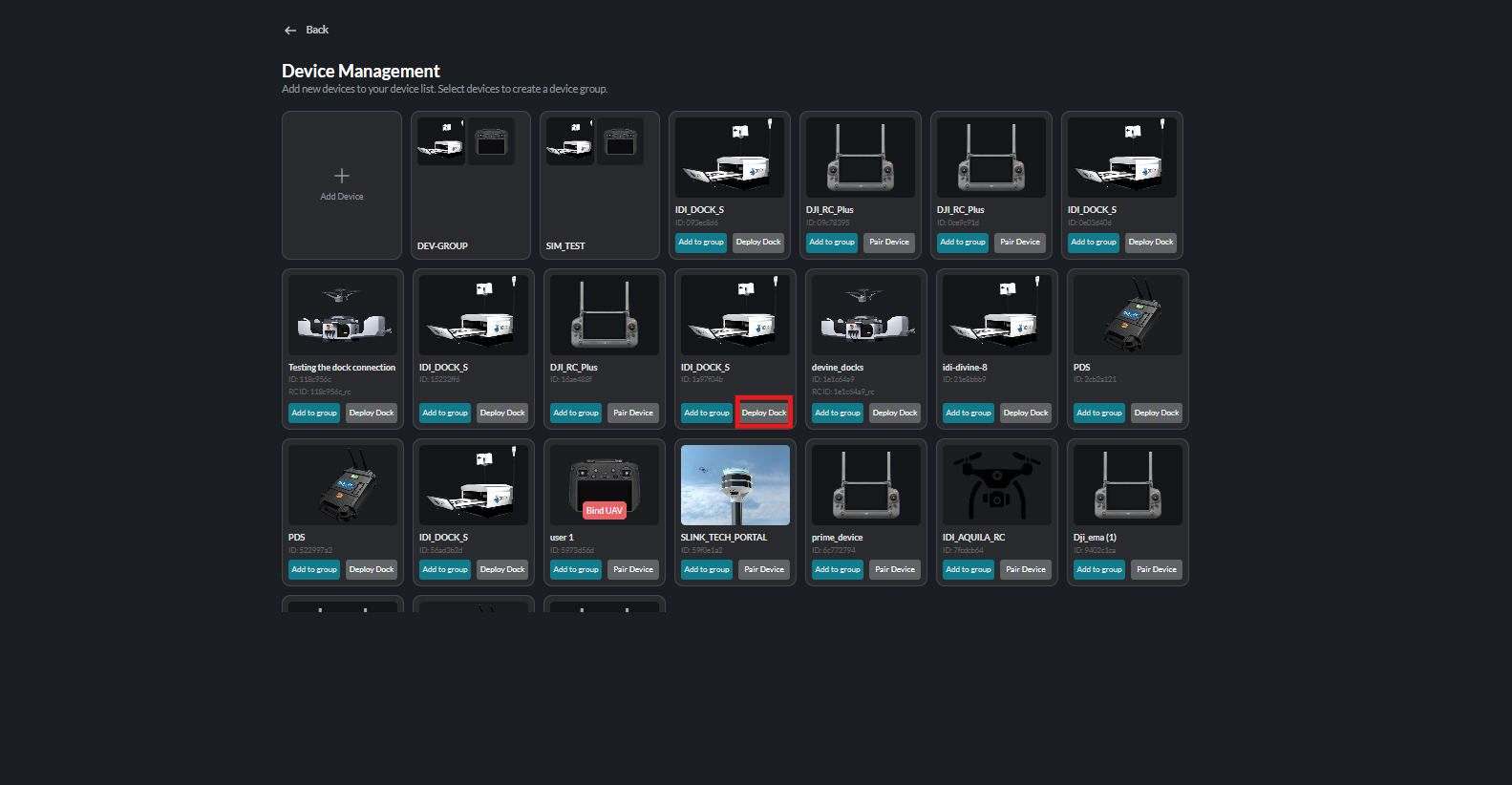
For a detailed walkthrough of the launch flow including pre-flight checks and controls, see the Mission Launch guide.
Return to Dock
Recall aircraft:
- Click Return to Dock
- Aircraft navigates to dock
- Precision landing sequence
- Dock cover closes
Emergency Actions
| Action | Function |
|---|---|
| Emergency Stop | Halt all dock operations |
| Open Cover | Manually open dock cover |
| Close Cover | Manually close dock cover |
| Reset | Restart dock systems |
Automated Operations
Scheduled Missions
Set up time-based automated flights:
- Navigate to Dock > Schedules
- Click Create Schedule
- Configure:
- Start time
- Recurrence (daily, weekly, etc.)
- Mission to execute
- Conditions (weather limits)
- Enable schedule
Mission Requirements
For automated dock missions:
- Pre-created mission saved in library
- Aircraft fully charged
- Weather within limits
- Airspace clear
Automation Settings
| Setting | Description |
|---|---|
| Auto Deploy | Deploy at scheduled time |
| Auto Return | Return when mission complete |
| Auto Charge | Begin charging after docking |
| Weather Hold | Delay if conditions poor |
Weather Monitoring
Environmental Sensors
Docks monitor:
| Parameter | Threshold |
|---|---|
| Wind Speed | Configurable limit |
| Temperature | Operating range |
| Precipitation | Rain/snow detection |
| Visibility | Fog/haze detection |
Weather Actions
| Condition | Response |
|---|---|
| High Wind | Delay deployment |
| Rain | Cancel/recall aircraft |
| Extreme Temp | Suspend operations |
| Poor Visibility | Delay deployment |
Battery Management
Charging Cycle
- Aircraft returns to dock
- Dock cover closes
- Battery level assessed
- Charging begins automatically
- Charging completes
- Aircraft ready for next deployment
Charge Settings
| Setting | Options |
|---|---|
| Target Level | 90%, 95%, 100% |
| Charge Rate | Standard, Fast |
| Maintenance Mode | Optimize battery longevity |
Battery Health
Monitor battery condition:
- Cycle count
- Health percentage
- Temperature during charge
- Estimated remaining life
Maintenance Mode
Dock Maintenance
Regular maintenance tasks:
| Task | Frequency |
|---|---|
| Clean sensors | Monthly |
| Inspect motors | Quarterly |
| Check connections | Monthly |
| Test emergency systems | Monthly |
Maintenance Commands
| Command | Function |
|---|---|
| Enter Maintenance | Disable automated operations |
| Exit Maintenance | Resume normal operations |
| Run Diagnostics | System self-check |
Remote Monitoring
Live Camera
View dock surroundings:
- Dock exterior camera
- Landing pad view
- Wide-angle overview
Telemetry
Monitor dock systems:
- Power status
- Network connectivity
- Environmental conditions
- Component status
Alerts
Receive notifications for:
- Mission completion
- Weather warnings
- System errors
- Maintenance reminders
Dock Settings
General Settings
| Setting | Description |
|---|---|
| Dock Name | Custom identifier |
| Location | GPS coordinates |
| Time Zone | Local time configuration |
| Contact | On-site contact information |
Operational Settings
| Setting | Description |
|---|---|
| Operating Hours | Allowed flight times |
| Weather Limits | Environmental thresholds |
| RTH Behavior | Return-to-dock settings |
| Geofence | Operational boundary |
Security
Physical Security
- Dock has tamper detection
- Camera monitoring
- Access alerts
Cyber Security
- Encrypted communications
- Authentication required
- Access logging
- Firmware verification
Troubleshooting
Dock Offline
| Issue | Solution |
|---|---|
| No power | Check power connection |
| Network down | Verify internet connectivity |
| System crash | Power cycle dock |
Aircraft Won't Deploy
| Issue | Solution |
|---|---|
| Cover stuck | Manual override or inspection |
| Battery low | Wait for charge completion |
| Weather limit | Check conditions |
| GPS issue | Wait for better signal |
Landing Failed
| Issue | Solution |
|---|---|
| Precision landing error | Clear landing pad |
| Cover malfunction | Manual intervention |
| Wind gusts | Retry when calm |
RTK Module Telemetry
RTK (Real-Time Kinematic) positioning provides centimetre-level accuracy for dock-based operations. This section will cover RTK fix status indicators, satellite count display, and position state reporting visible in the dock panel.
Safe Location Configuration
Each dock can be configured with a primary and one or more alternate safe landing locations used by failsafe routines. This section will cover how to set, verify, and update safe location coordinates.

Dock 3 Behaviour
The DJI Dock 3 introduces updated deployment and recall sequences compatible with the Matrice 4 series. This section will document Dock 3-specific behaviours including cover sequencing, landing precision differences, and any settings unique to Dock 3.
Best Practices
Daily Checks
- Verify dock online status
- Check battery levels
- Review weather forecast
- Confirm scheduled missions
Safety
- Maintain clear landing zone
- Regular maintenance schedule
- Test emergency procedures
- Monitor weather conditions
Optimization
- Schedule during optimal weather
- Plan efficient mission routes
- Manage battery charging cycles
- Regular firmware updates