Your First Flight
New to the platform? This guide walks you through your first automated mission — from signing in to reviewing your completed flight. Each step links to the full guide so you can go deeper whenever you're ready.
First Flight at a Glance
Step 1 — Sign In
Open the login page and sign in with your credentials. If this is your first time, complete the getting started steps first.
Step 2 — Open the Fly Dashboard
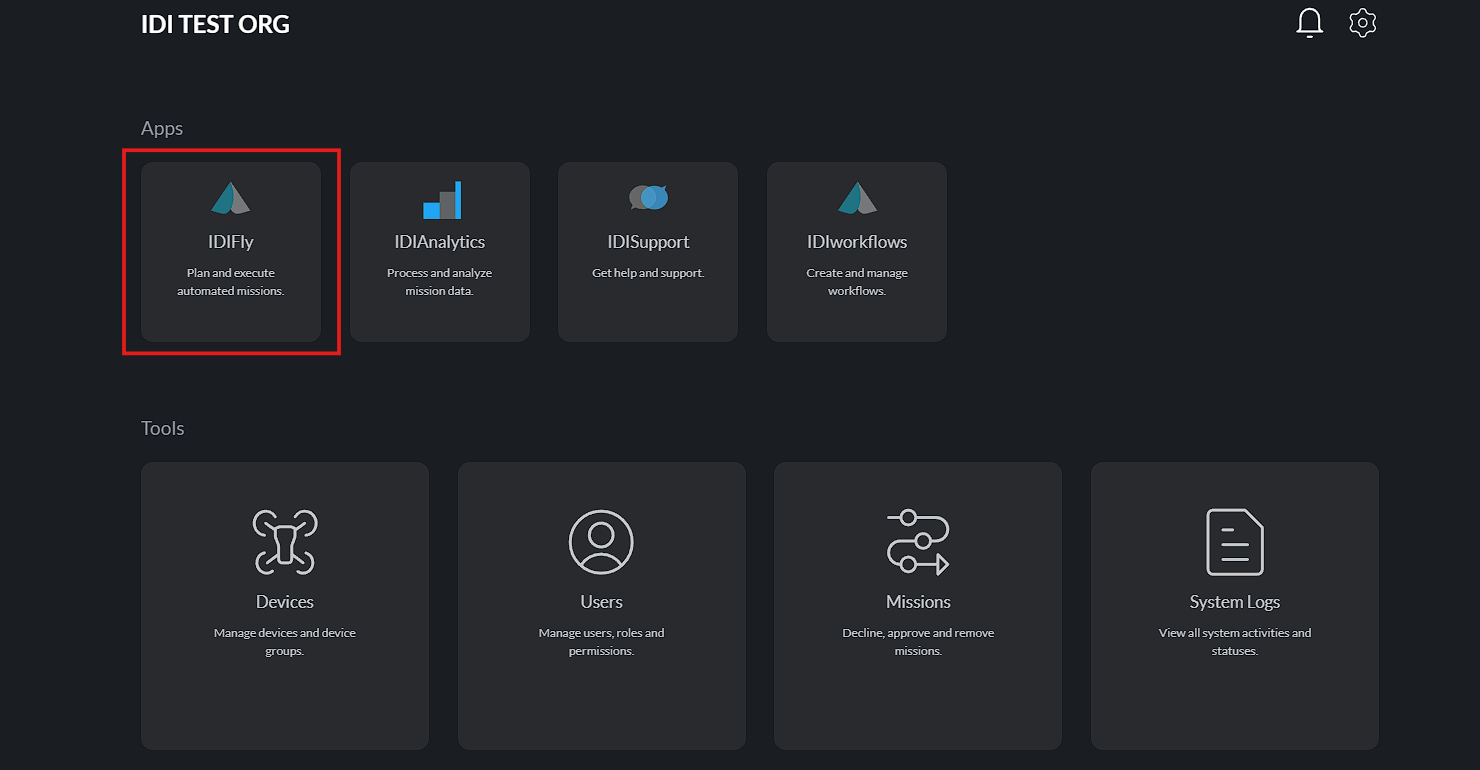
Select Fly Dashboard from the dashboard. This is where you plan, launch, and monitor missions.
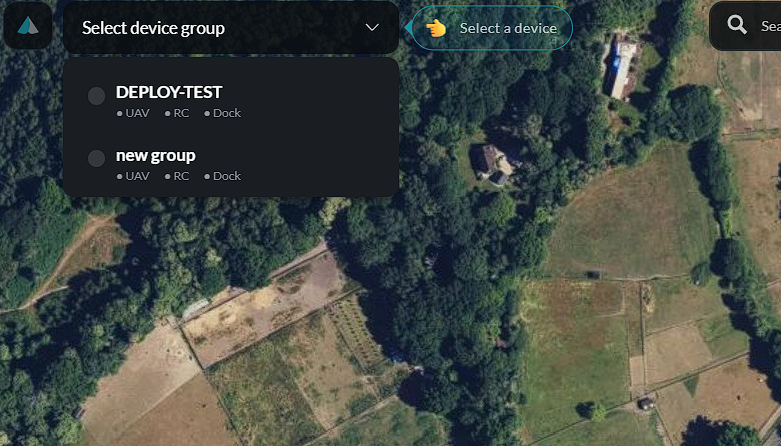
Step 3 — Select Your Device Group and Device
Choose your device group, then select the aircraft you want to fly. You must own (or be shared into) the device to operate it.
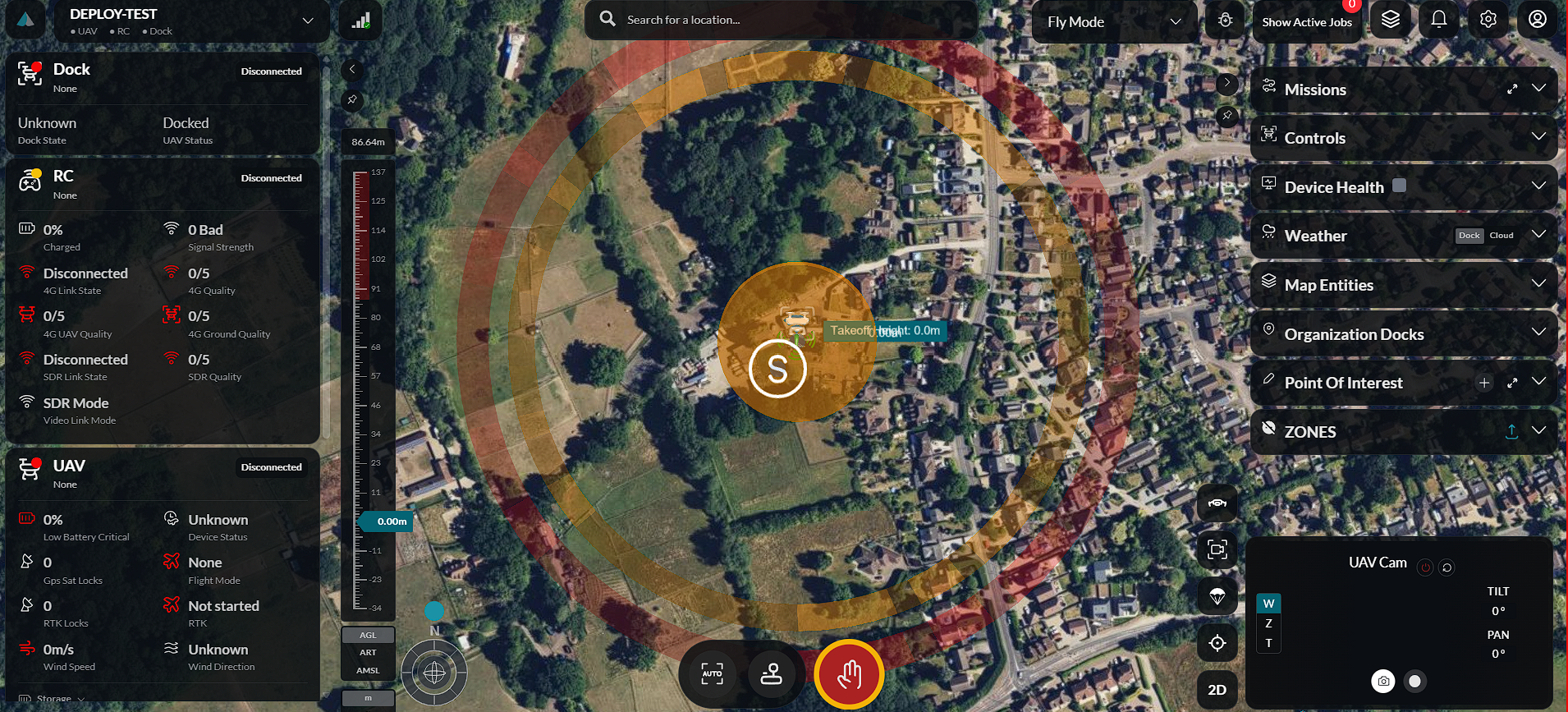
:::note No devices available? If you are not assigned to a device group, there will be no device to select. Assign yourself (or be assigned) to the device group that contains the aircraft you want to fly — see Device Takeover for how to add a user to a group. :::
Step 4 — Check Health and Weather
Before planning, confirm your device is healthy and conditions are safe.
- Device health — battery, signal, and system status must be normal.
- Weather — check wind, rain, and other conditions for the flight area.
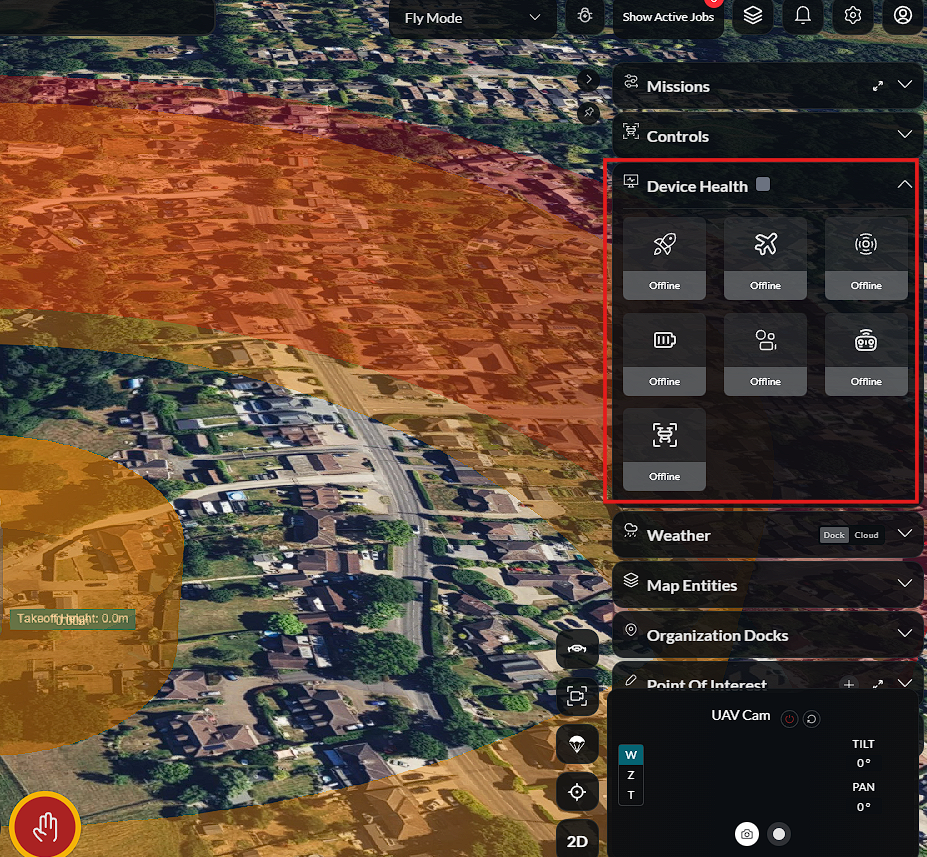
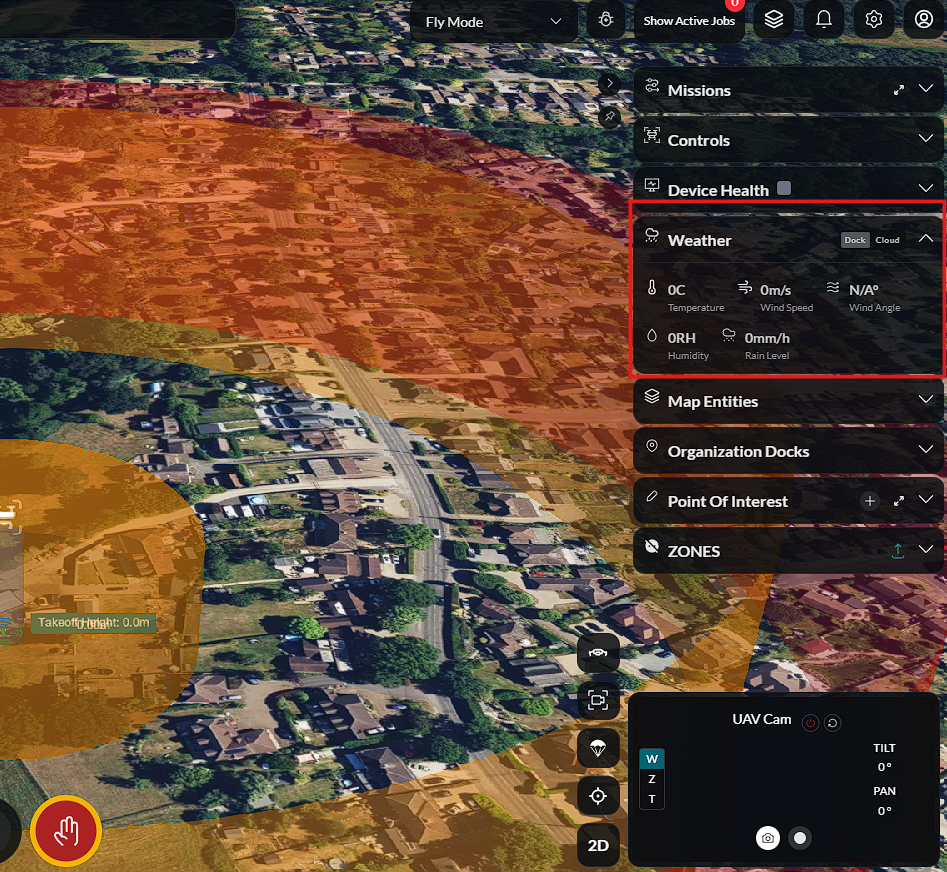
See Devices for health and status details.
Step 5 — Plan Your Mission
In Planner mode, create a mission. A waypoint mission is the simplest place to start.
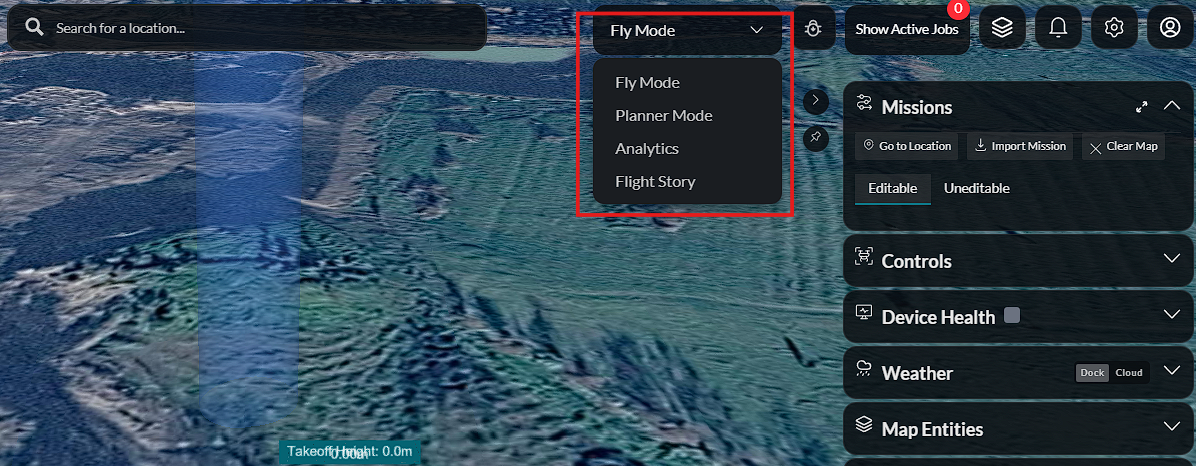
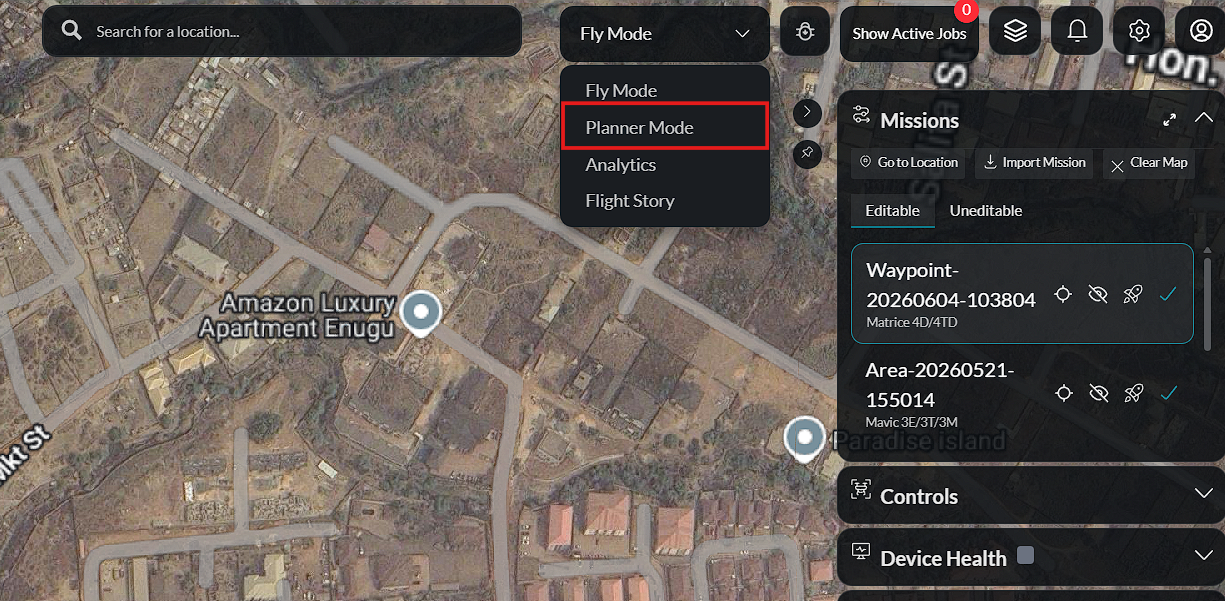
- Press Add to create a new mission.
- Select the waypoint mission type.
- Add waypoints on the map and save the mission.
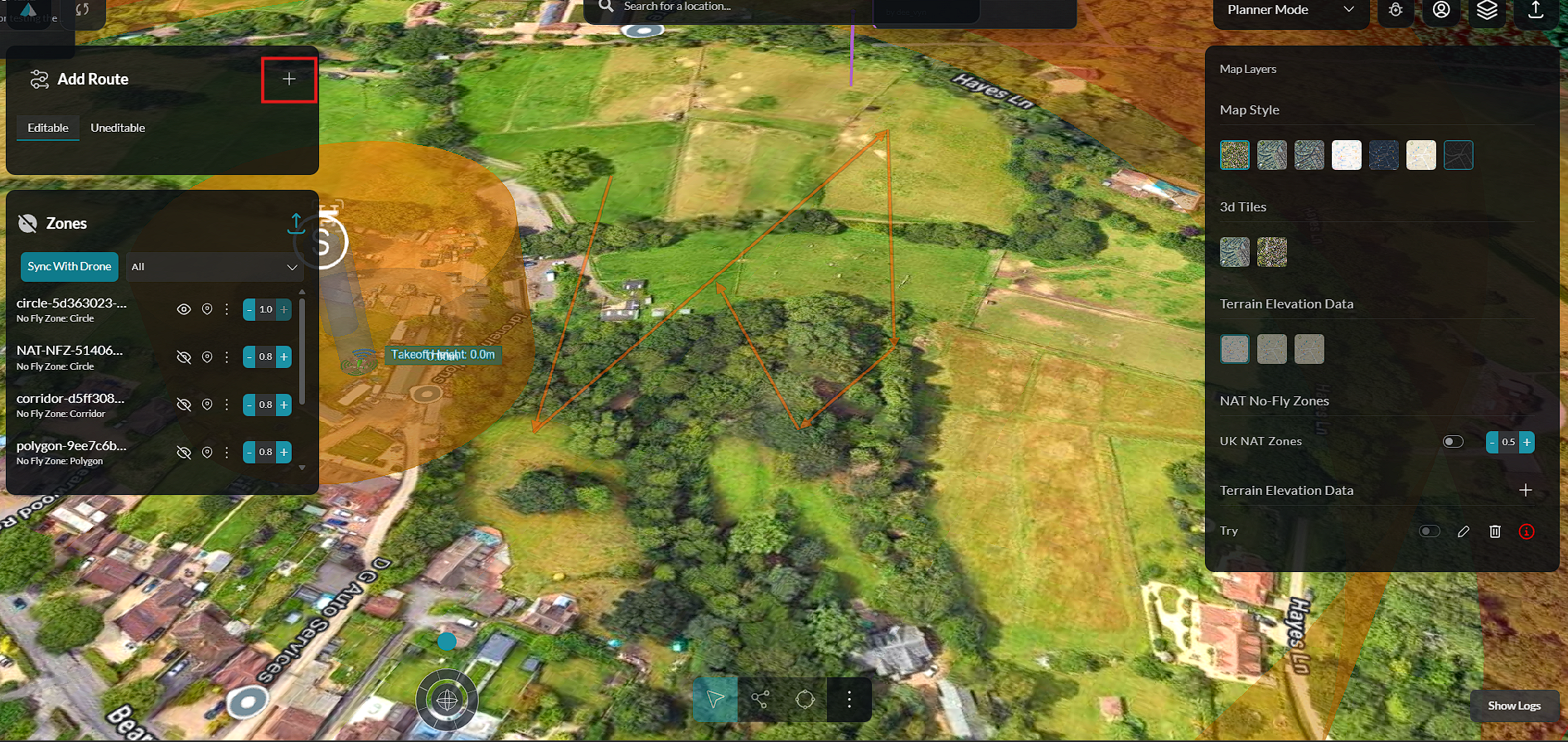
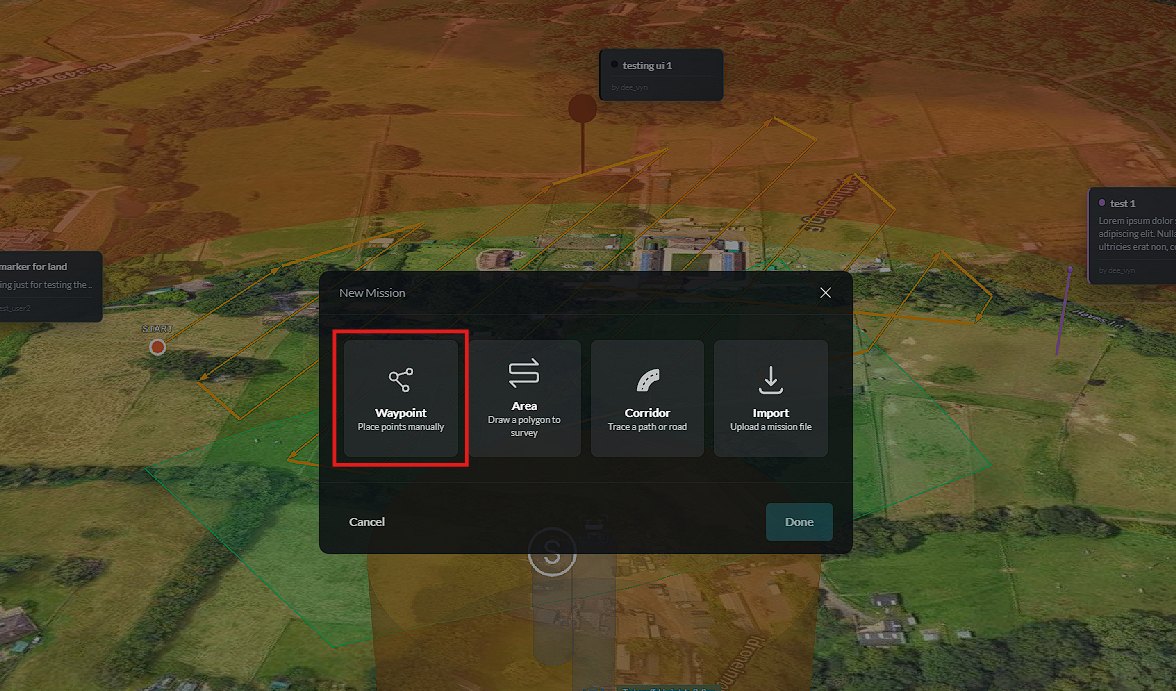
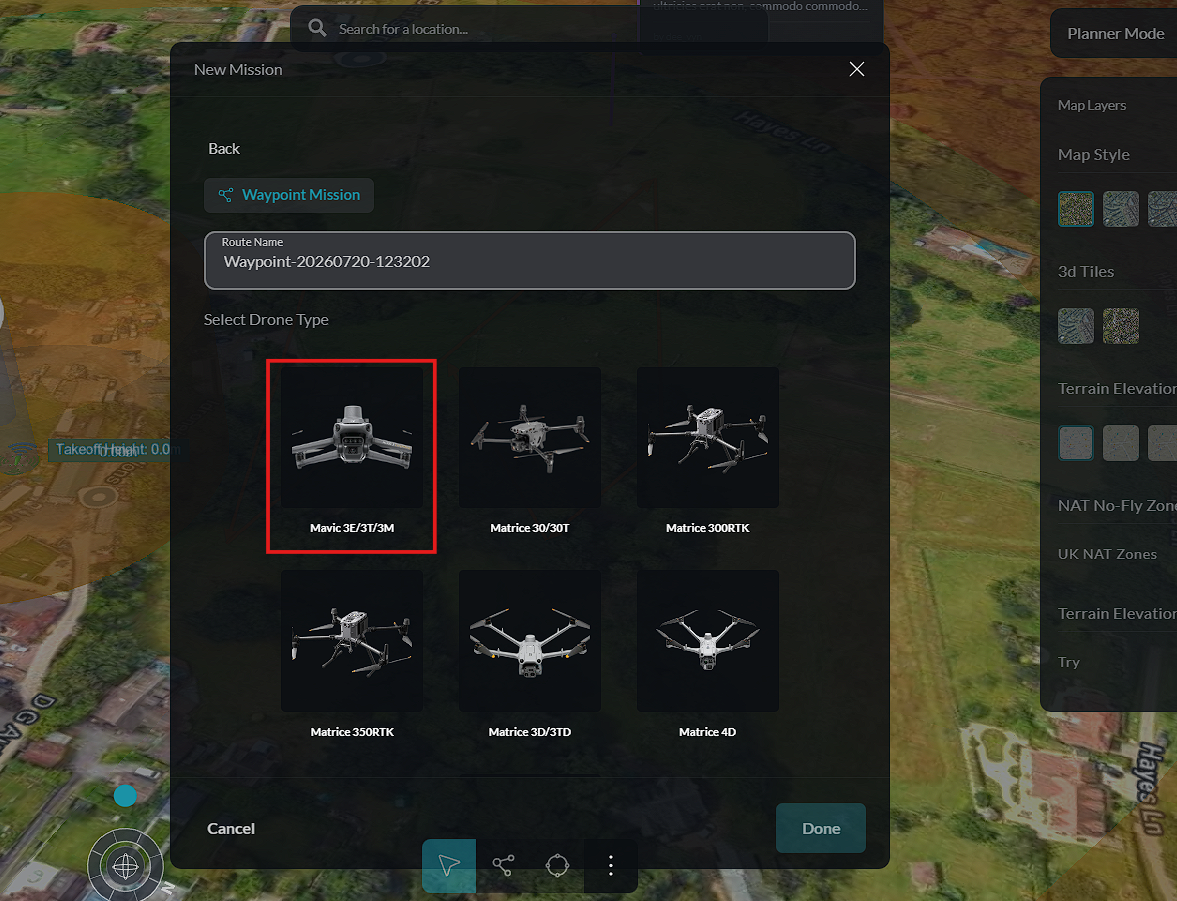
Learn more in the Mission Planning guide.
Step 6 — Switch to Flight Mode
Switch to Flight mode to see your saved missions and prepare for launch.
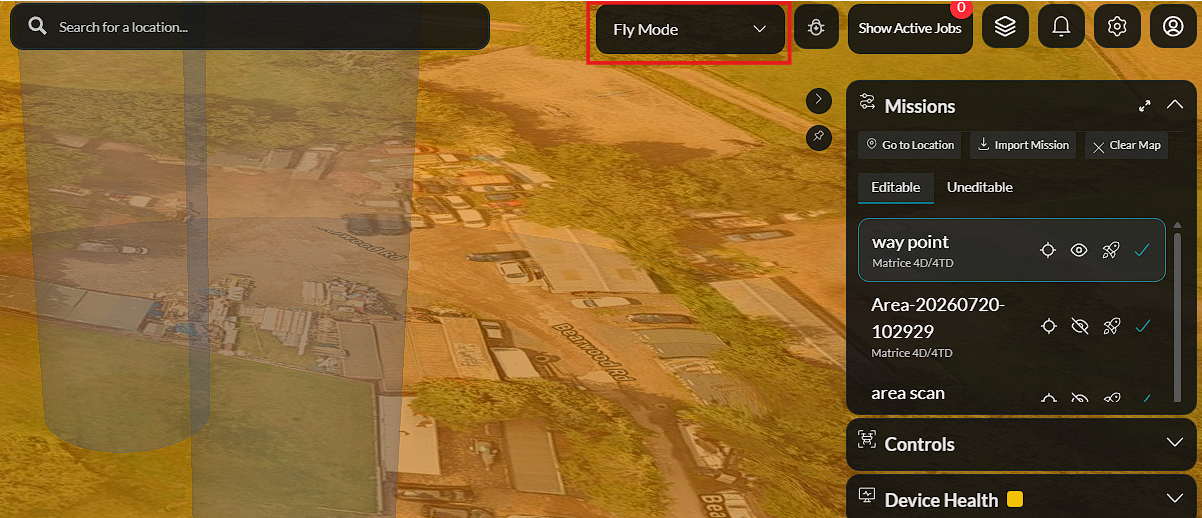
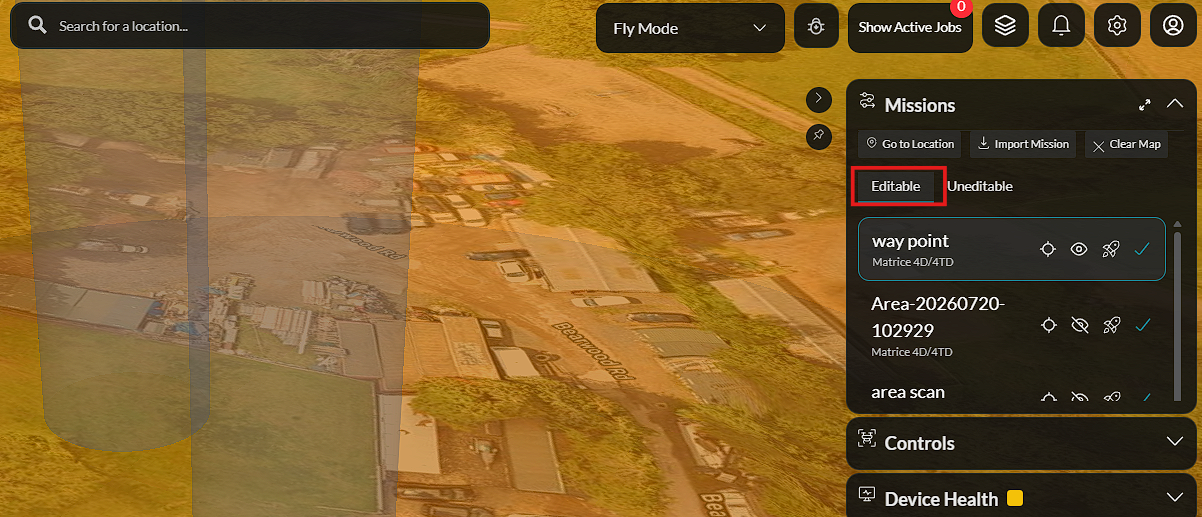
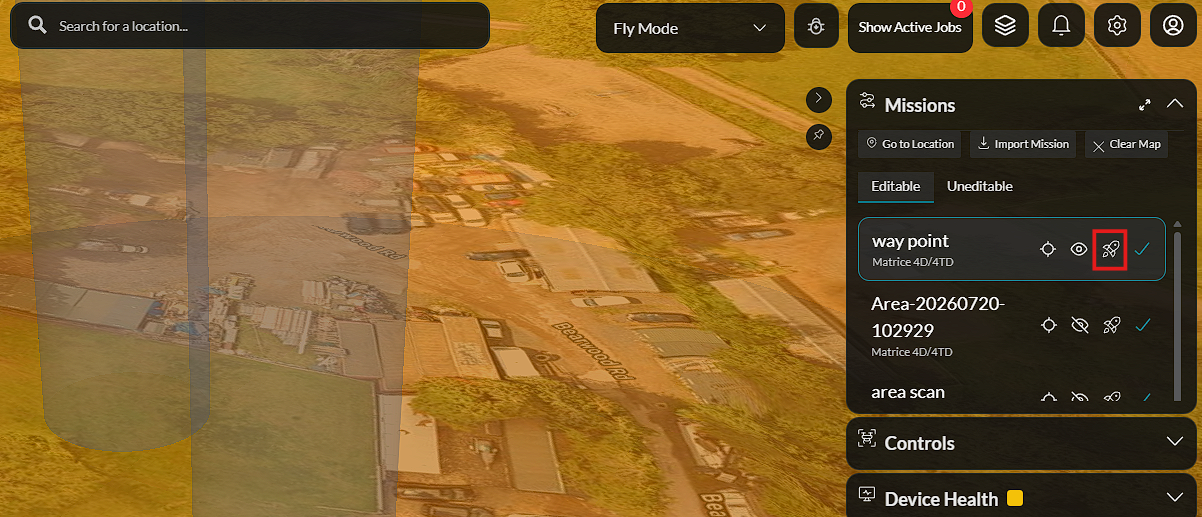
Step 7 — Launch the Mission
Select your mission and press Launch.
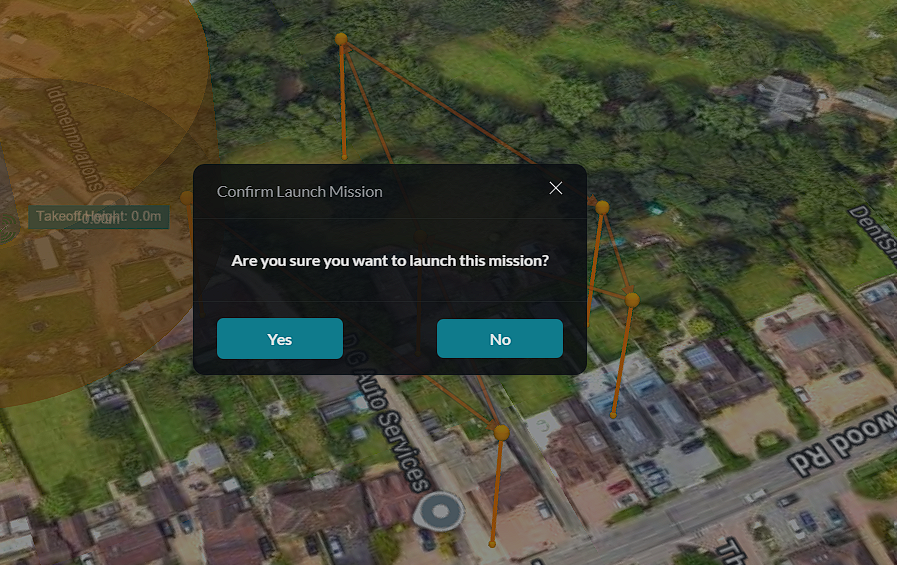
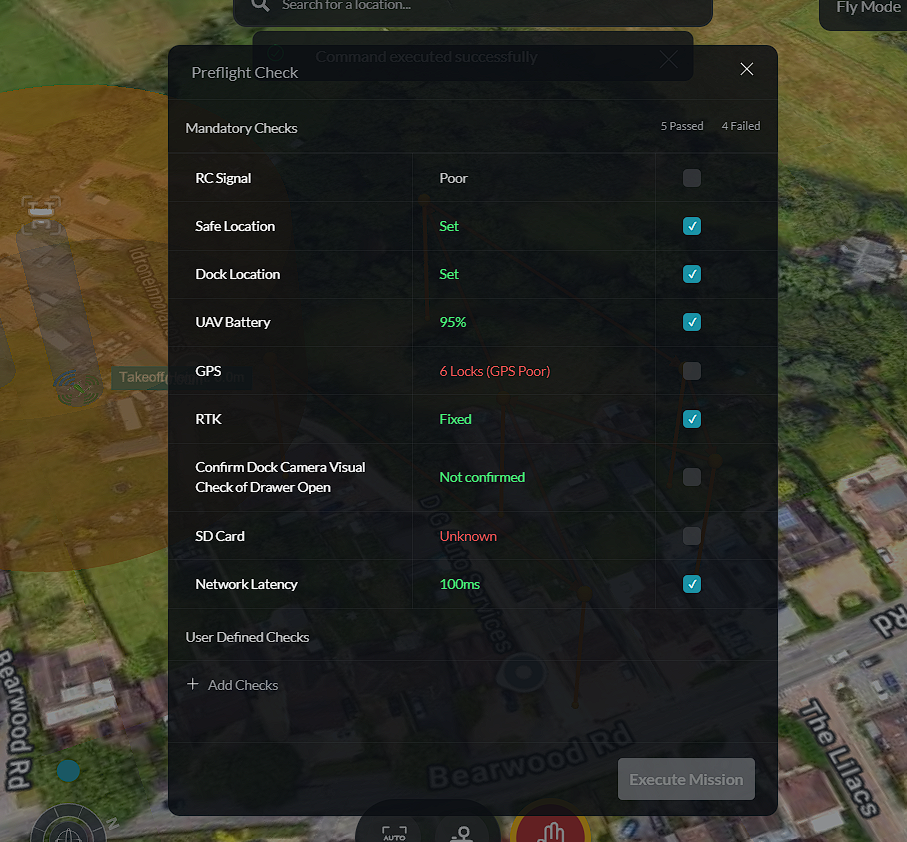
Step 8 — Pre-Flight Checks
The platform runs automatic pre-flight checks before takeoff. Wait for them to complete.
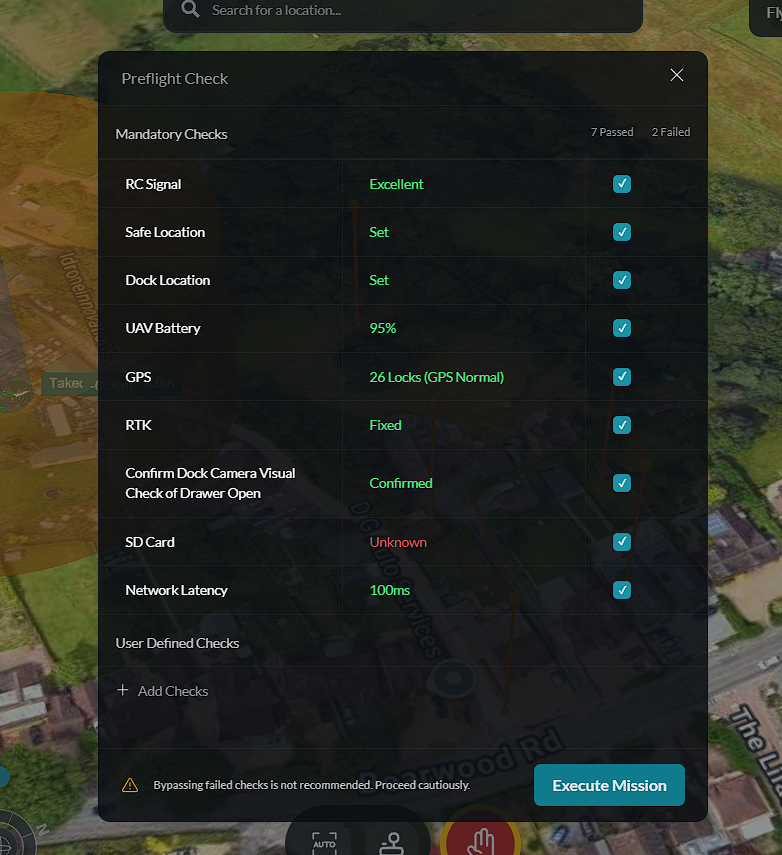
Step 9 — Execute the Mission
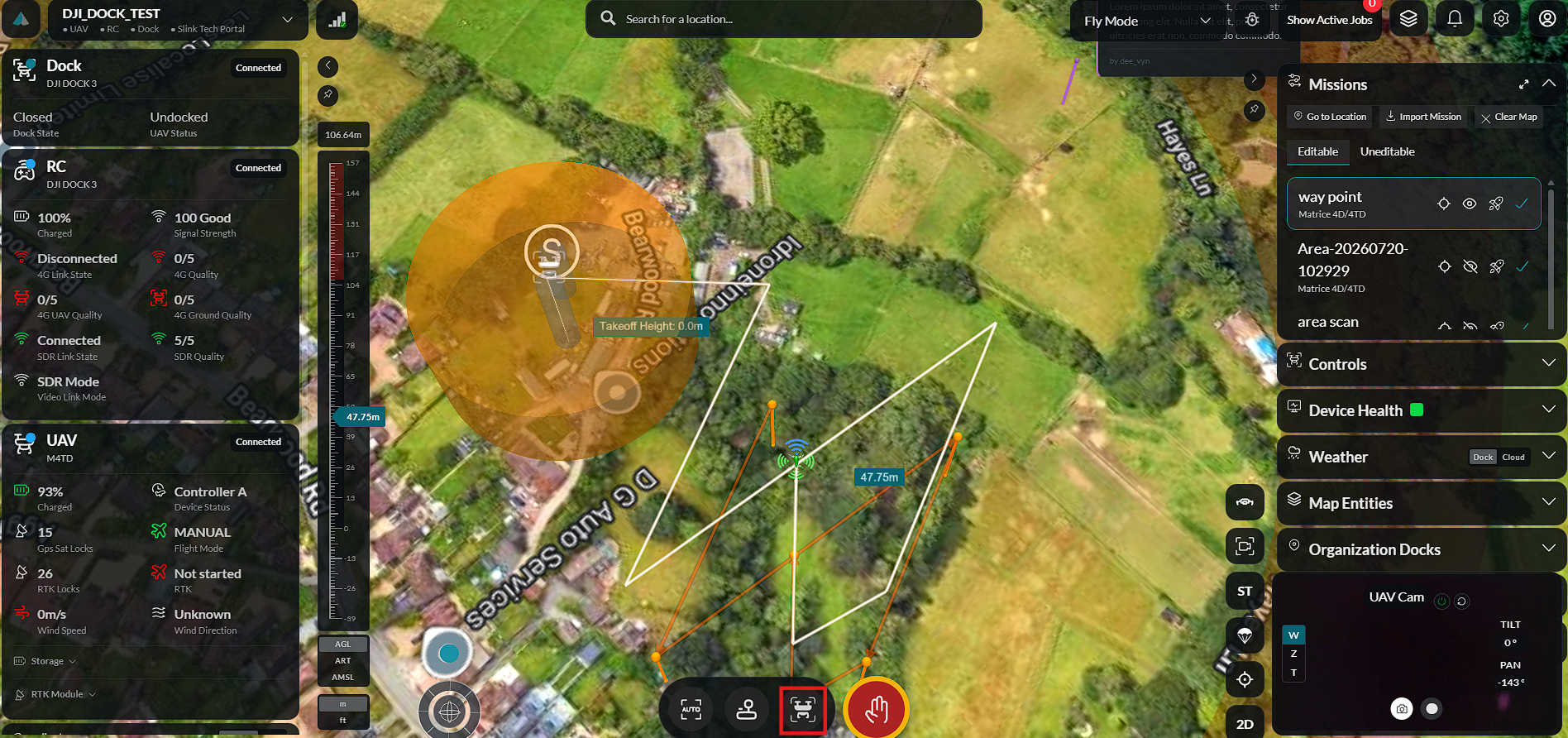
Press Execute to start the mission. The aircraft flies your waypoint route automatically.
Step 10 — Monitor the Flight
Watch the live map, telemetry, and camera feed as the mission runs.
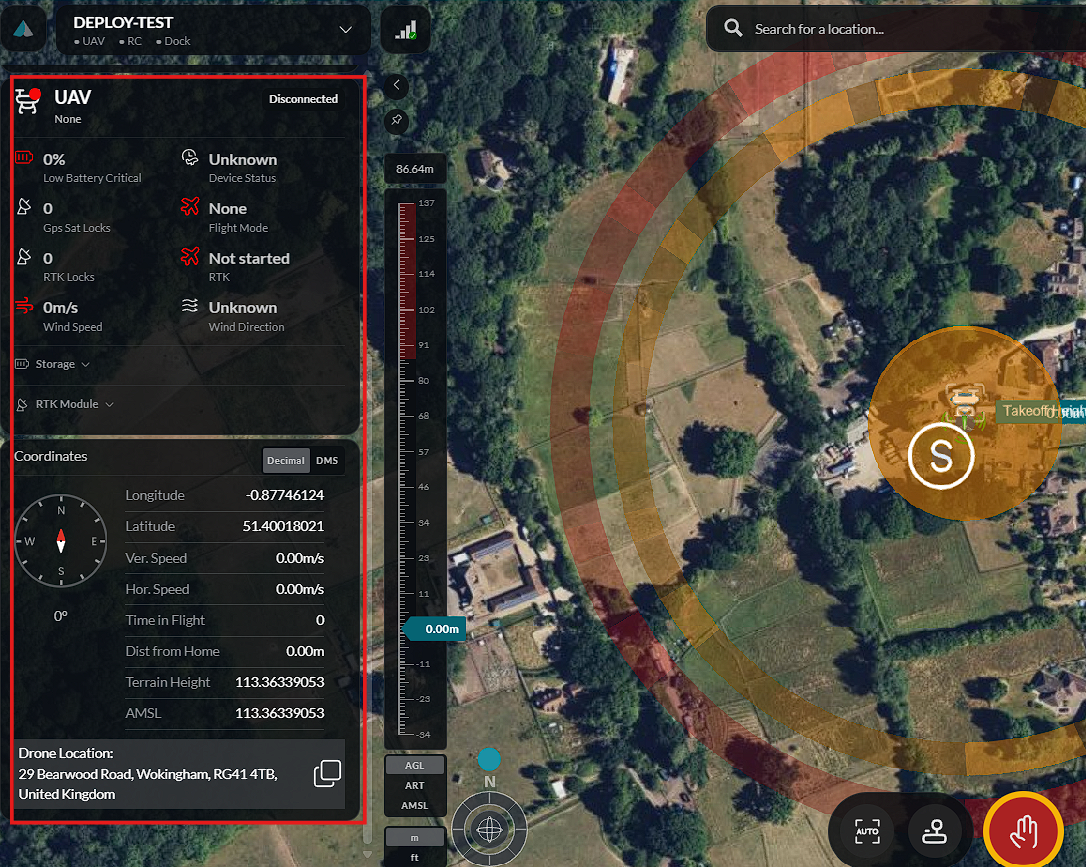
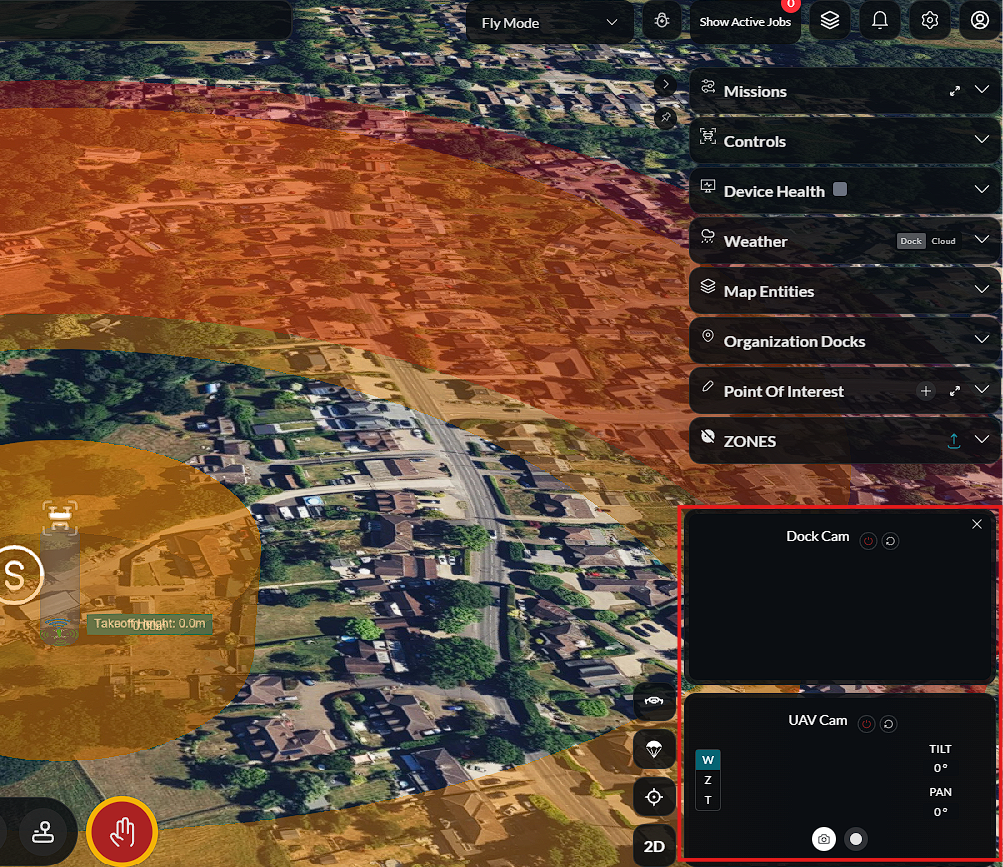
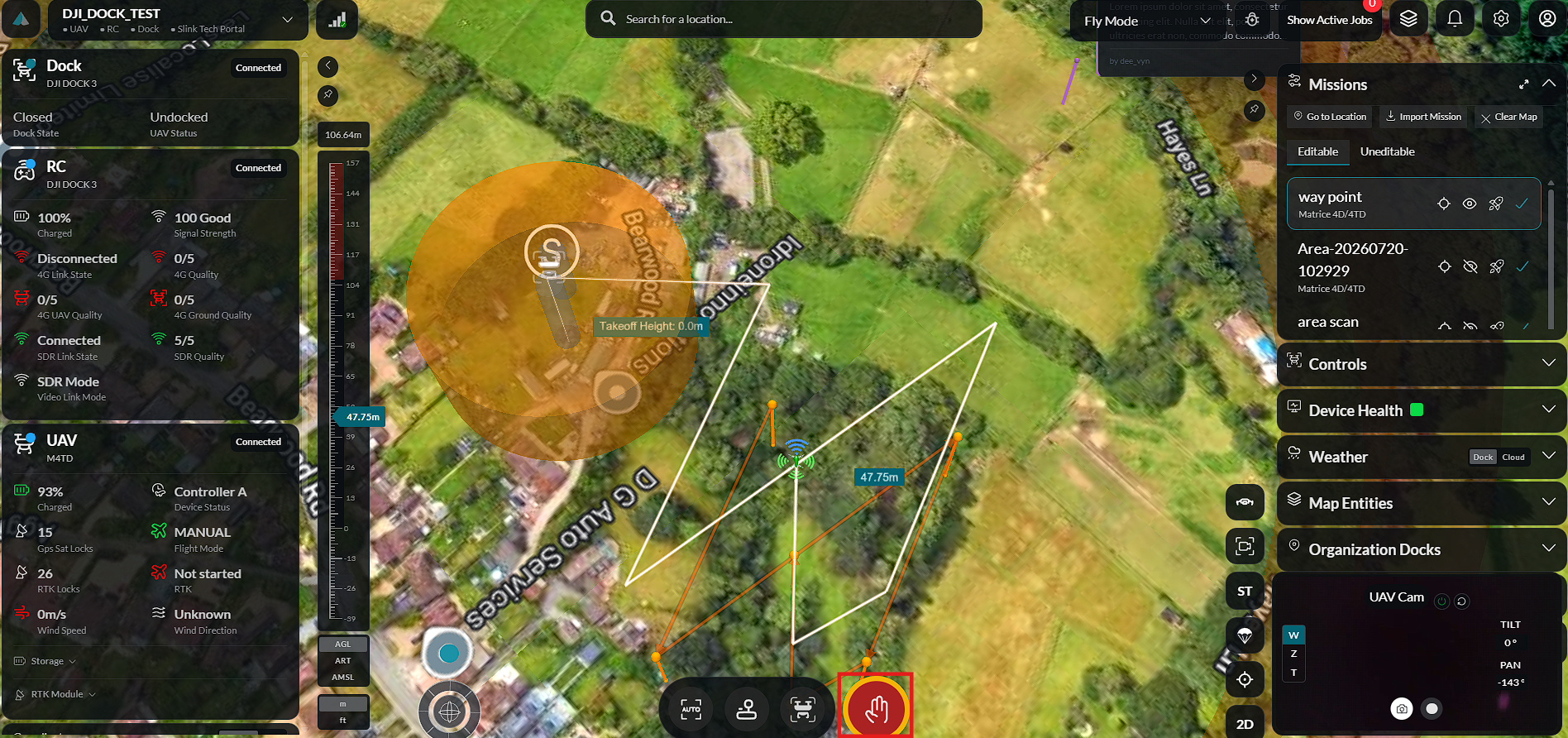
In an emergency, use Emergency Stop. During normal operation the aircraft returns to the dock automatically at the end of the mission.
Step 11 — Review Your Flight
After landing, review the completed flight in Flight Story and the telemetry in Analytics.
What to Look into Next
| Topic | Description | Guide |
|---|---|---|
| Review the flight | Replay the mission visually with telemetry | Flight Story |
| Dig into the data | View time-series telemetry and export | Analytics |
| Fly manually | Manual flight, camera, and payload control | Manual Control |
| Stay safe | Safe locations, failsafes, and emergencies | Safety |
| Plan more | Waypoint, area, photogrammetry, and other missions | Mission Planning |
| Launch efficiently | Deploy, monitor, and control dock missions | Mission Launch |
| Manage your fleet | Devices, controllers, and docks | Devices |
| Watch and learn | Short videos covering every area | Learning Base |