Policies
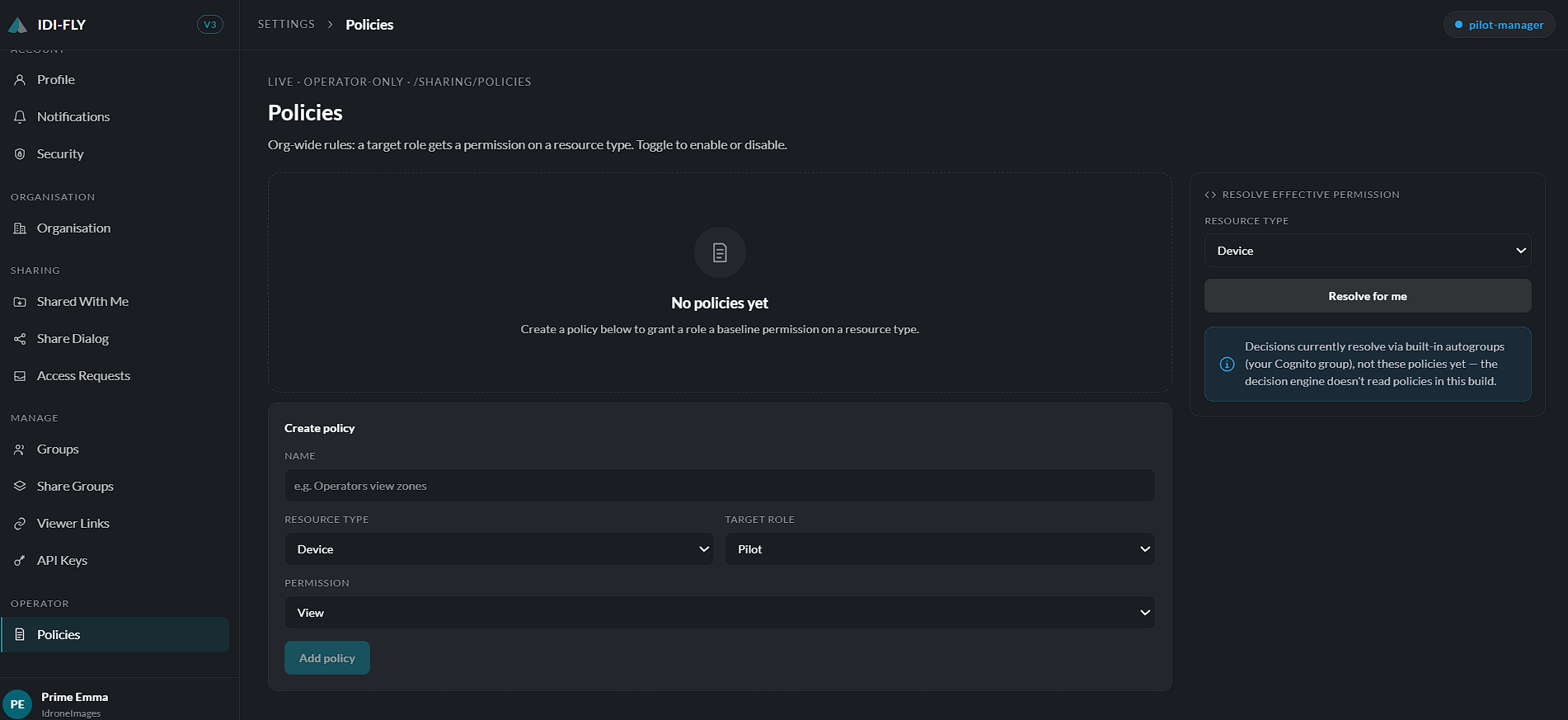
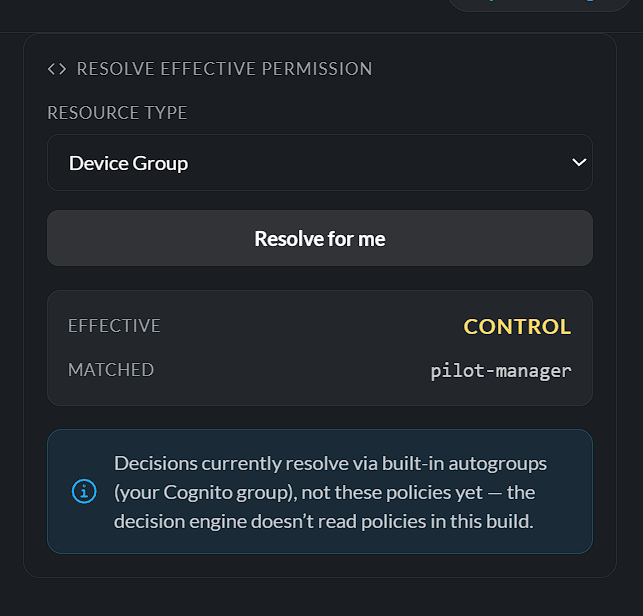
The Policies page allows administrators to define and manage organization-wide policies that control how users, devices, and platform resources operate. Policies help ensure consistent configuration, security, and operational standards across the organization.
Viewing Policies
Navigate to:
Settings → Policies
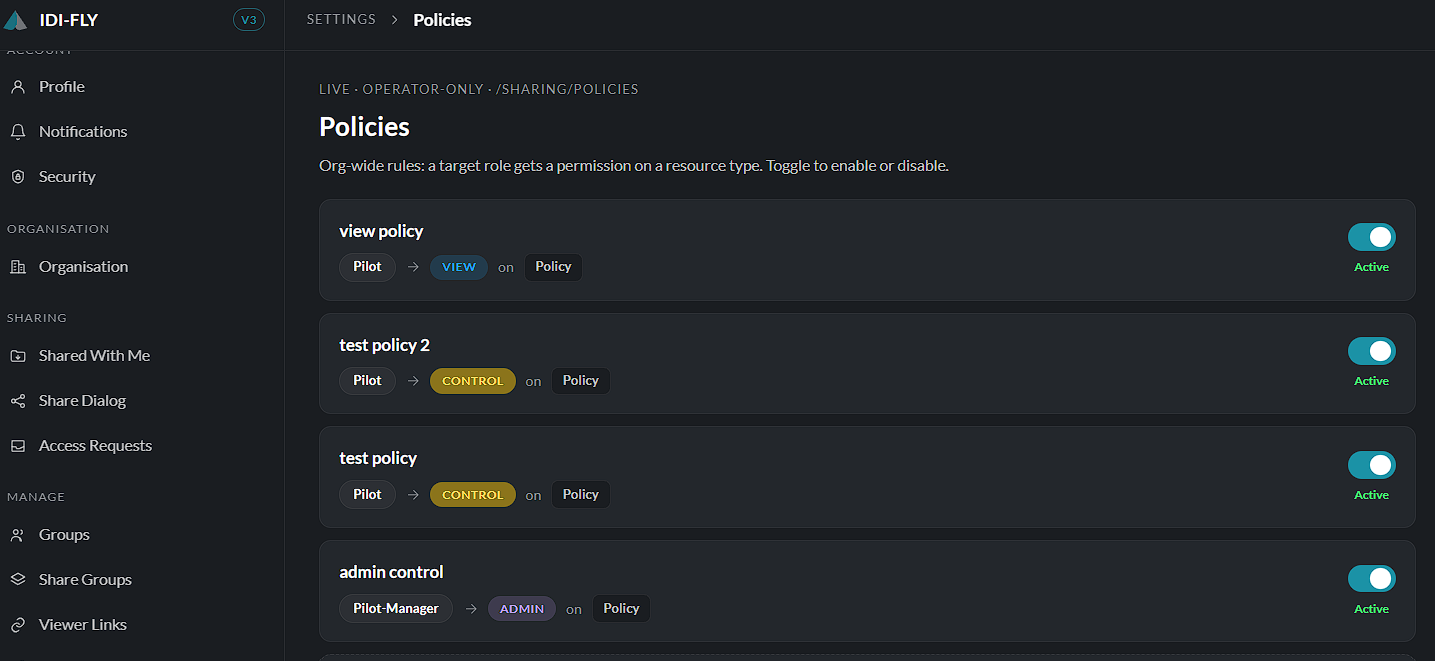
The page displays all configured policies within the organization. Each policy includes information such as its name, description, status, and the resources or users to which it applies.
A search field is available to quickly locate a policy by name.
Creating a Policy
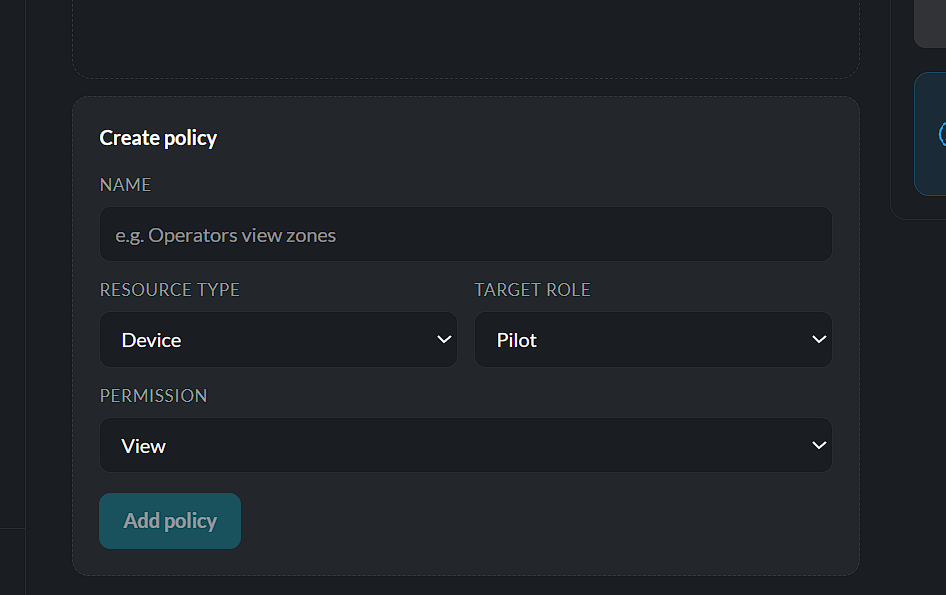
To create a new policy:
- Click Create Policy.
- Enter a unique policy name.
- Provide an optional description.
- Configure the policy settings according to your organization's requirements.
- Select the users, groups, devices, or resources the policy should apply to.
- Click Save to create the policy.
The new policy becomes active immediately unless configured otherwise.
Editing a Policy
Existing policies can be modified as operational requirements change.
To edit a policy:
- Locate the required policy.
- Click Edit.
- Update the required settings.
- Click Save to apply the changes.
Changes take effect immediately after they are saved.
Enabling or Disabling a Policy
Policies can be temporarily enabled or disabled without being deleted.
Disabling a policy suspends its enforcement while preserving its configuration for future use.
Deleting a Policy
To permanently remove a policy:
- Select the policy from the list.
- Click Delete.
- Confirm the deletion when prompted.
Deleting a policy permanently removes it from the organization and it will no longer be enforced.
Note: Only users with the appropriate administrative permissions can create, modify, enable, disable, or delete organizational policies.
Create and manage organizational policies that control platform behavior and user permissions.