Roles
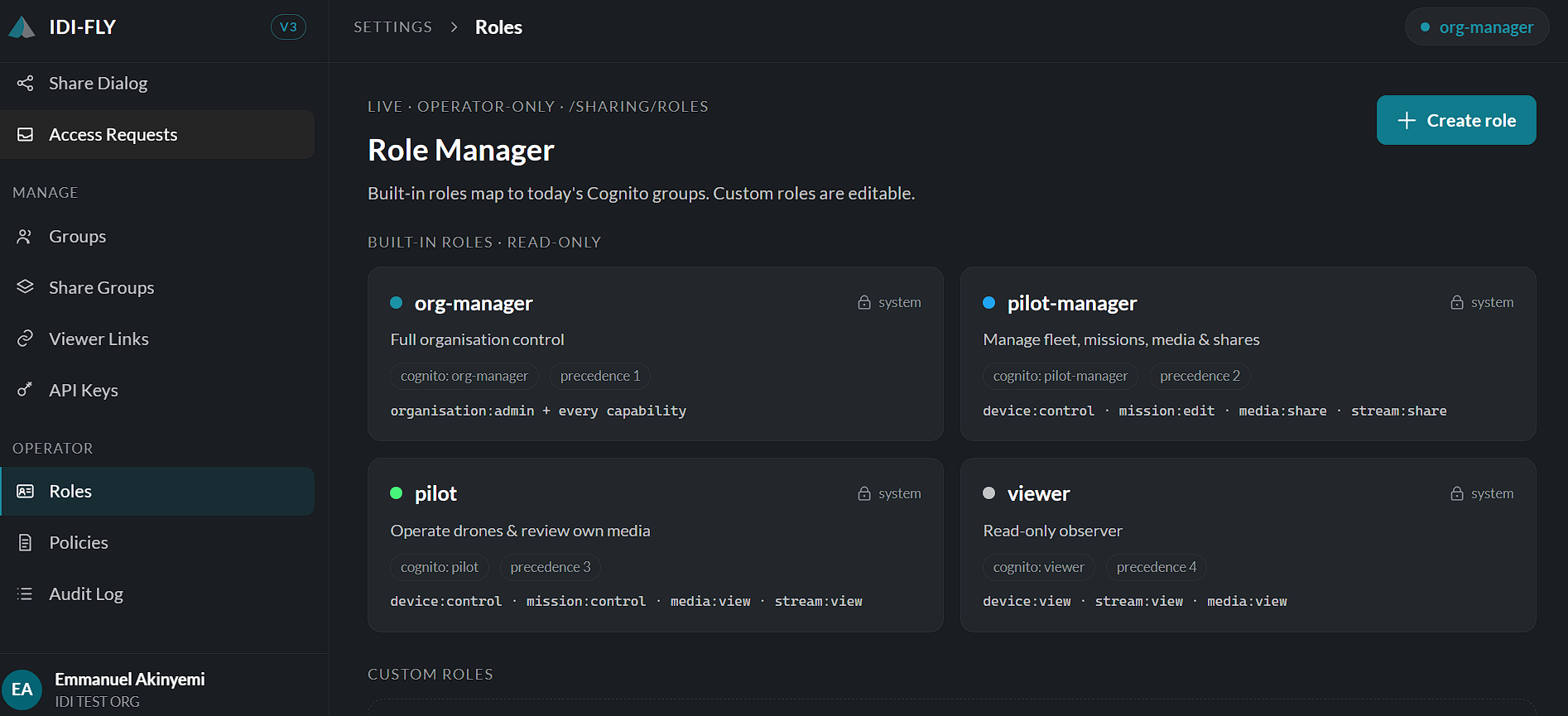
The Roles page allows administrators to manage user roles and define the permissions associated with each role. Roles determine which applications, features, and administrative functions users can access within the platform.
Using roles ensures that users have access only to the tools and resources required for their responsibilities.
Viewing Roles
Navigate to:
Settings → Roles
The page displays all available roles configured for the organization, together with a summary of the permissions assigned to each role.
A search field is available to quickly locate a role by name.
Additional Role Management
The Roles page includes a set of built-in system roles and supports the creation of custom roles tailored to your organization's operational requirements.
Built-in Roles
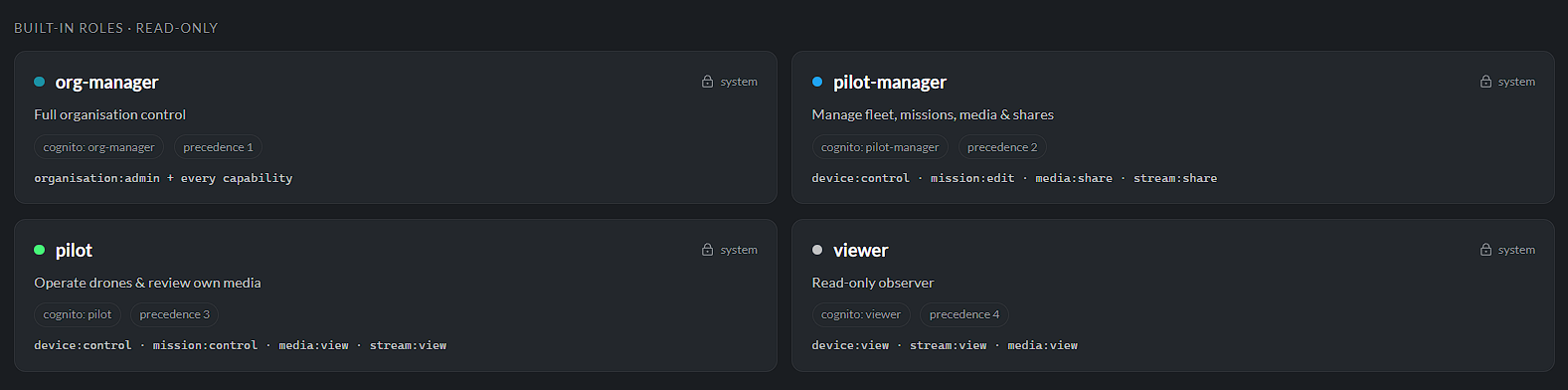
IDI-FLY provides several predefined system roles that cannot be modified. These roles include predefined capabilities designed for common operational responsibilities.
Typical built-in roles include:
- Organisation Manager – Full administrative control across the organization.
- Pilot Manager – Manages fleets, missions, media, and resource sharing.
- Pilot – Operates drones and manages assigned missions and media.
- Viewer – Read-only access to permitted resources.
Built-in roles serve as templates and provide a consistent permission structure for standard users.
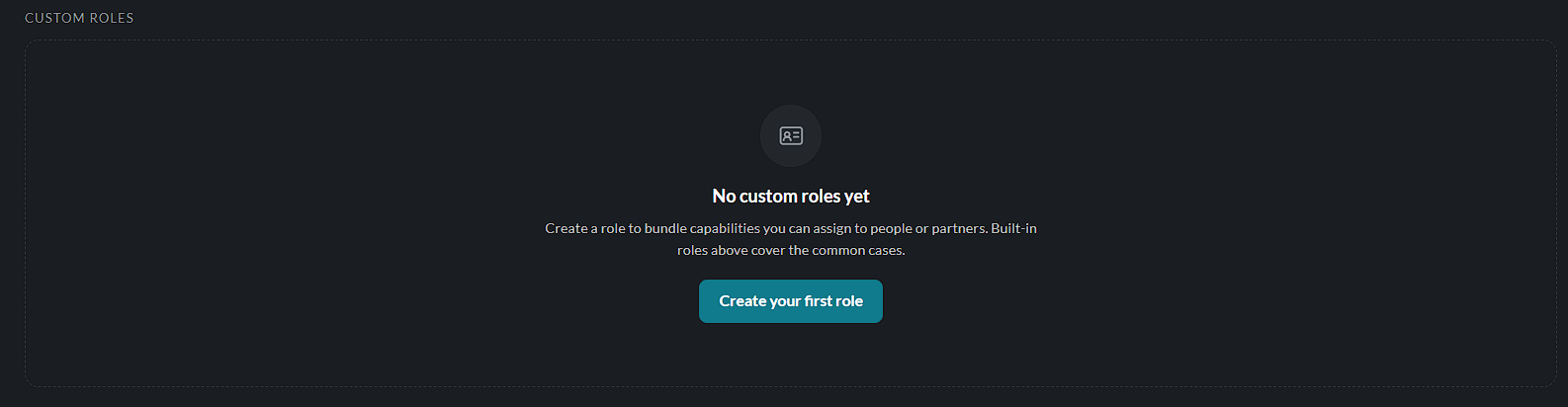
Creating a Custom Role
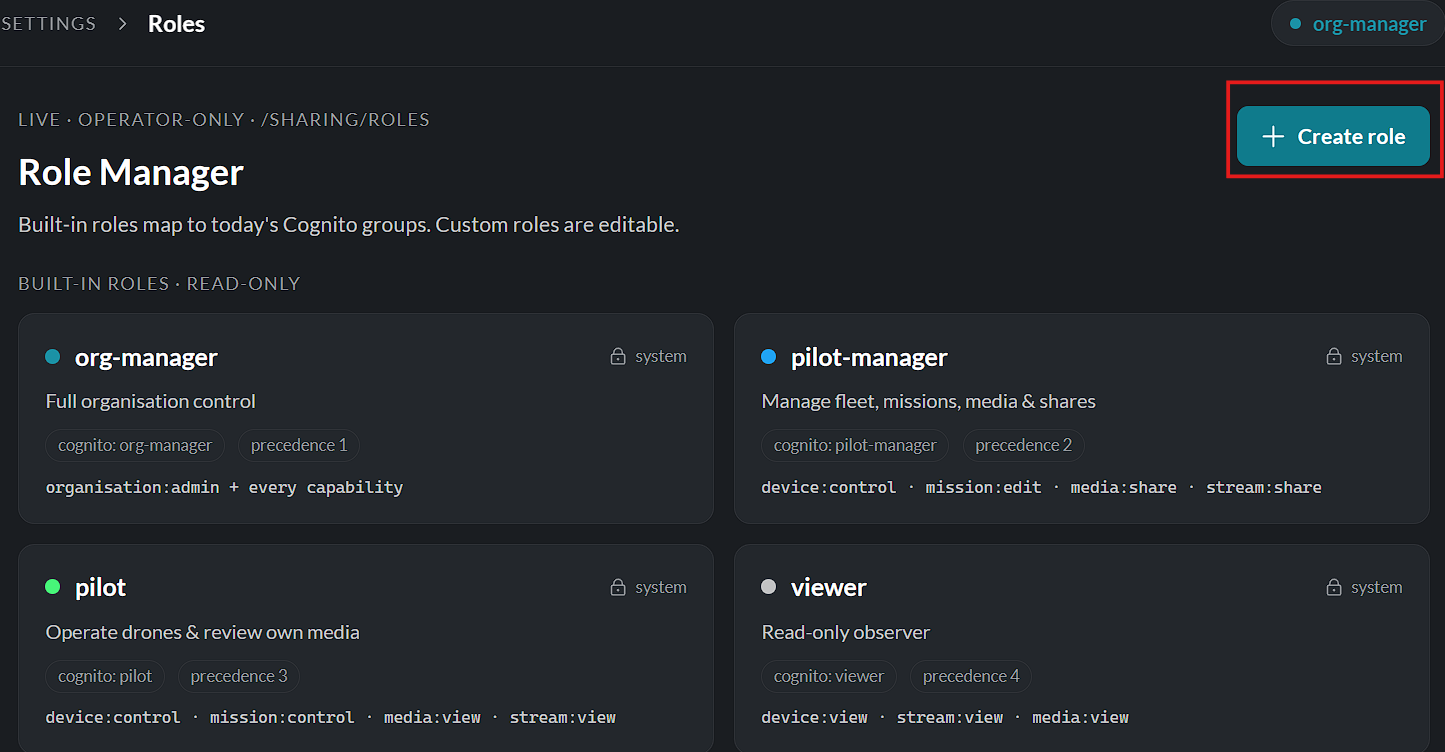
To create a custom role:
- Navigate to Settings → Roles.
- Click Create Role.
- Enter a unique role name.
- Optionally select an existing role to Clone From, allowing the new role to inherit an existing permission set.
- Select the capabilities required for the role.
- Click Create Role.
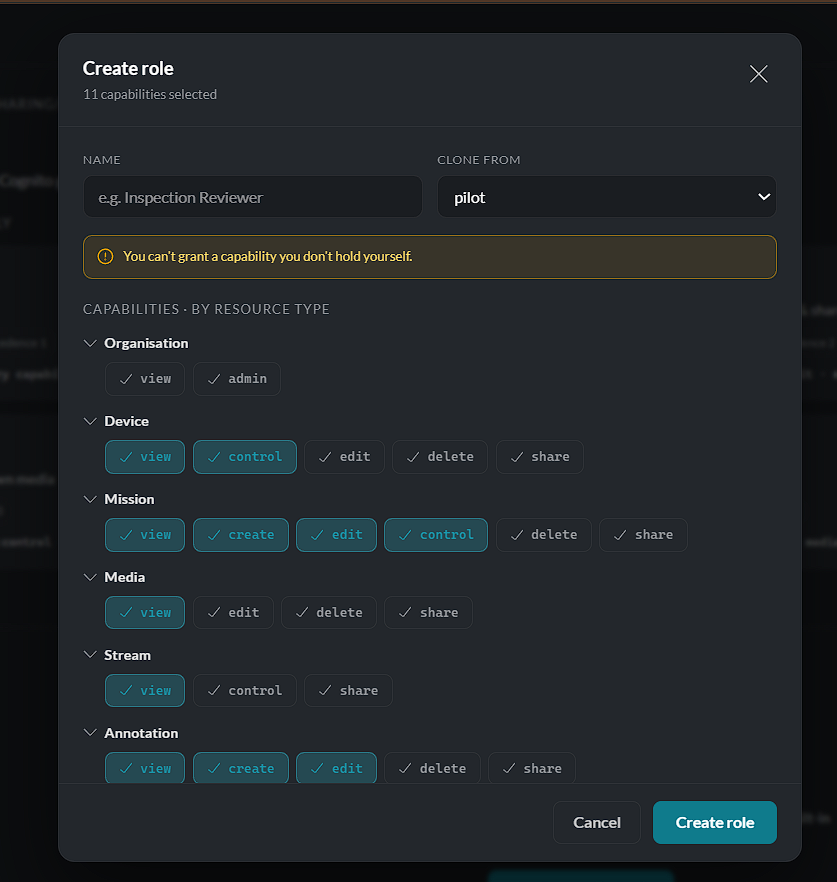
Note: You can only assign permissions that are already granted to your own account. Permissions you do not possess cannot be assigned to other roles.
Role Capabilities
Permissions are organized by resource type, allowing administrators to grant only the access required for each role.
Capabilities may be configured for resources such as:
- Organisation
- Devices
- Missions
- Media
- Streams
- Annotations
- Zones
- Telemetry
Depending on the resource, available permissions may include:
- View
- Create
- Control
- Edit
- Delete
- Share
- Admin
Editing a Custom Role
Custom roles can be modified at any time.
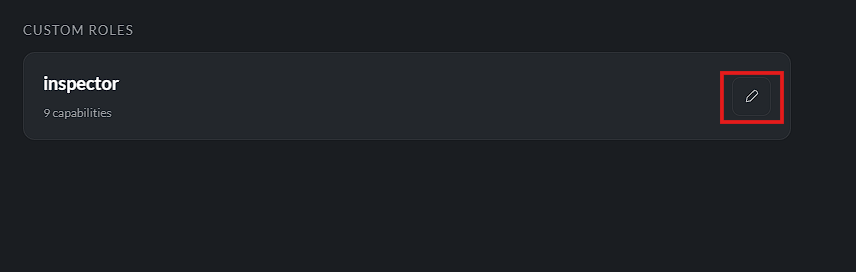
To edit a role:
- Locate the custom role from the Roles page.
- Click the Edit icon.
- Update the role name or modify its permissions.
- Click Save Changes.
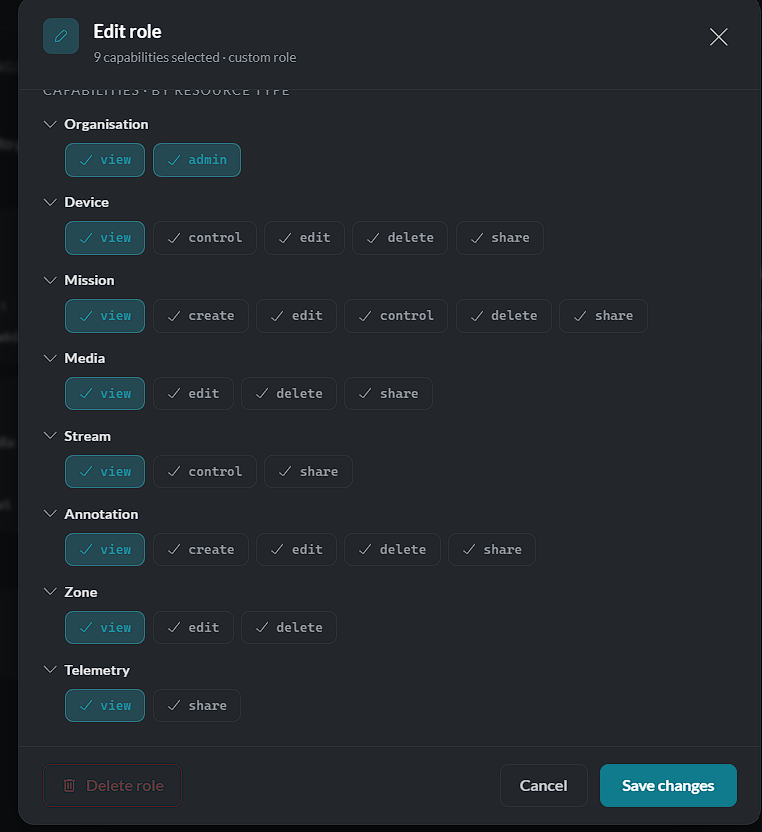
All users assigned to the role immediately receive the updated permissions.
Deleting a Custom Role
If a custom role is no longer required:
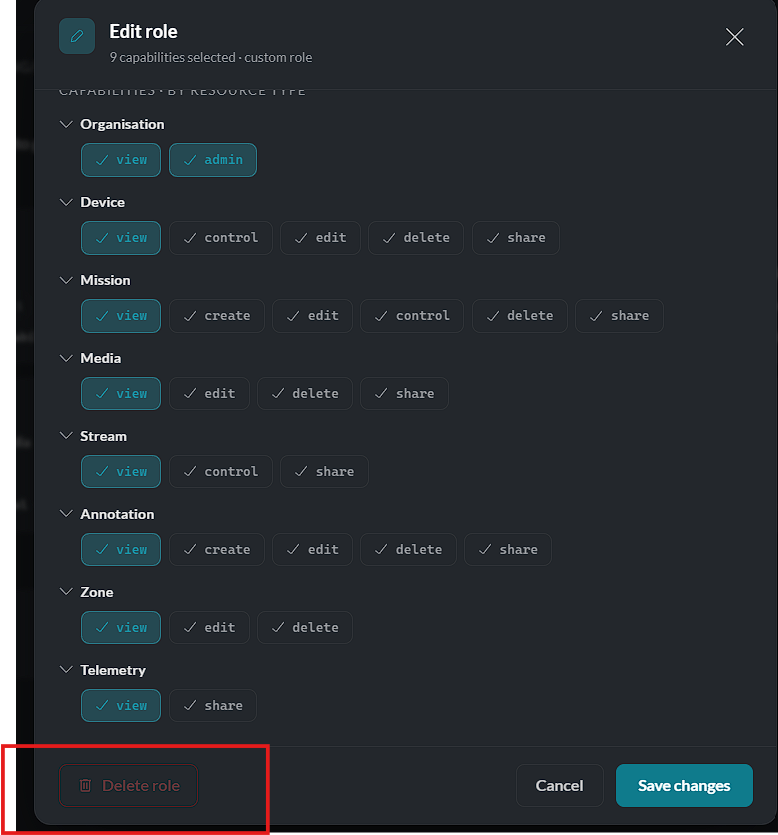
- Open the role for editing.
- Click Delete Role.
- Confirm the deletion.
Only custom roles can be deleted. Built-in system roles are permanent and cannot be removed.
Manage user roles and define permission levels within the platform. (Available when enabled.)