Access Requests
The Access Requests page allows authorized users to review and manage requests from users who require access to shared resources. It provides a centralized location for approving or rejecting requests while maintaining secure access control across the platform.
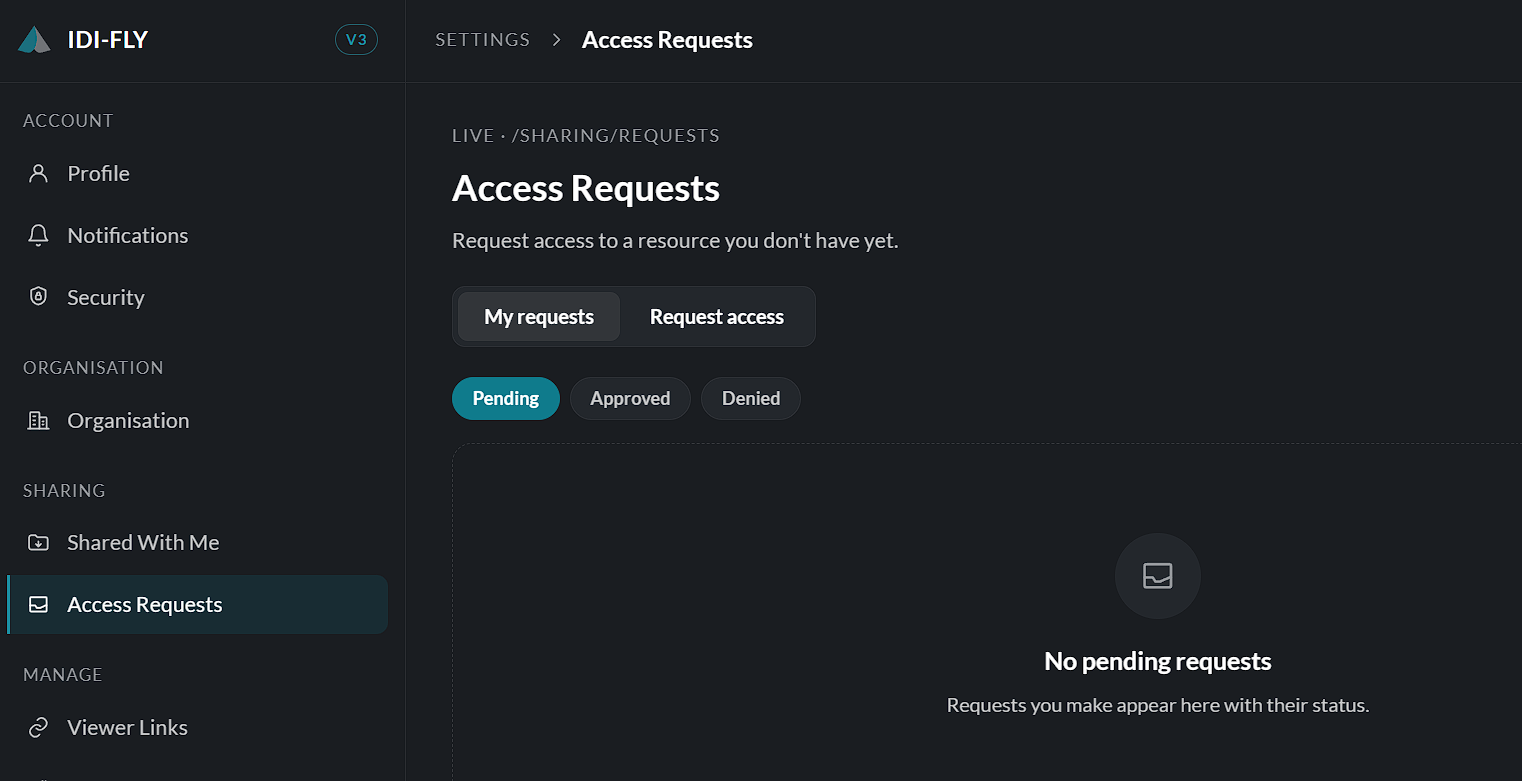
Viewing Access Requests
Navigate to:
Settings → Access Requests
The page displays all pending and processed access requests that you are authorized to manage.
Each request includes information such as:
- Requesting user
- Requested resource
- Resource type
- Date of request
- Current request status
A search field is available to quickly locate a specific request.
Reviewing a Request
To review a request:
- Locate the request from the list.
- Select the request to view its details.
- Review the requested resource and the user requesting access.
This information helps administrators determine whether access should be granted.
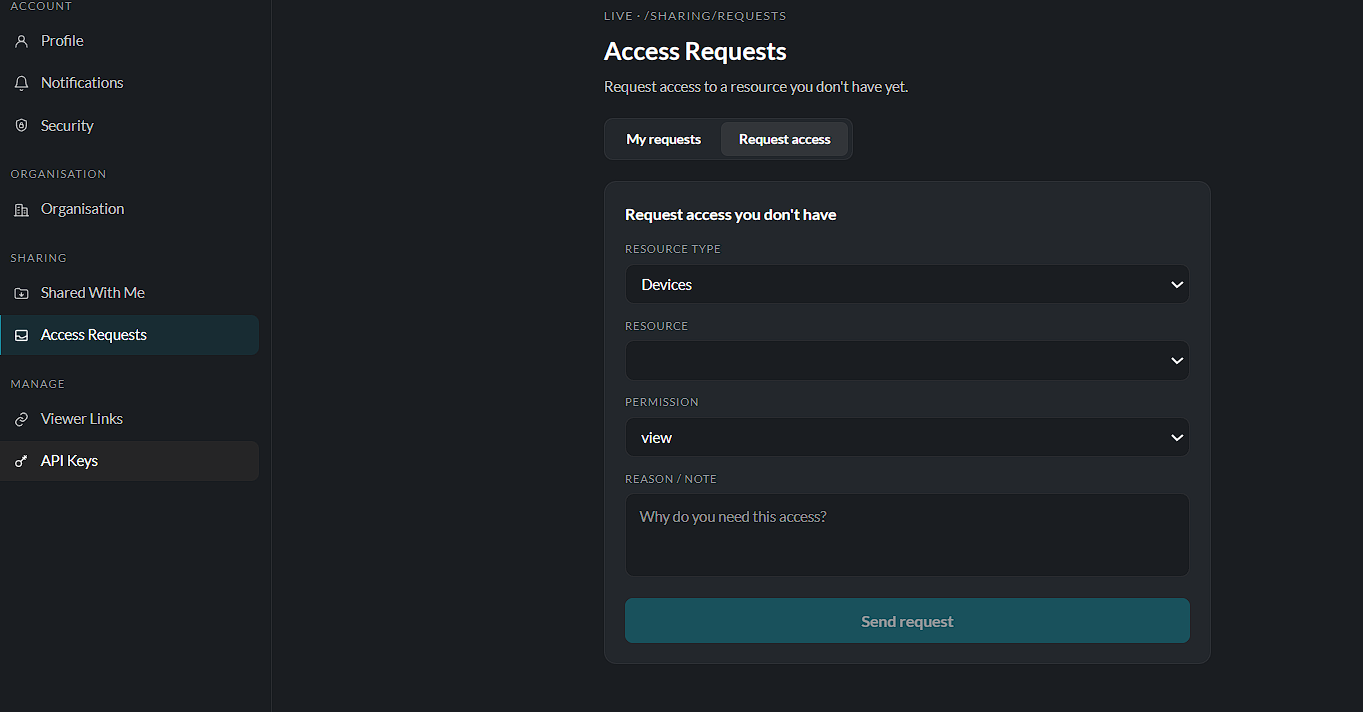
Approving a Request
To grant access:
- Open the required request.
- Verify the request details.
- Select Approve.
- Choose the appropriate permission level if prompted.
- Confirm the action.
The requester immediately receives access to the resource based on the assigned permissions.
Rejecting a Request
If access should not be granted:
- Open the request.
- Click Reject.
- Confirm the action.
The requester is notified that the access request has been declined.
Request Status
Each access request displays its current status, allowing administrators to easily monitor outstanding and completed requests.
Common statuses include:
- Pending – Waiting for review.
- Approved – Access has been granted.
- Rejected – The request has been declined.
Note: Only users with the appropriate permissions can approve or reject access requests. The permissions granted through an approved request are determined by the organization's sharing policies and the administrator's access level.